Features
All of it, in detail
The help (F1) explains each one, in six languages.
One tree, many files
A directory tree logged into memory with the file window below it, Branch and Showall to list the files of a whole branch or of everything logged, and tags that group operations act on.
File operations
Copy and move with or without the paths, with progress and conflict details. Delete to the trash with Oops to restore, Prune, rename with masks, permissions and dates, Compare between two windows.
Finding things
Filespec by name, date and size, Treespec to type a path, bookmarks, and Ctrl+S to search the tagged files for text.
Looking inside and editing
A text and hex viewer with search, soft wrap, line numbers and syntax colors, a table
mode with a SQL filter for spreadsheets, CSV, JSON Lines, DBF, SQLite and Parquet, Markdown
files shown rendered, plus Autoview next to the list. E opens your text editor or a hex editor
(hexedit, heh, bvi, dhex) right
inside Xylem's frame and color theme — or disables binary editing in F12.
Batch over records
Ctrl+B turns tagged files, the records of a table or the lines of a text into a script, JSON, CSV, XML, HTML, SQL or a SQLite database, with escapes that keep hostile data in its place.
Duplicates
Alt+Y finds files and whole folders with the same contents, without downloading anything from a Google Drive mounted by rclone, and always leaves one copy.
Archives
ZIP, 7z and TAR archives open as directories: browse them, view and copy out of them. ZIP and TAR can be created too.
Built-in terminal
Alt+X opens a shell whose cd takes the tree along;
Alt+O types the tagged files at the prompt.
Remote and cloud
Browse and copy from machines over SSH, with their own terminal. Google Drive, Amazon S3 and some 70 other services through rclone.
Git and more
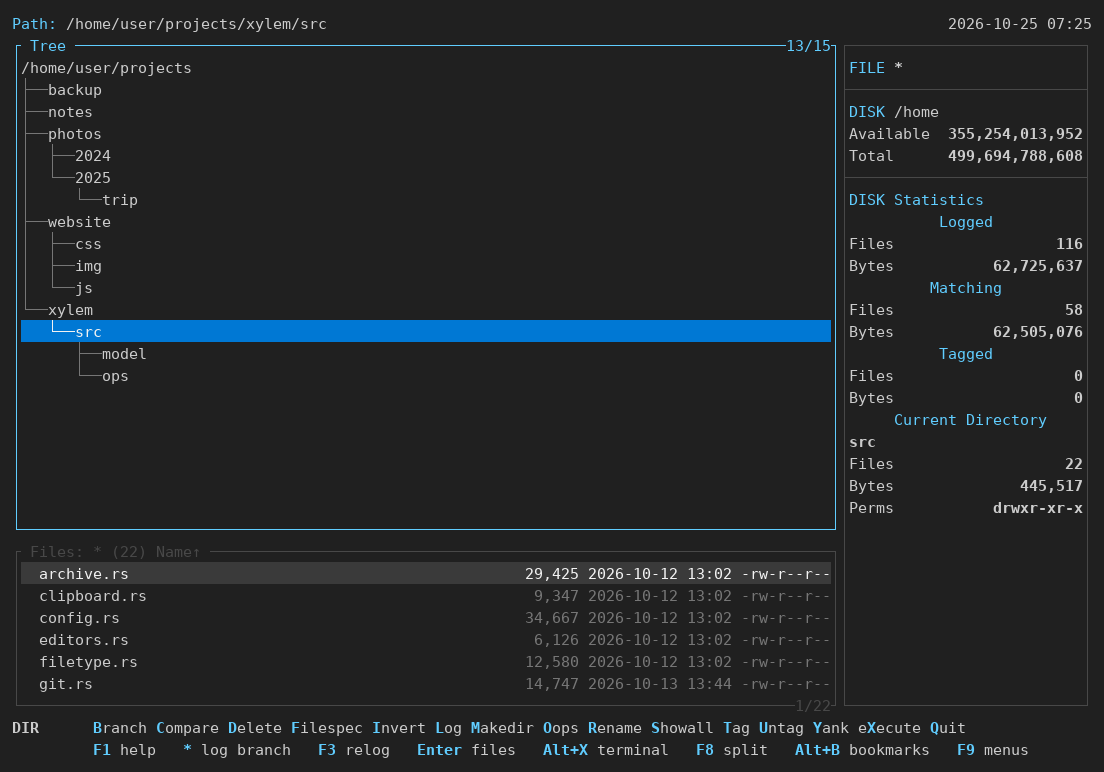
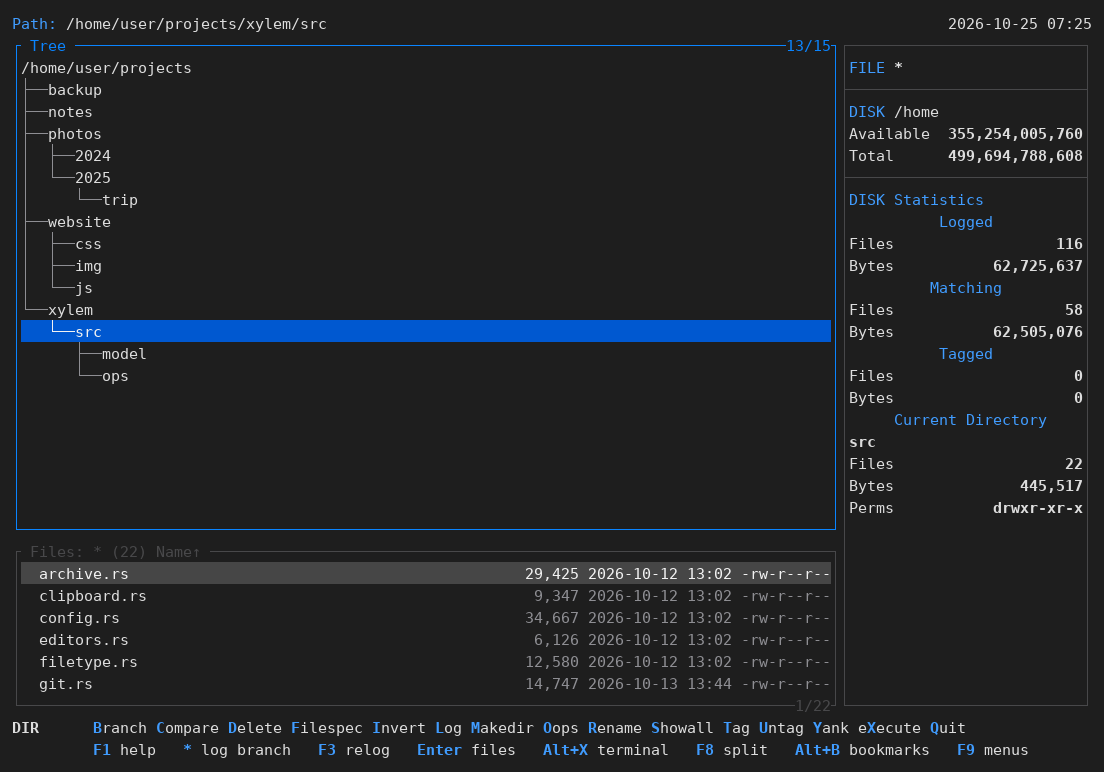
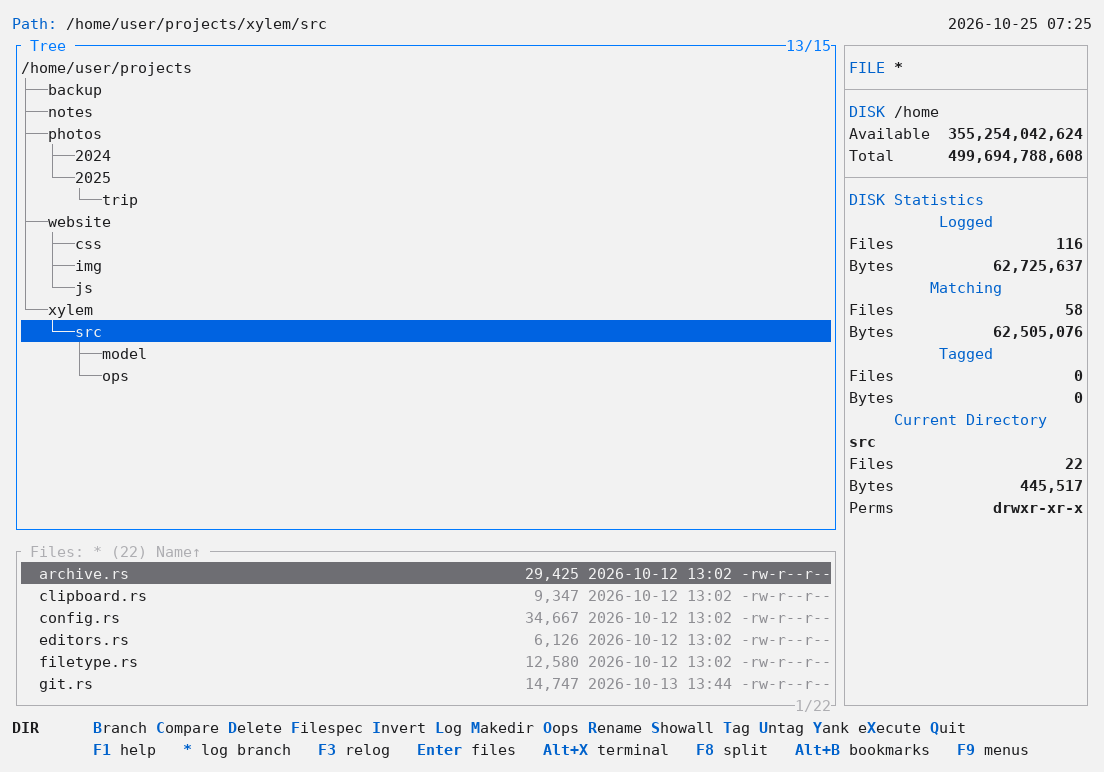
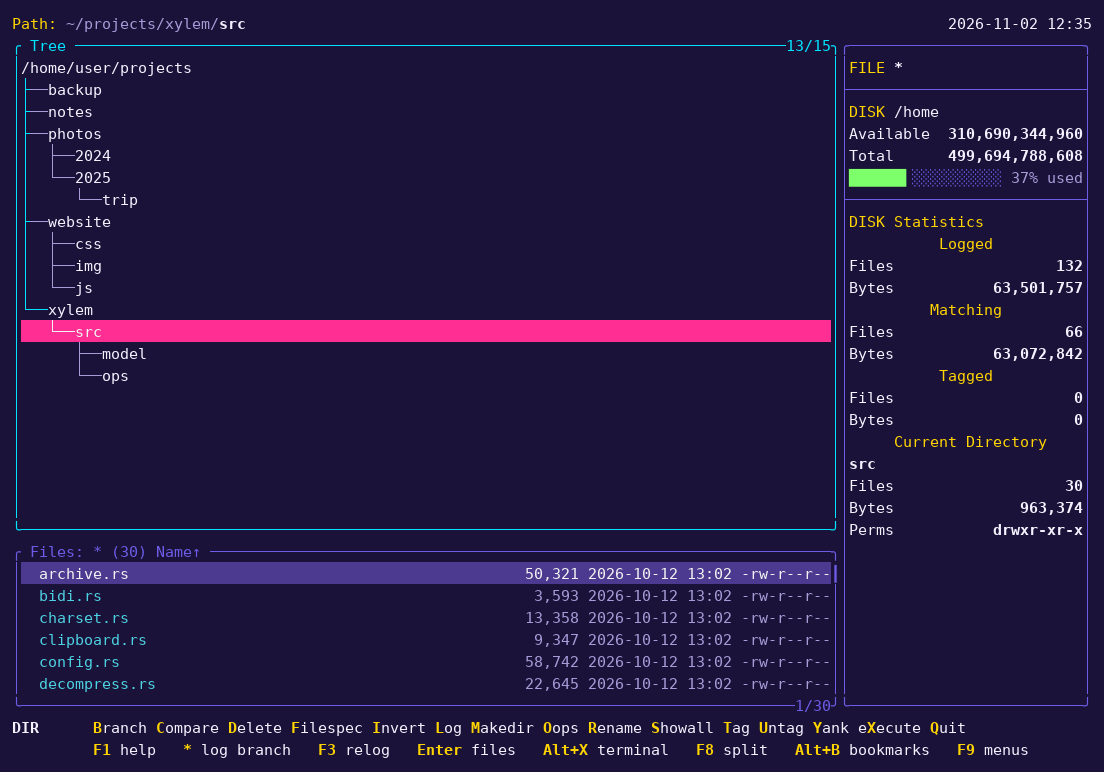
An optional Git menu with status letters in the file list, the clipboard, a configuration screen (F12) and twelve themes.
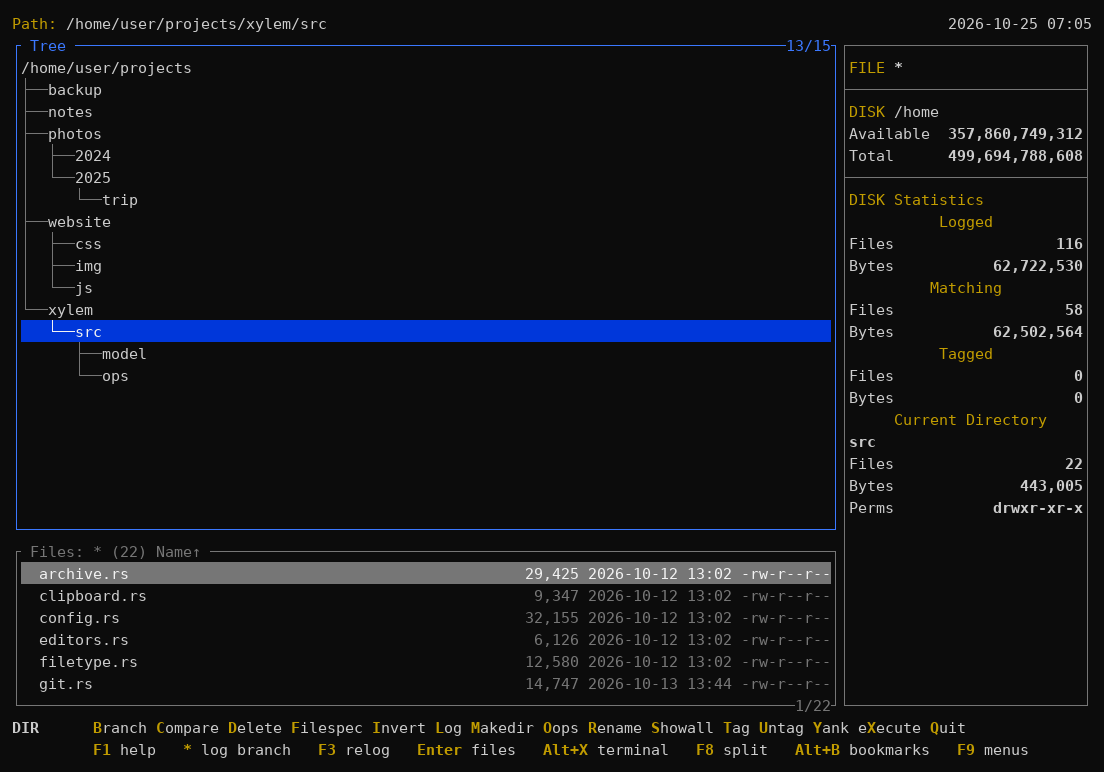
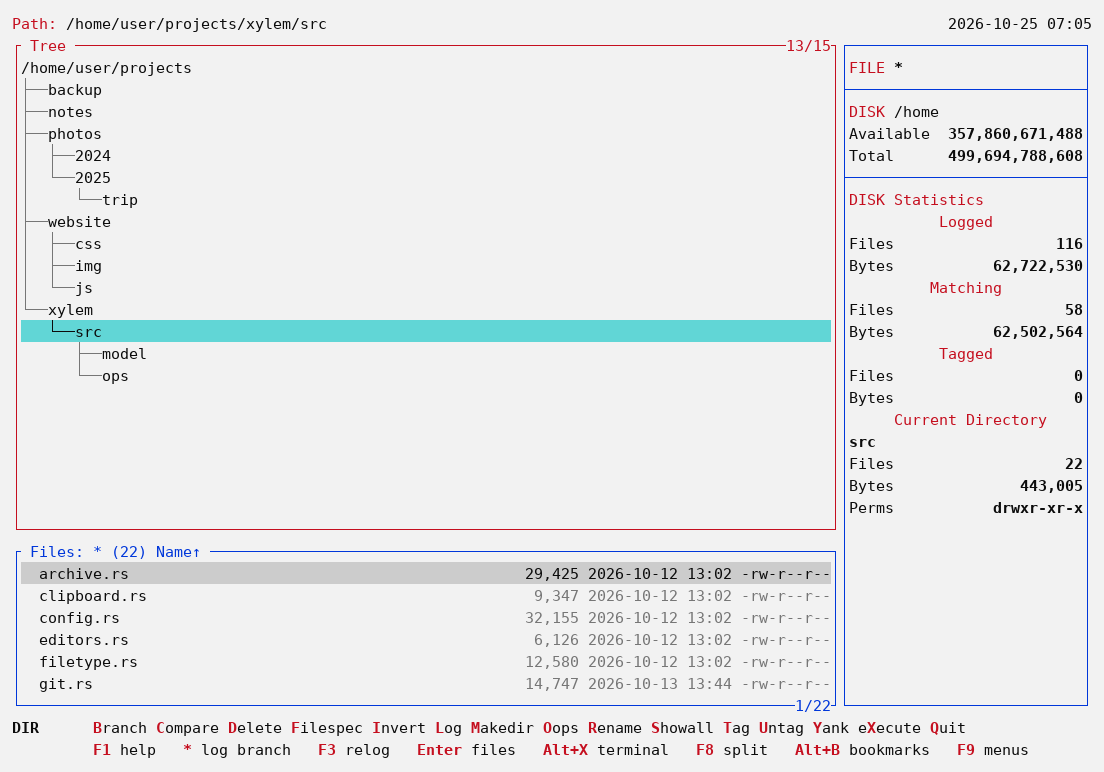
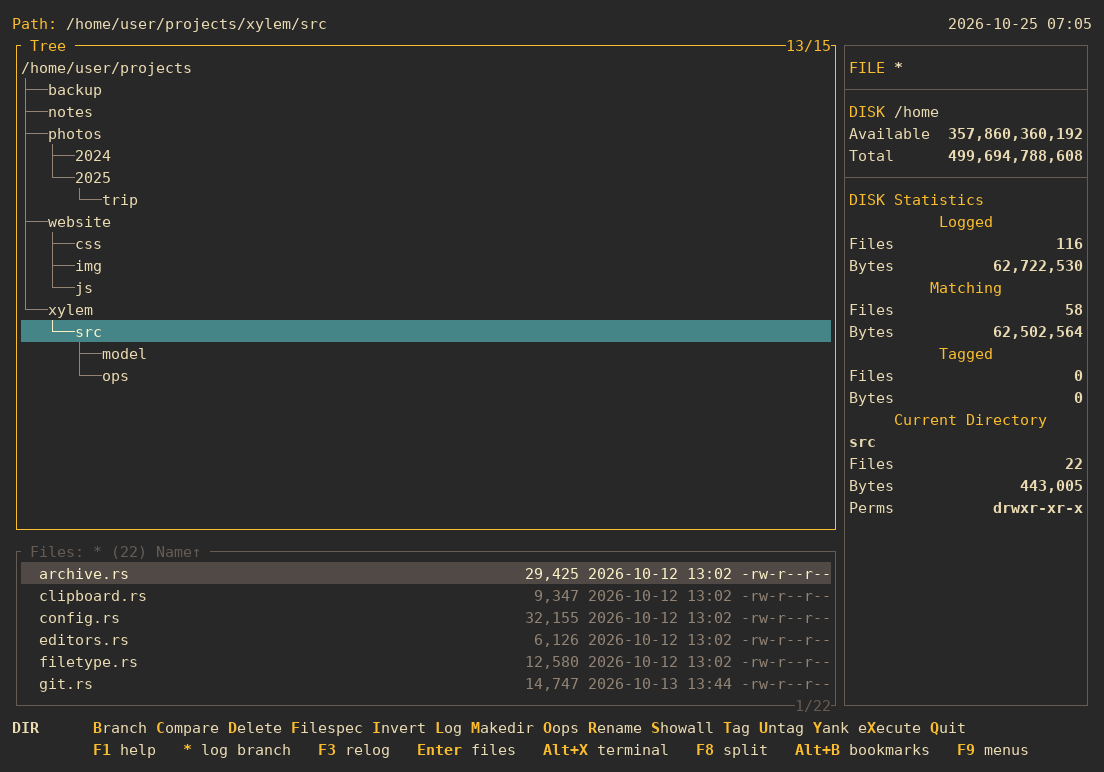
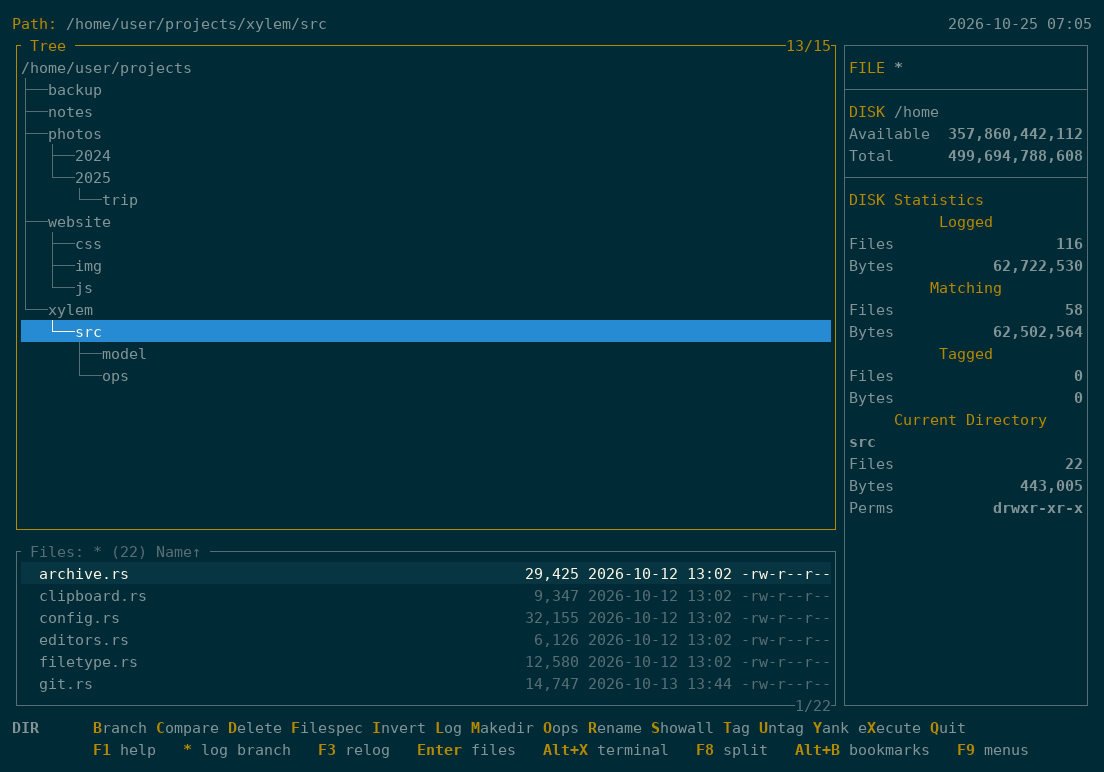
Themes
Make it yours
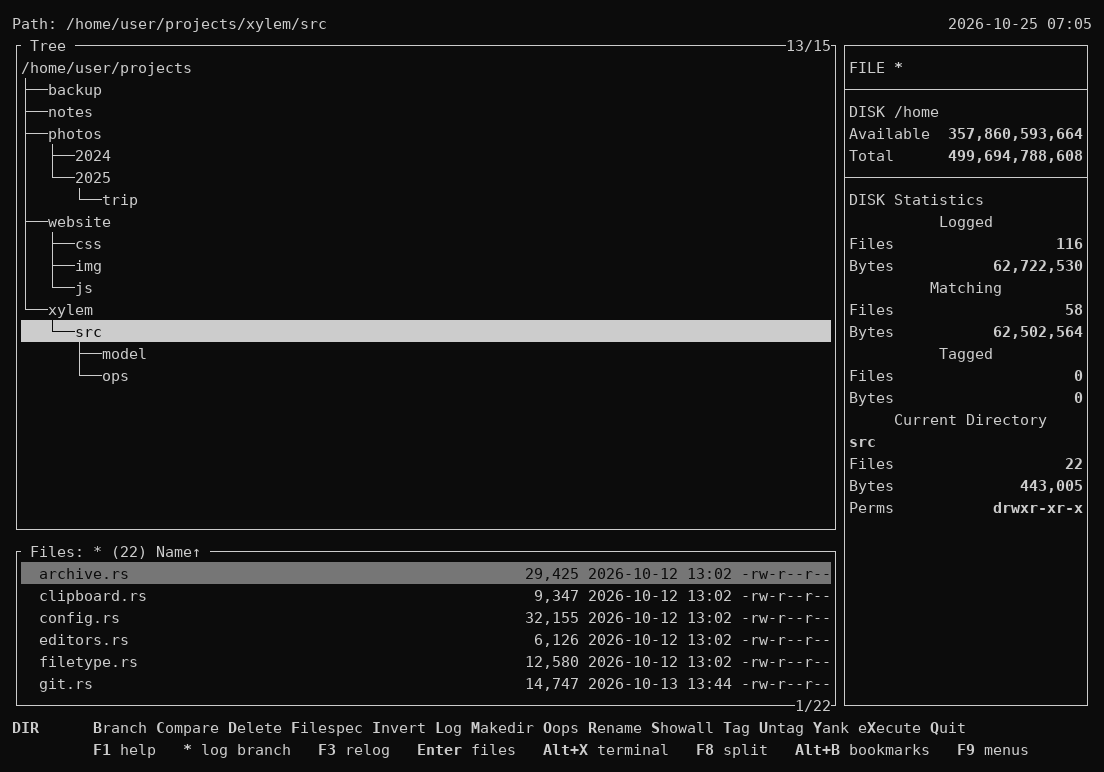
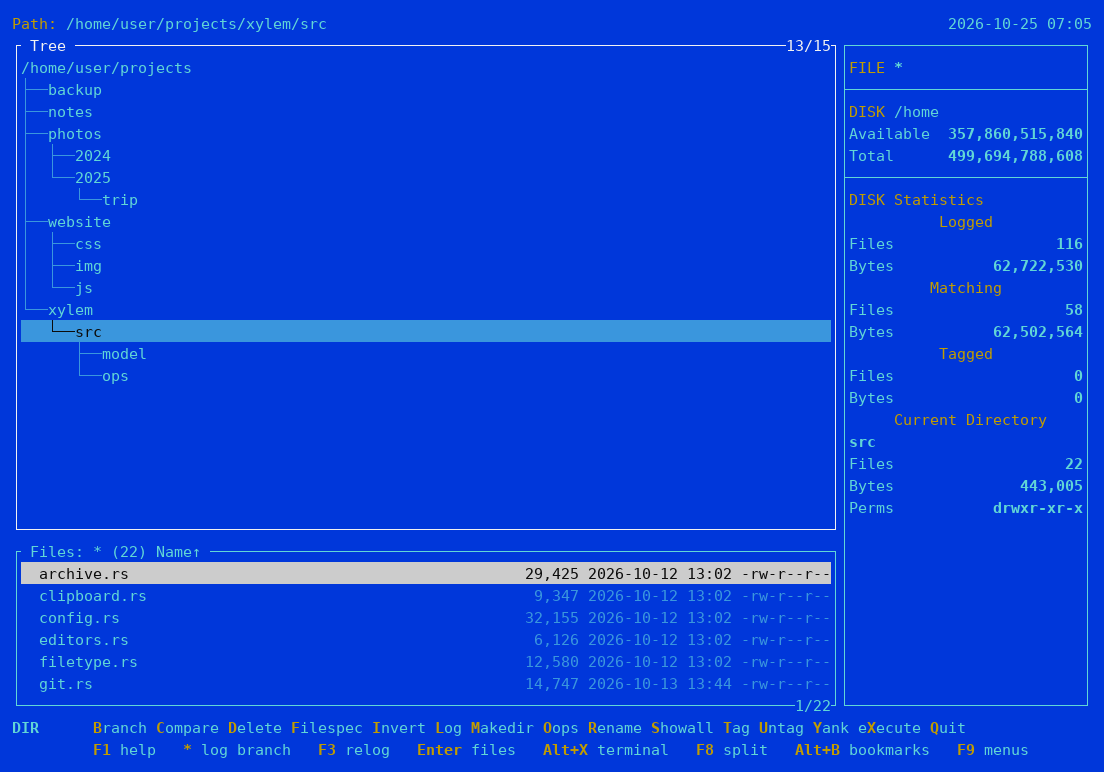
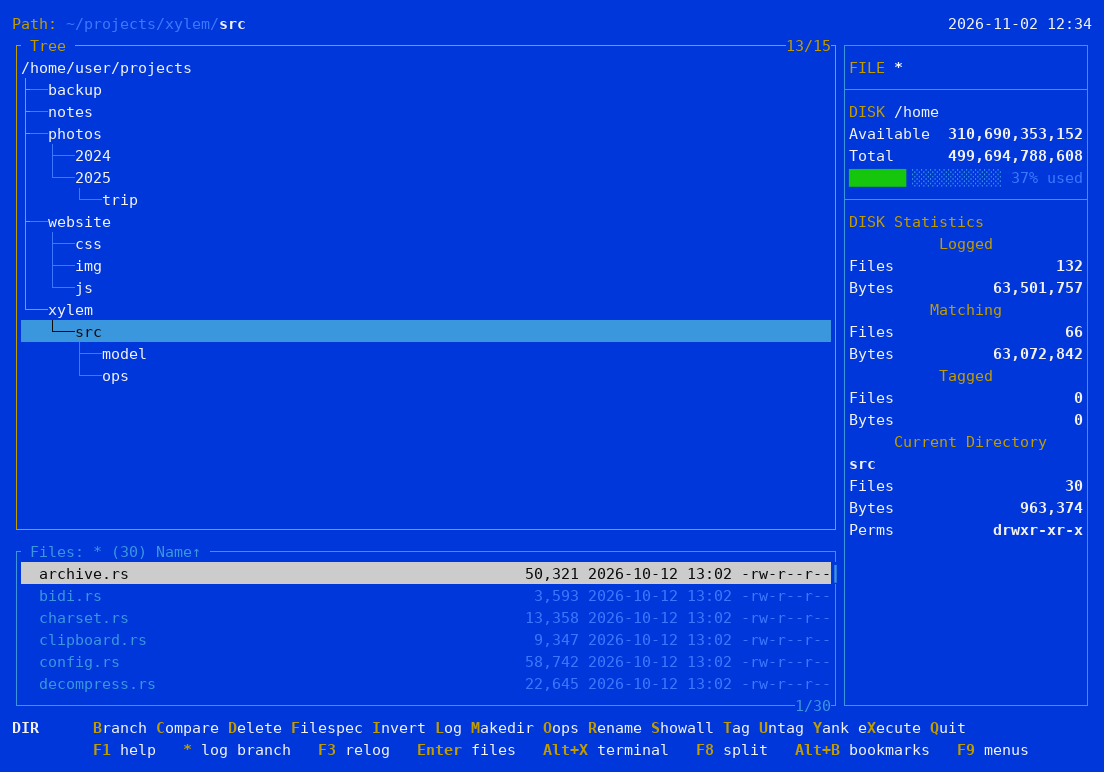
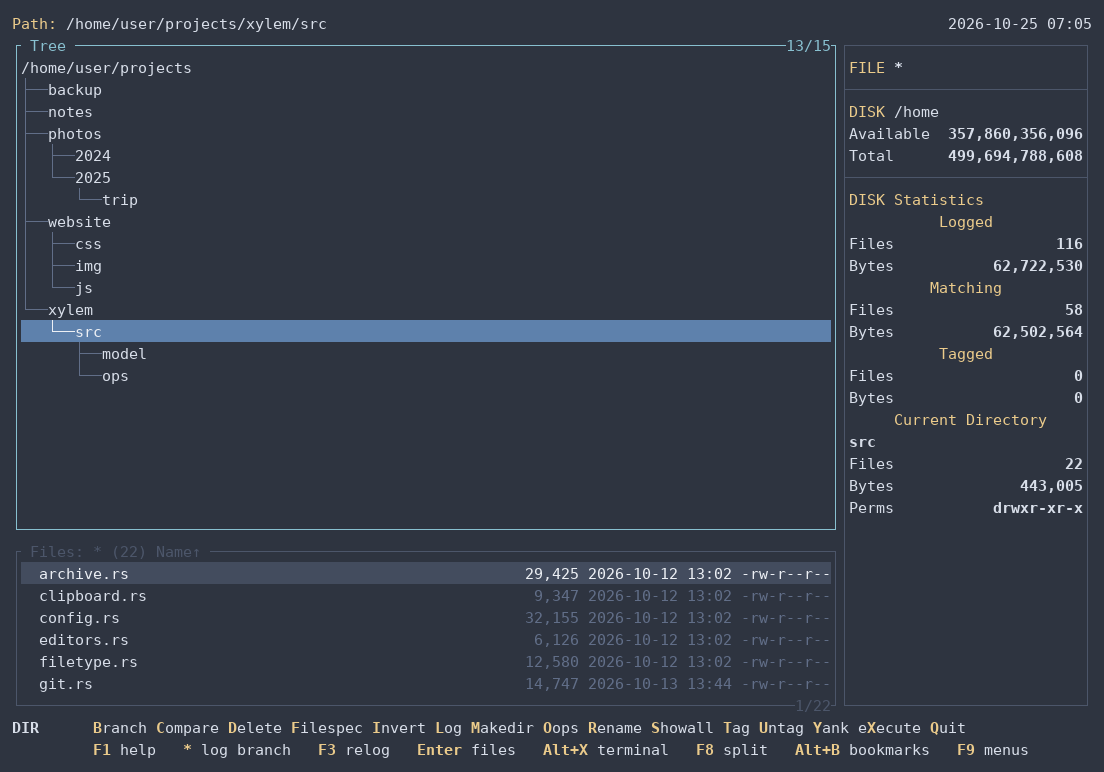
Pick a theme with F4, or set theme in the
configuration file. Every color can also be changed one by one.
Disk usage
Where did the space go?
Alt+W lists the folders and files of a branch by the space they
take, largest first, with each one's share and, in the panel beside it, its date. Go down
folder by folder to what fills the disk: an old backup, a forgotten ISO, a cache that grew.
One disk at a time, hard links counted once, and the space on the disk as
du counts it.
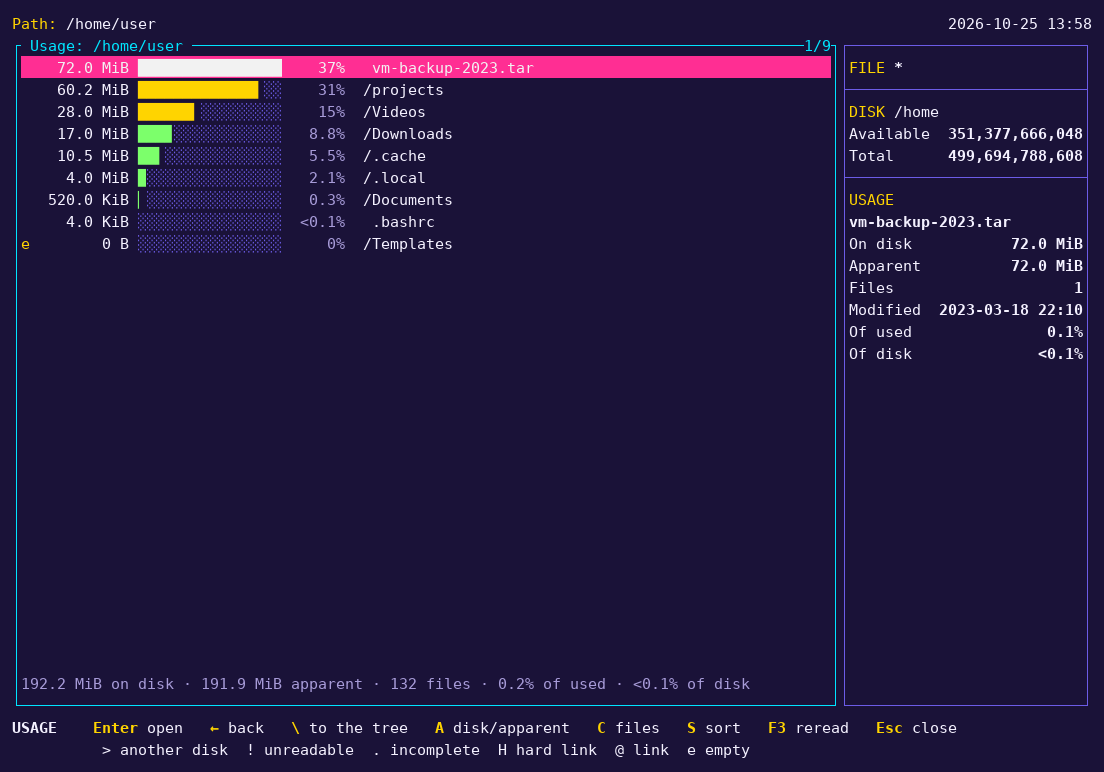
In the tree, Alt+K → Percent shows the same shares next to each folder. Pointed at a Google Drive or an S3 bucket mounted with rclone, it shows what fills them, too.