Xylem File Manager
Your whole disk, one tree
See your whole disk as one tree, gather files from any folder, and act on all of them at once, from any terminal, right from the keyboard.
Free and open source (MIT) · Linux x86_64 and ARM64 · Windows (experimental)
What you get
Open almost anything right there
SQLite with full JOIN queries, spreadsheets, CSV, Parquet, JSON, Markdown, logs and archives.
Turn data into files
One table becomes a page, a SQL script or a database, with a preview before anything is written.
Free up space
See what takes room, and find duplicate files and folders, even on Google Drive without downloading them.
Reach beyond your disk
Browse and copy from servers over SSH, and work with Google Drive, S3 and other clouds through rclone.
Stay in one place
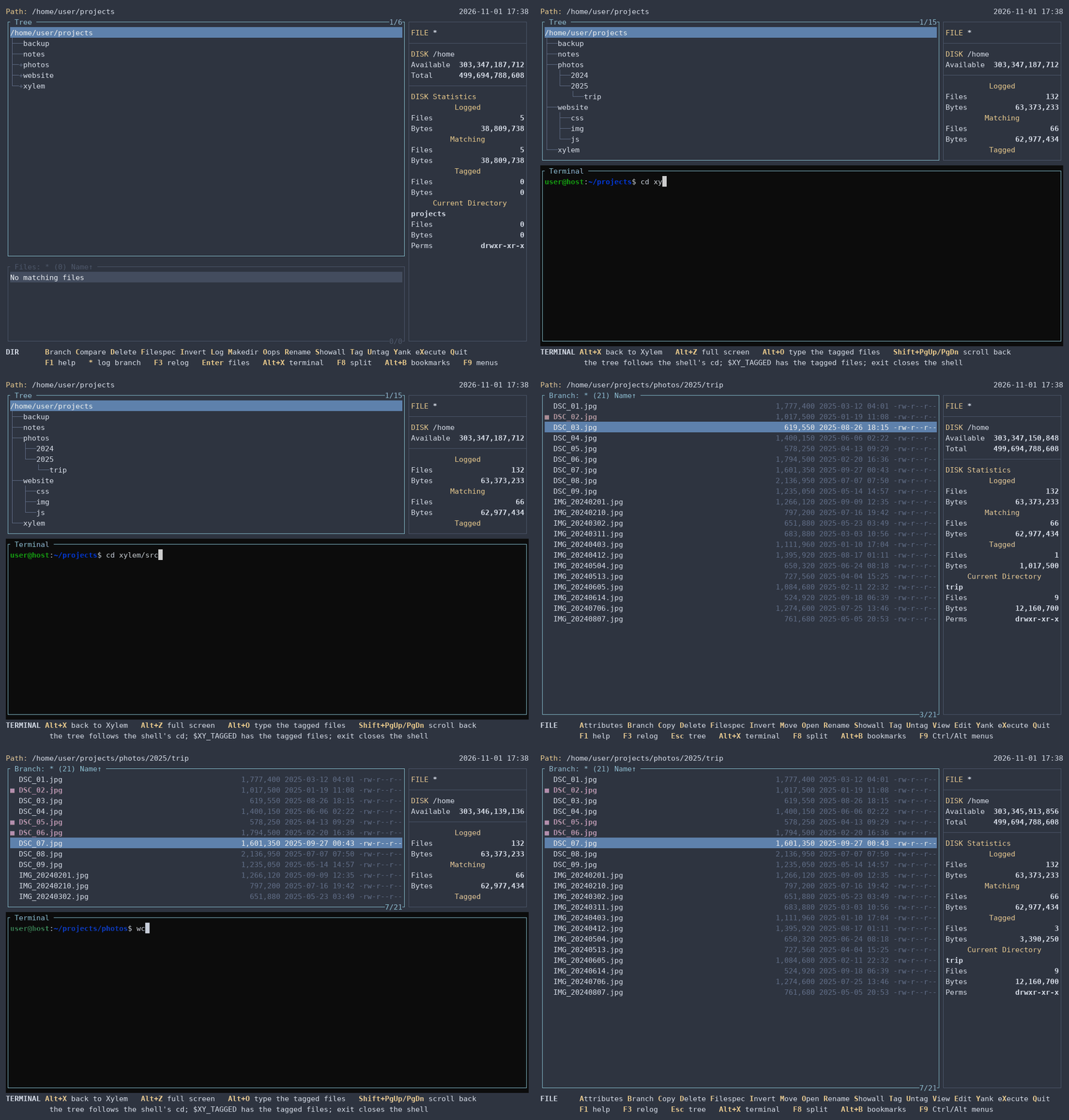
A built-in terminal whose tree follows your cd, and Git status right in the file list.
Open files you don't trust
Nothing in them runs, and everything has a limit.
Make it yours
Twelve themes, configurable keys, and help in six languages.
In action
See it working
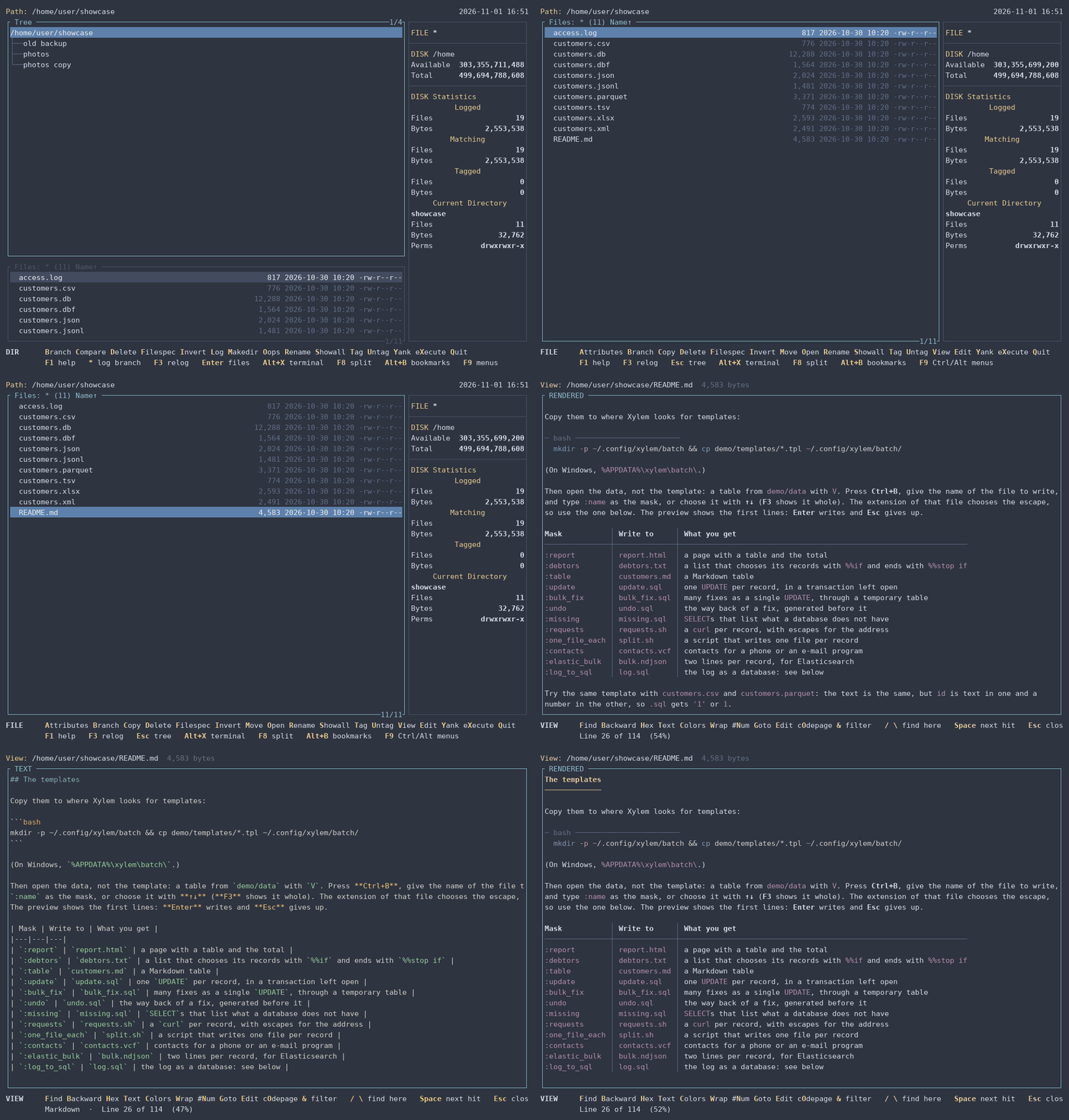
Short videos, all on the same made-up customers, which come with Xylem in the demo folder. Click one to see it larger.
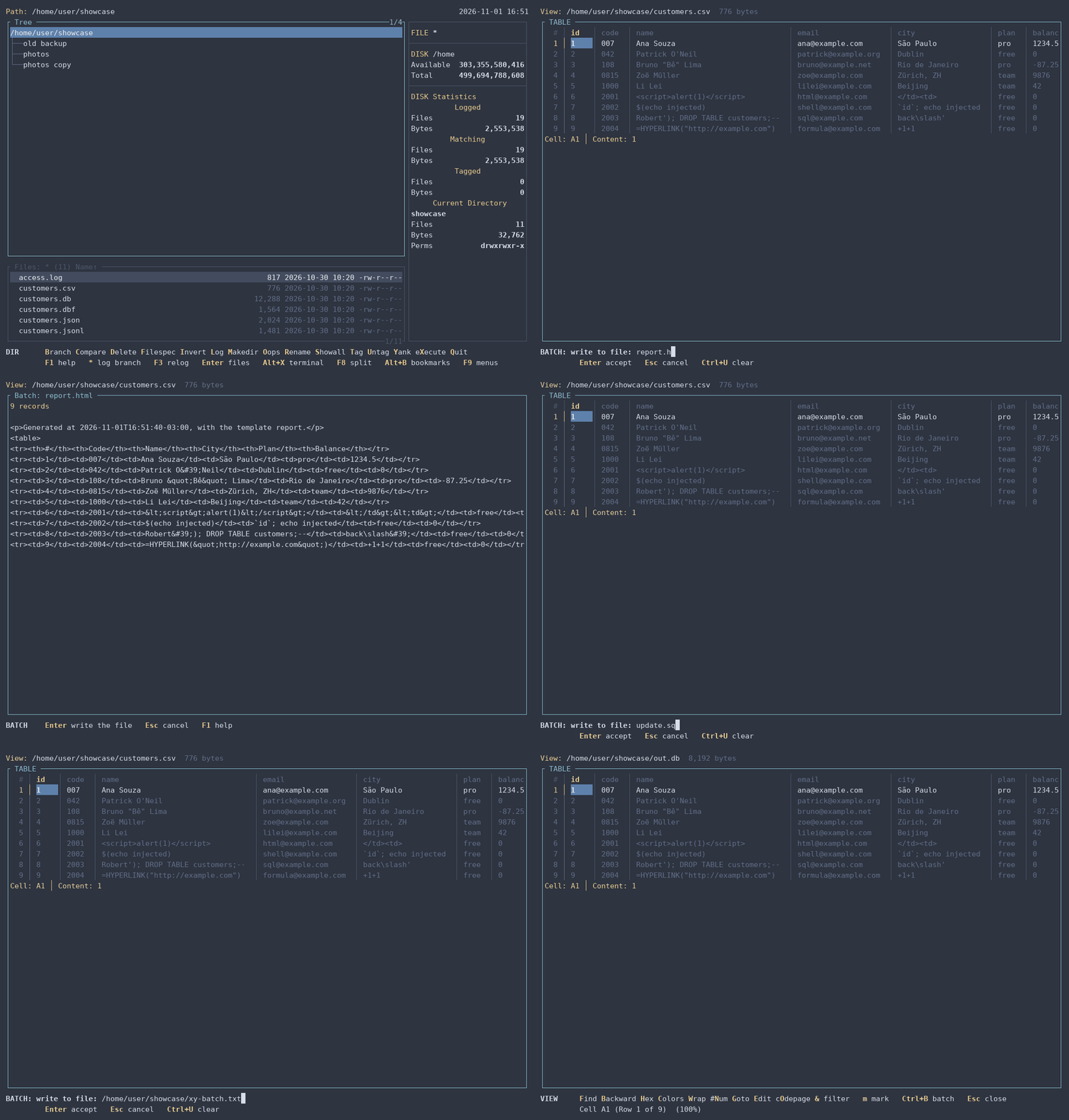
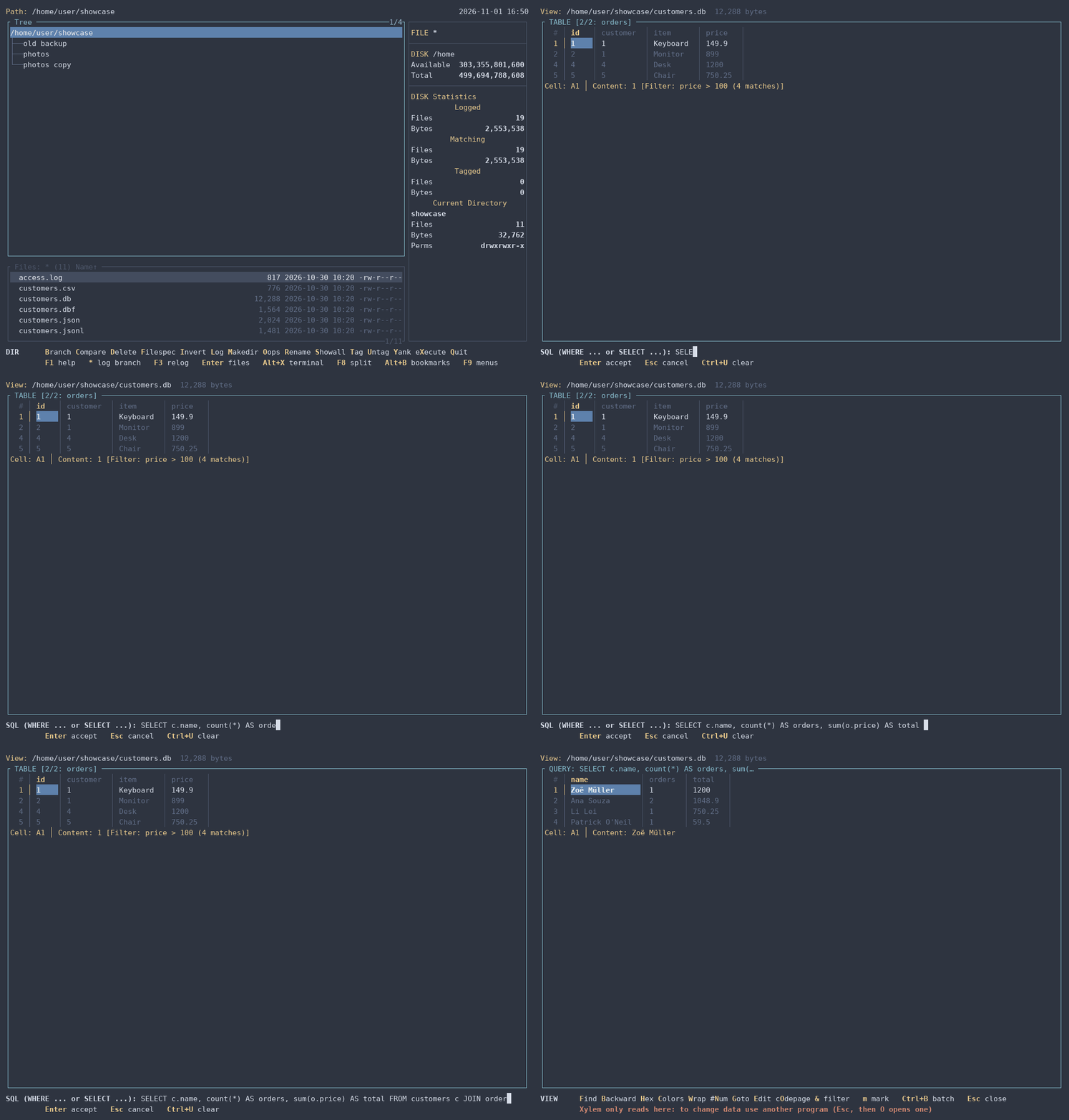
SELECT with JOIN. It only reads: a DELETE is refused.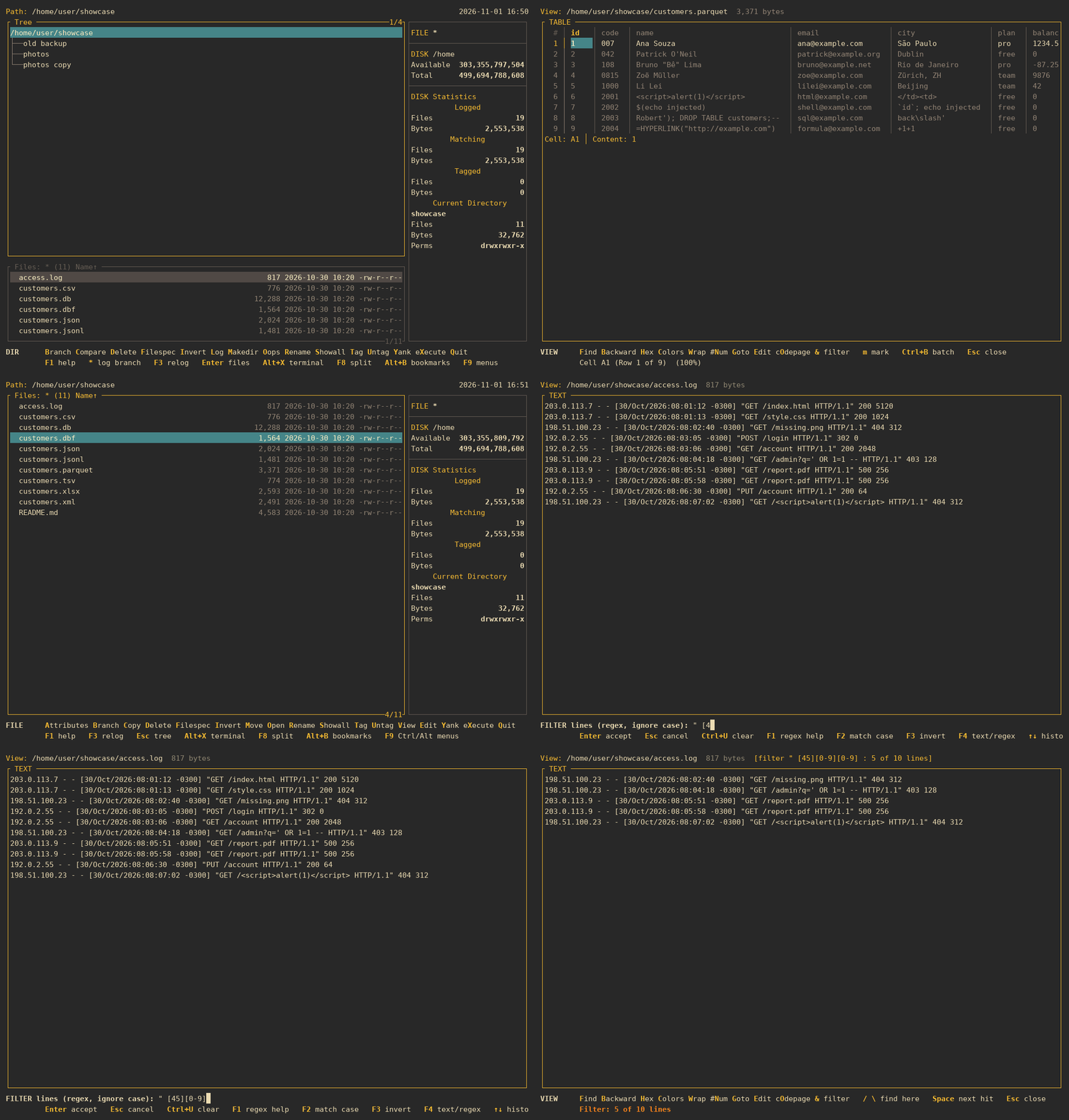
Features
All of it, in detail
The help (F1) explains each one, in six languages.
One tree, many files
A directory tree logged into memory with the file window below it, Branch and Showall to list the files of a whole branch or of everything logged, and tags that group operations act on.
File operations
Copy and move with or without the paths, with progress and conflict details. Delete to the trash with Oops to restore, Prune, rename with masks, permissions and dates, Compare between two windows.
Finding things
Filespec by name, date and size, Treespec to type a path, bookmarks, and Ctrl+S to search the tagged files for text.
Looking inside and editing
A text and hex viewer with search, soft wrap, line numbers and syntax colors, a table
mode with a SQL filter for spreadsheets, CSV, JSON Lines, DBF, SQLite and Parquet, Markdown
files shown rendered, plus Autoview next to the list. E opens your text editor or a hex editor
(hexedit, heh, bvi, dhex) right
inside Xylem's frame and color theme — or disables binary editing in F12.
Batch over records
Ctrl+B turns tagged files, the records of a table or the lines of a text into a script, JSON, CSV, XML, HTML, SQL or a SQLite database, with escapes that keep hostile data in its place.
Duplicates
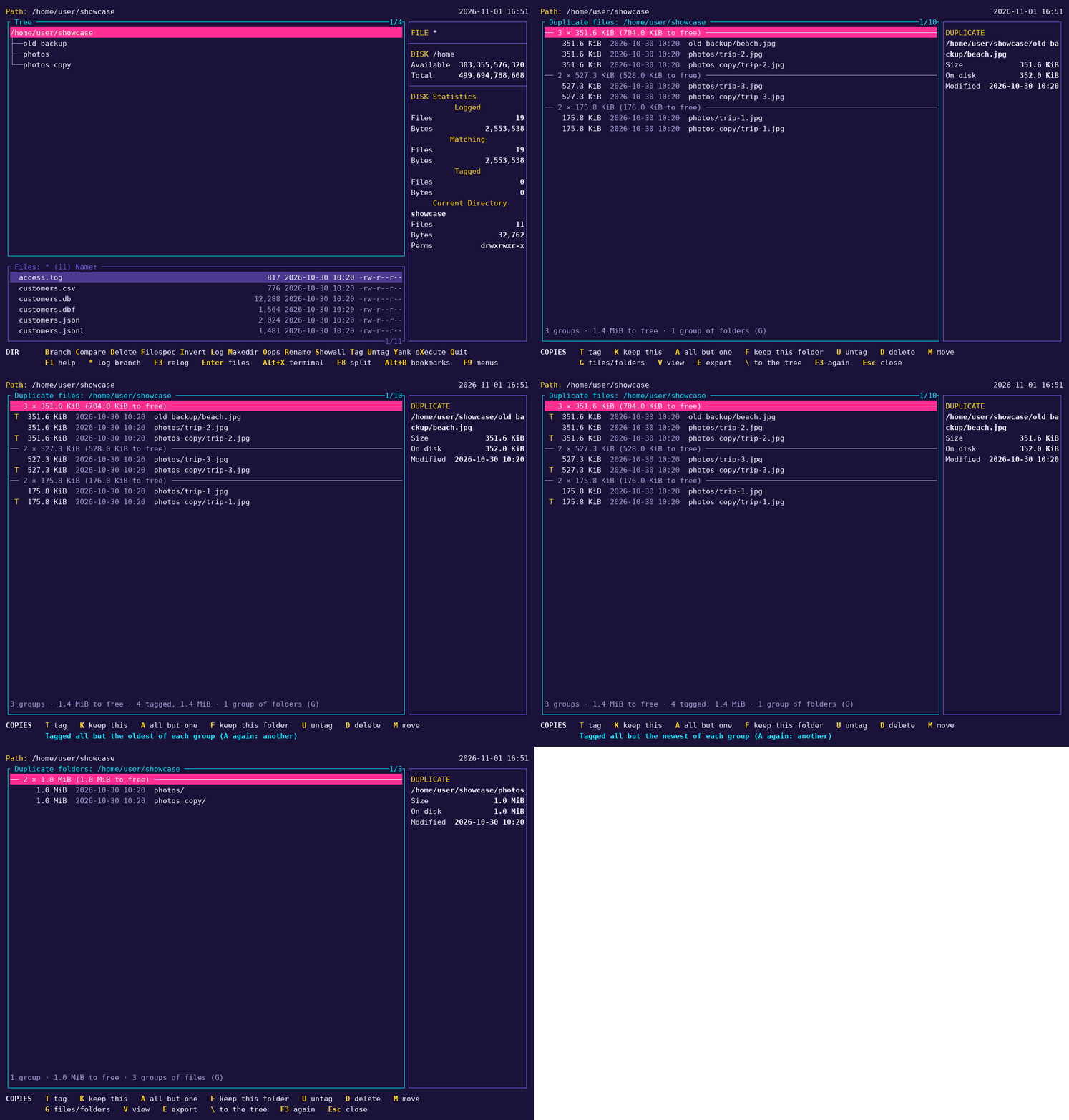
Alt+Y finds files and whole folders with the same contents, without downloading anything from a Google Drive mounted by rclone, and always leaves one copy.
Archives
ZIP, 7z and TAR archives open as directories: browse them, view and copy out of them. ZIP and TAR can be created too.
Built-in terminal
Alt+X opens a shell whose cd takes the tree along;
Alt+O types the tagged files at the prompt.
Remote and cloud
Browse and copy from machines over SSH, with their own terminal. Google Drive, Amazon S3 and some 70 other services through rclone.
Git and more
An optional Git menu with status letters in the file list, the clipboard, a configuration screen (F12) and twelve themes.
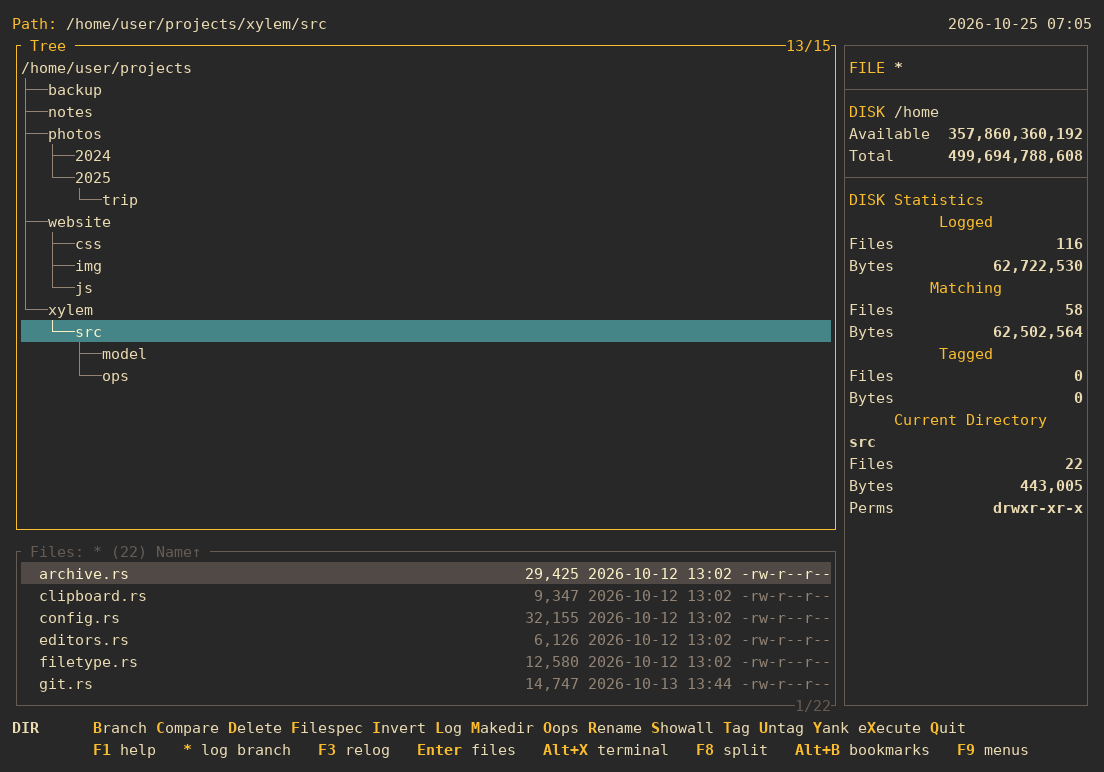
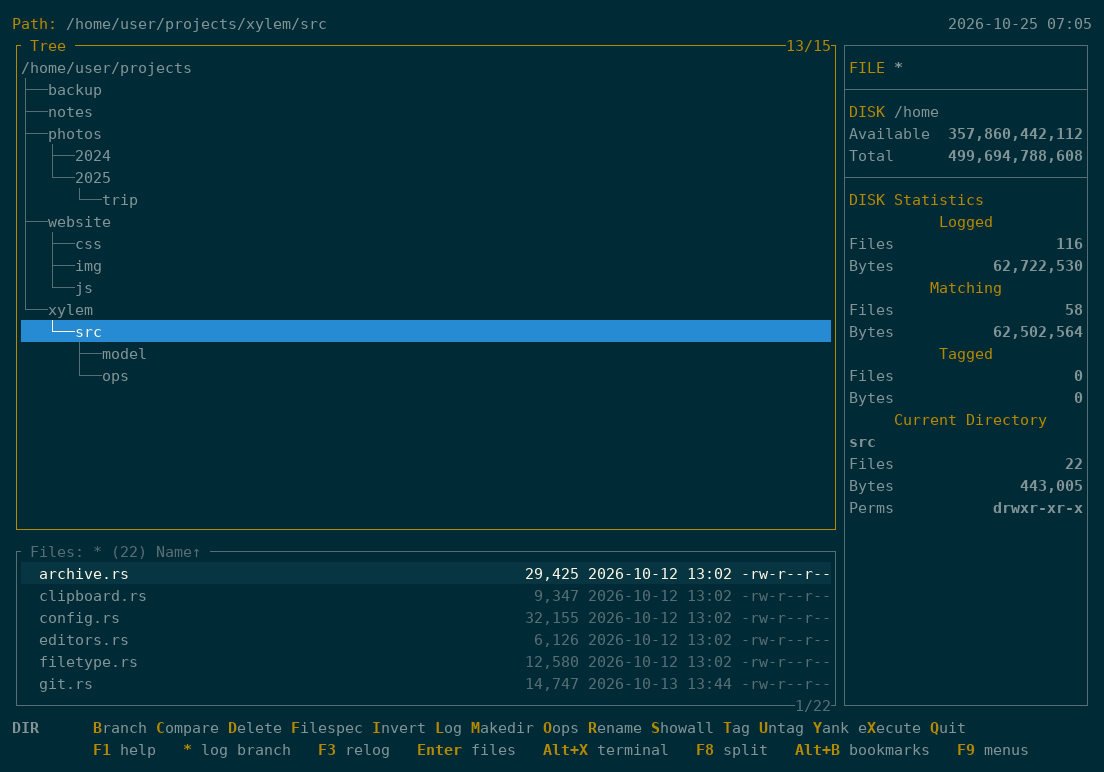
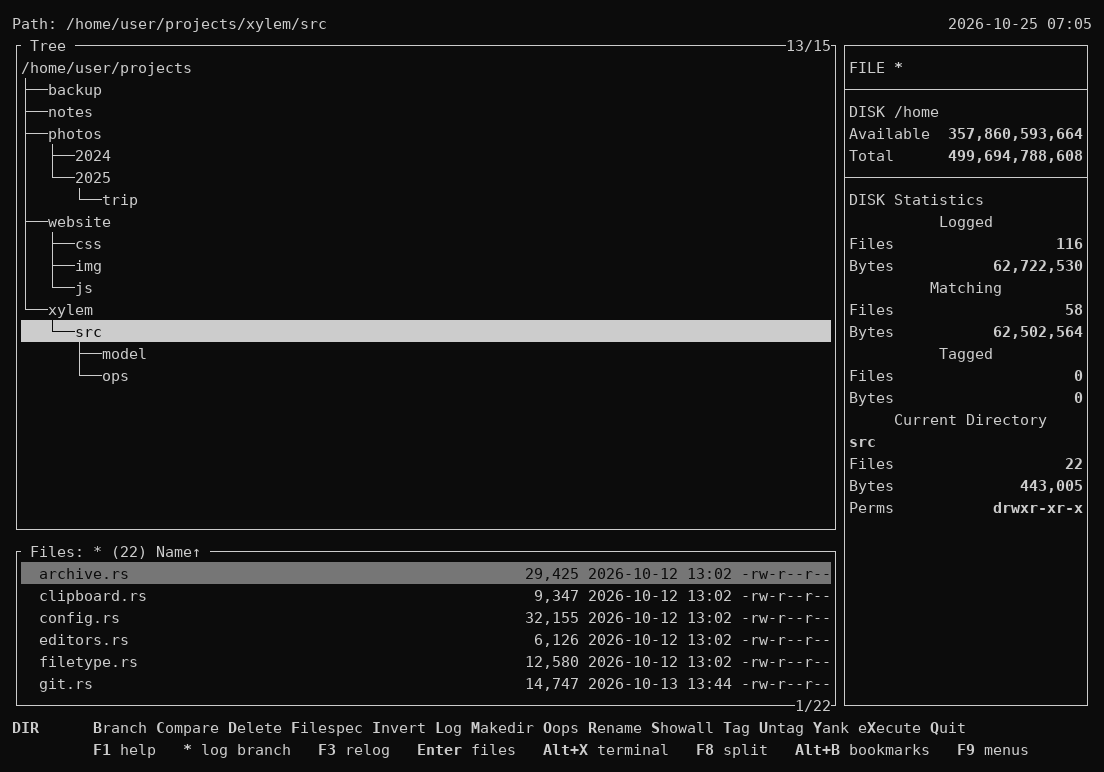
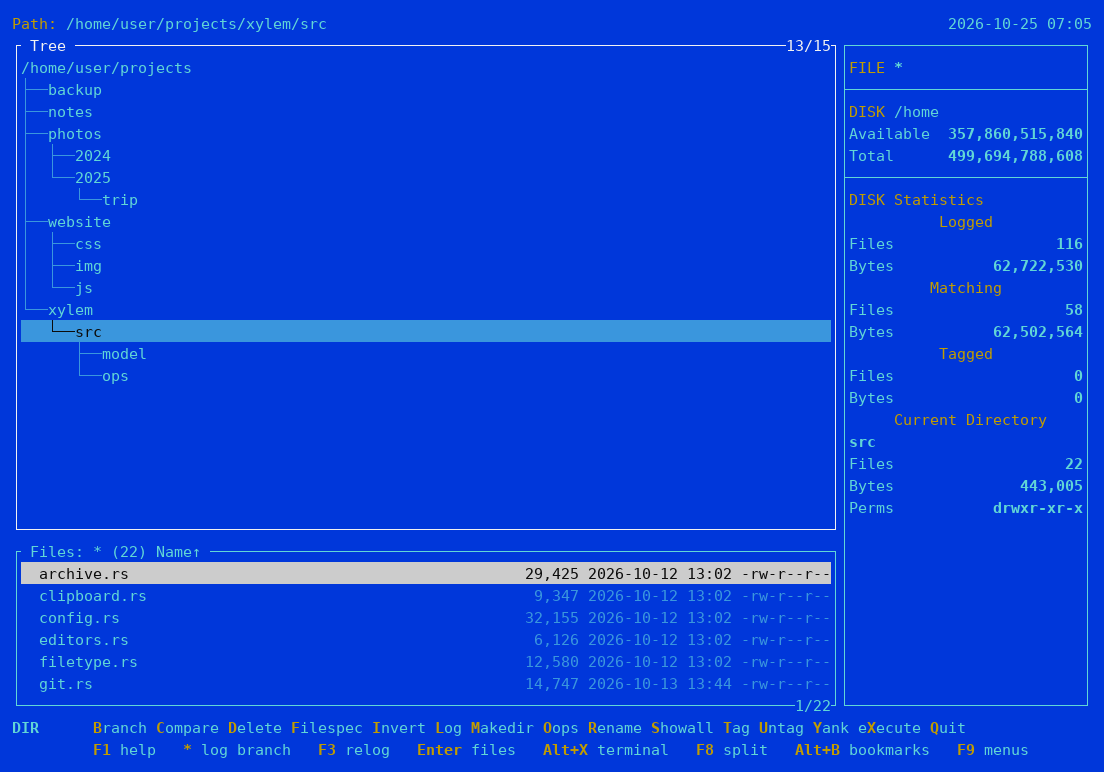
Themes
Make it yours
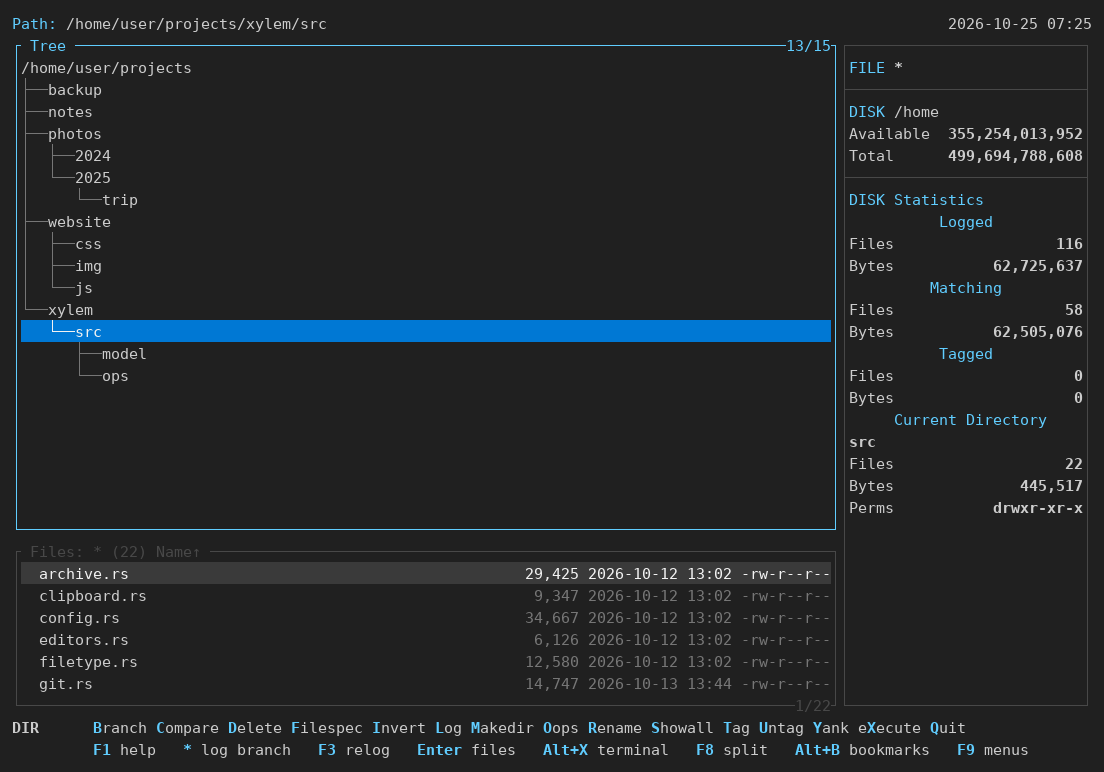
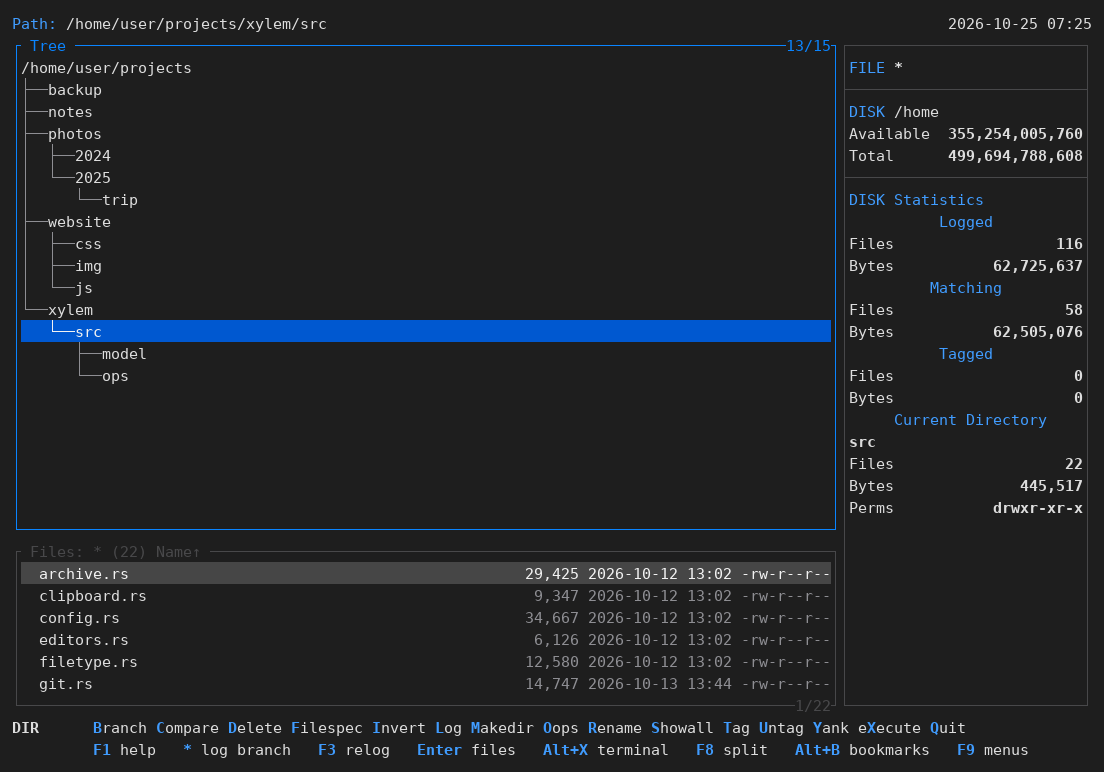
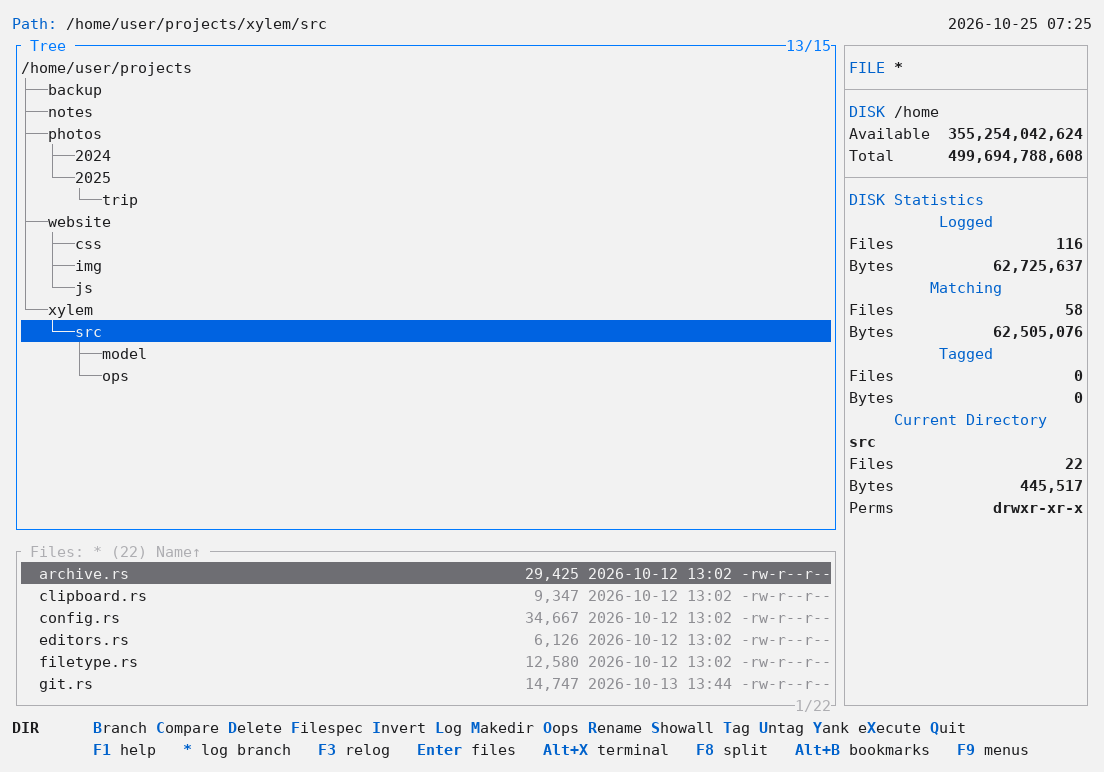
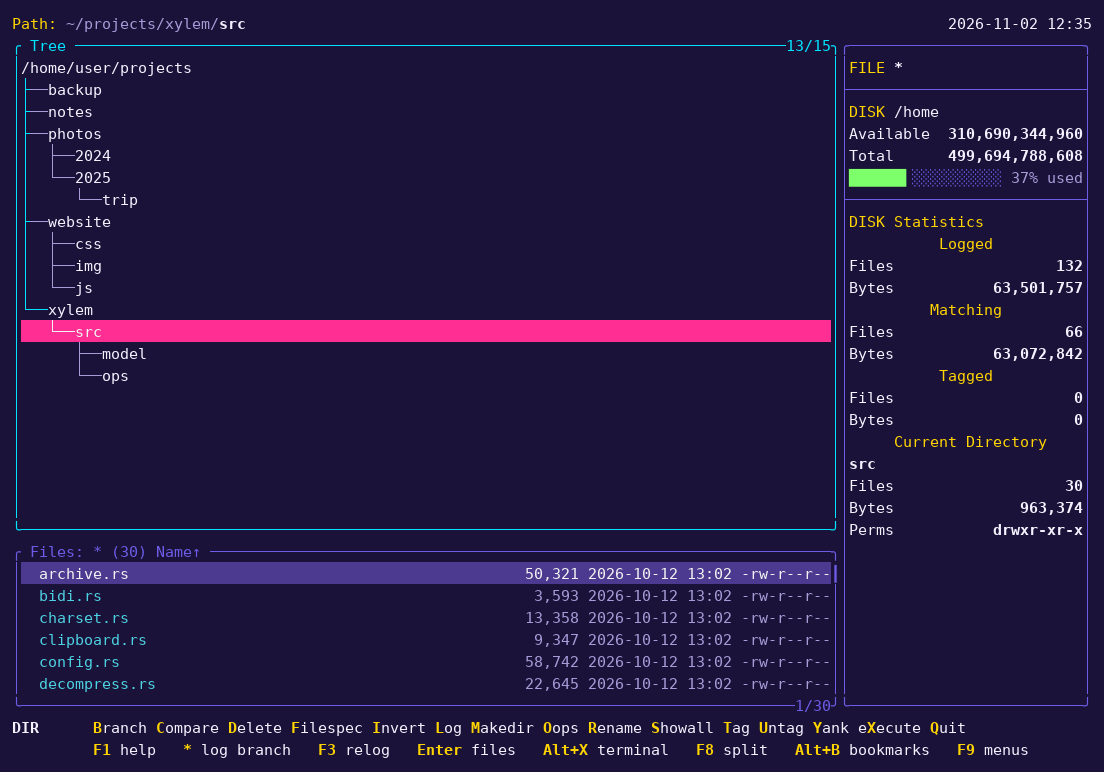
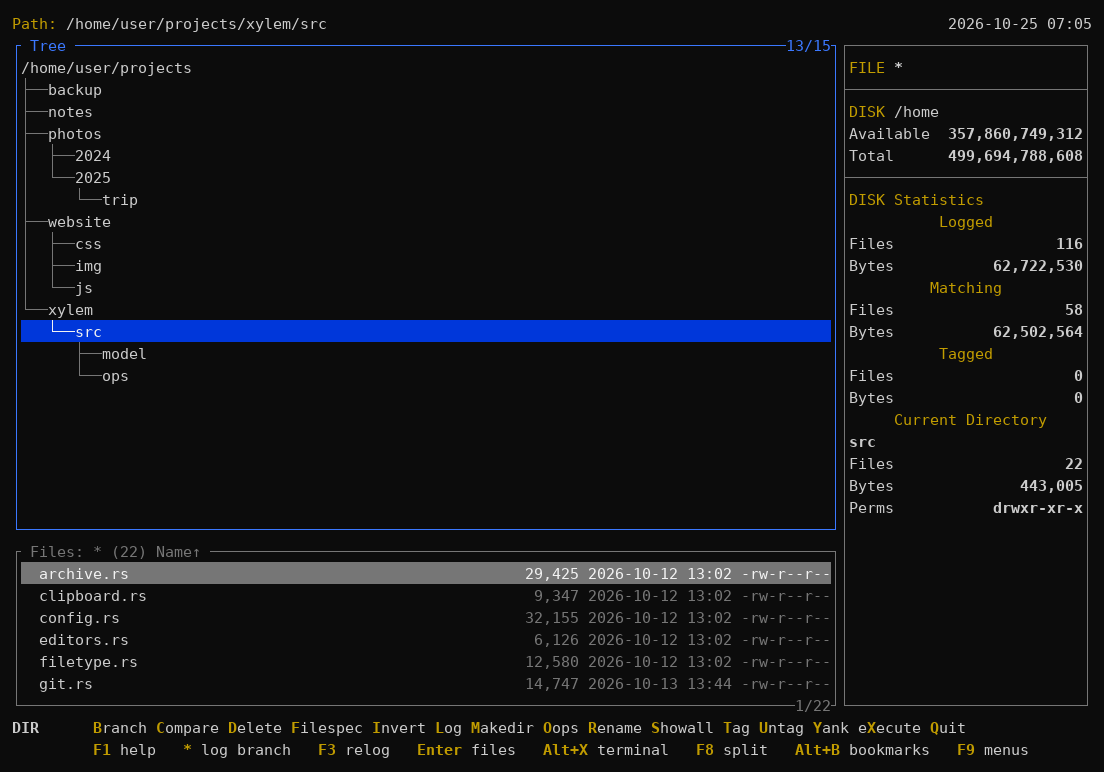
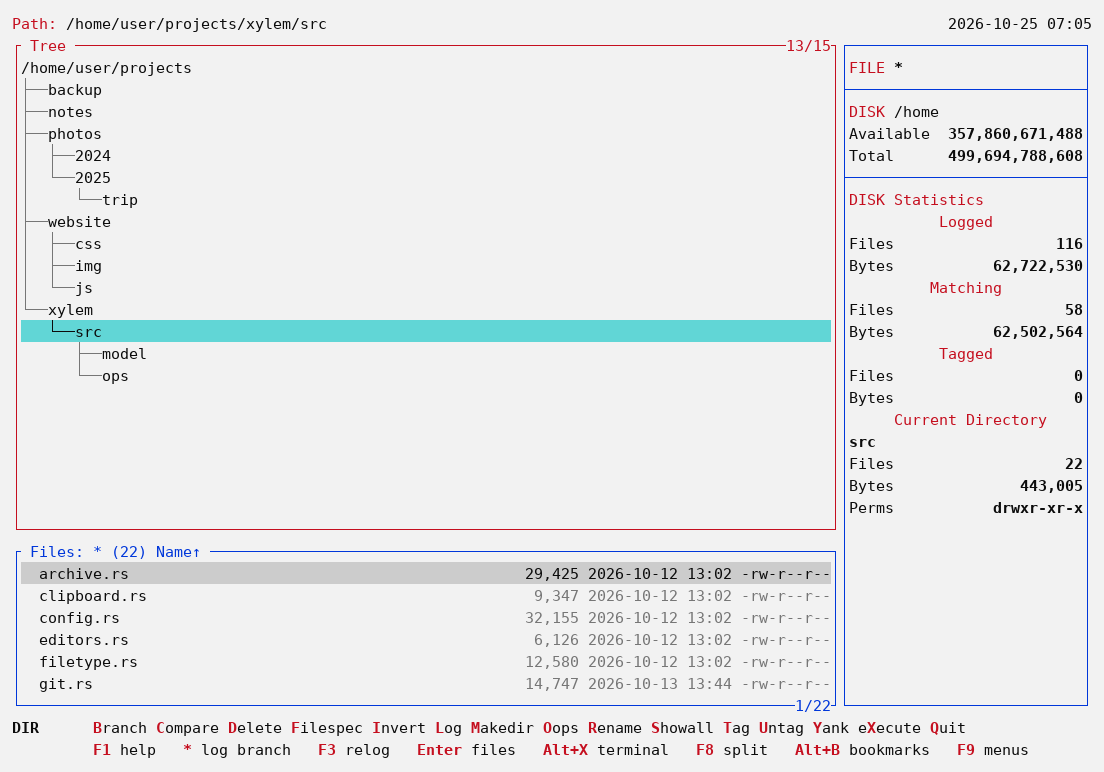
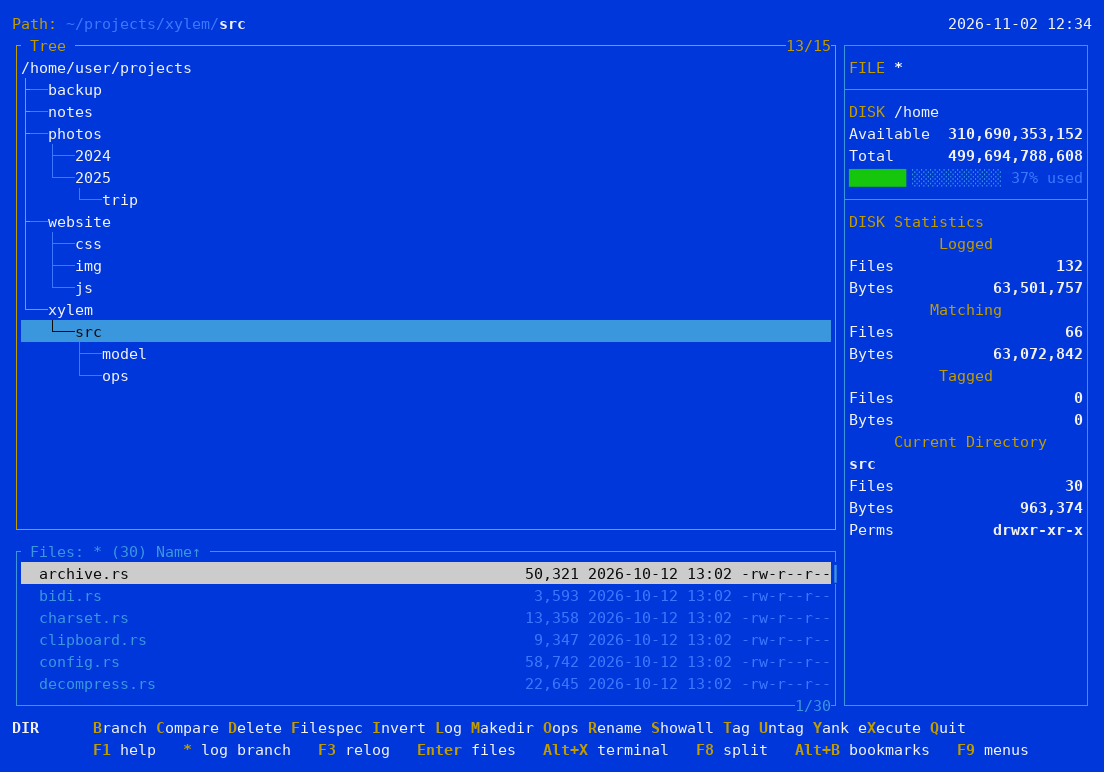
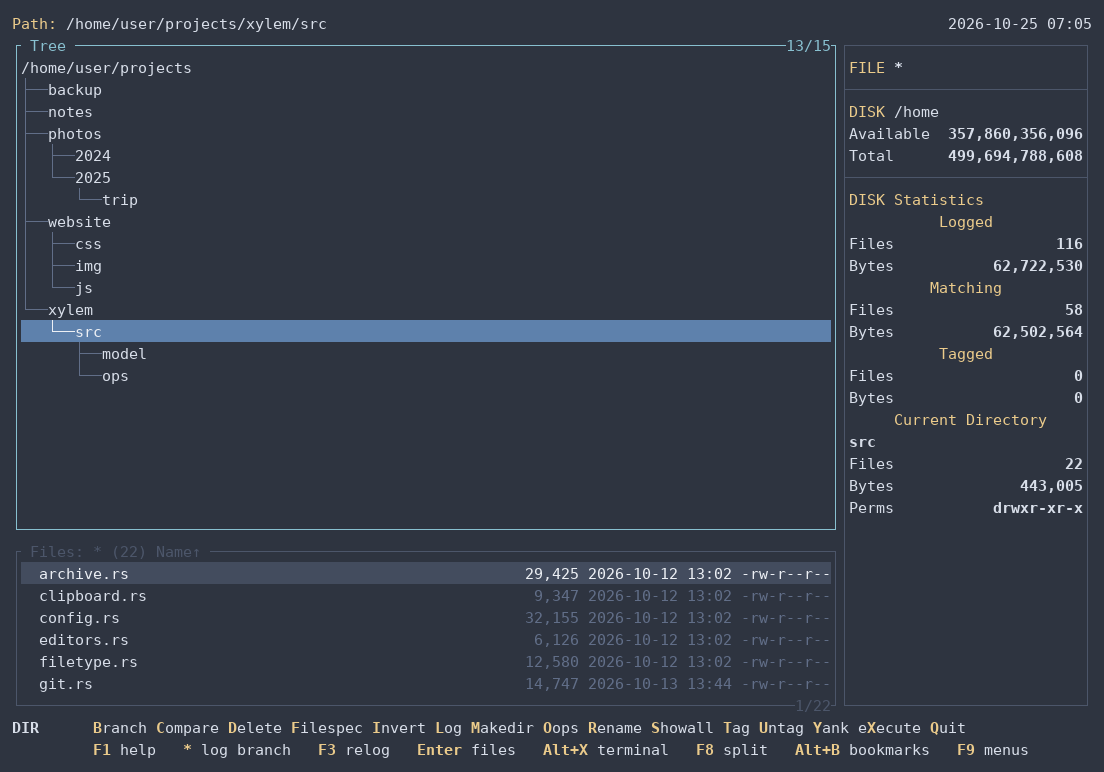
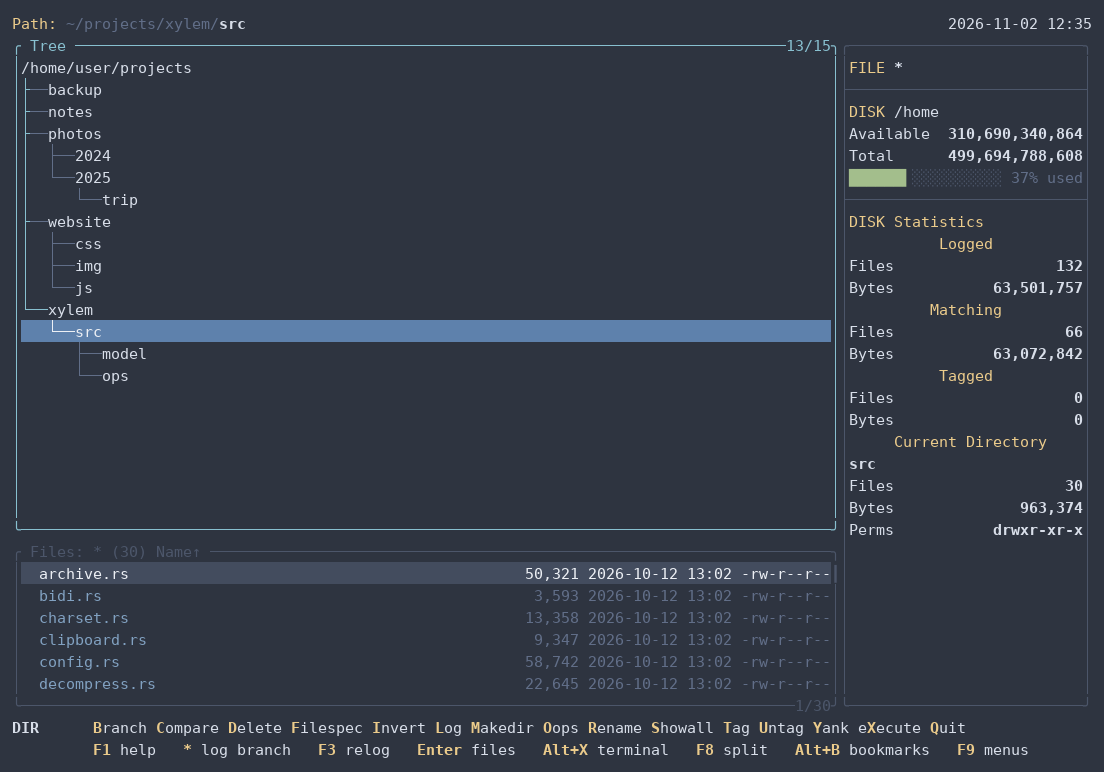
Pick a theme with F4, or set theme in the
configuration file. Every color can also be changed one by one.
Disk usage
Where did the space go?
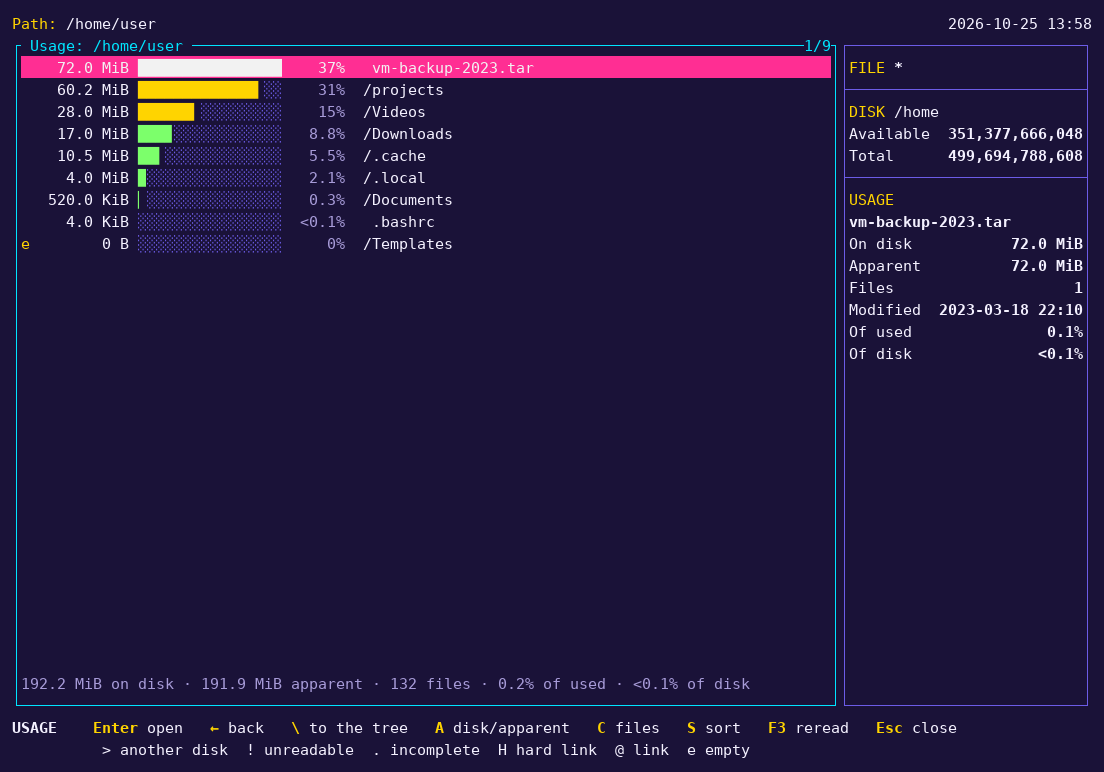
Alt+W lists the folders and files of a branch by the space they
take, largest first, with each one's share and, in the panel beside it, its date. Go down
folder by folder to what fills the disk: an old backup, a forgotten ISO, a cache that grew.
One disk at a time, hard links counted once, and the space on the disk as
du counts it.
In the tree, Alt+K → Percent shows the same shares next to each folder. Pointed at a Google Drive or an S3 bucket mounted with rclone, it shows what fills them, too.
Screenshots
A look around
Click a screenshot to see it larger.
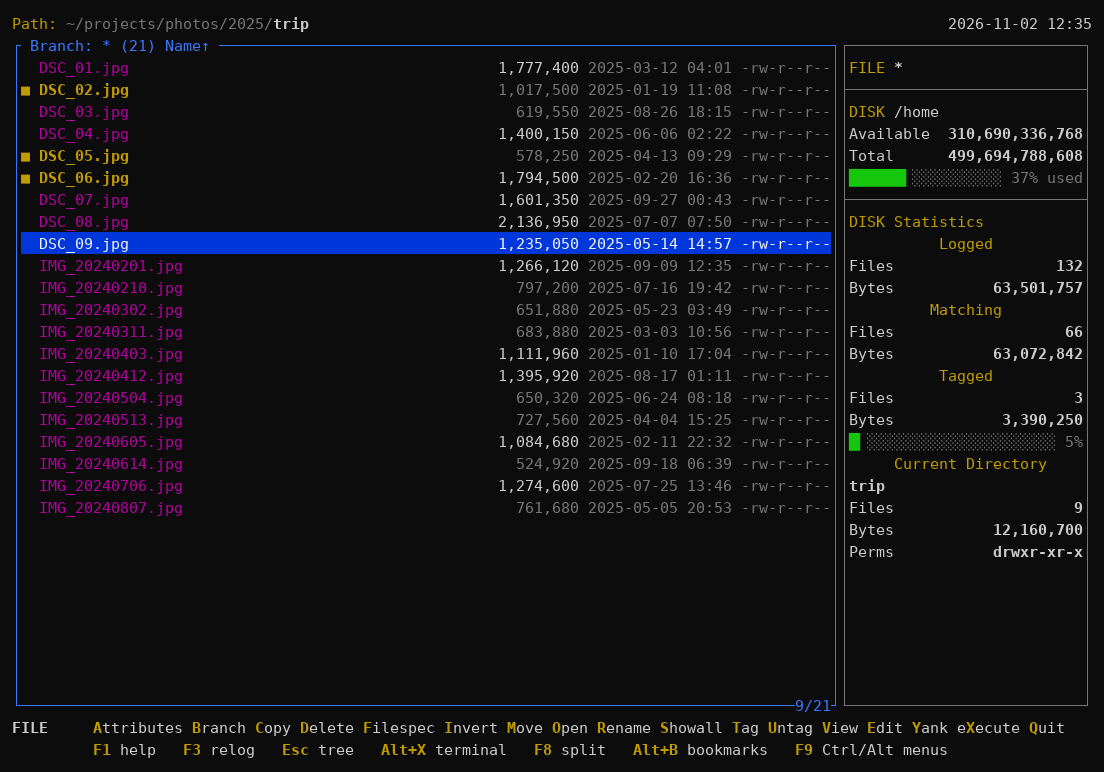
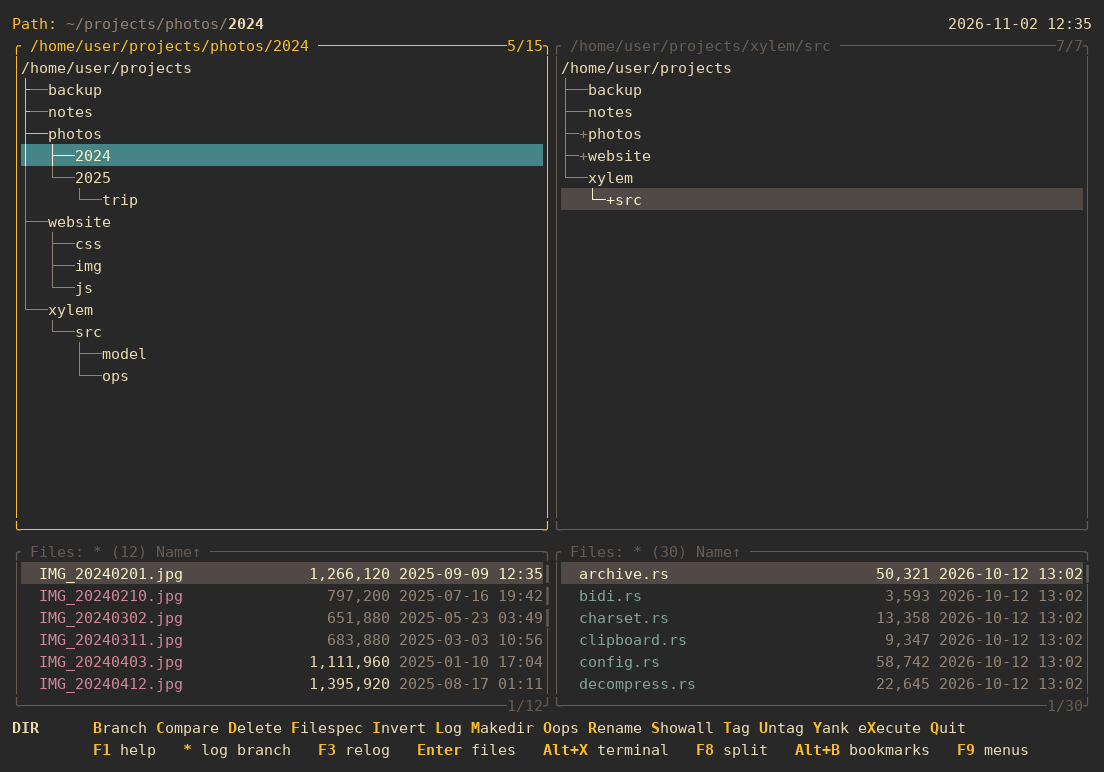
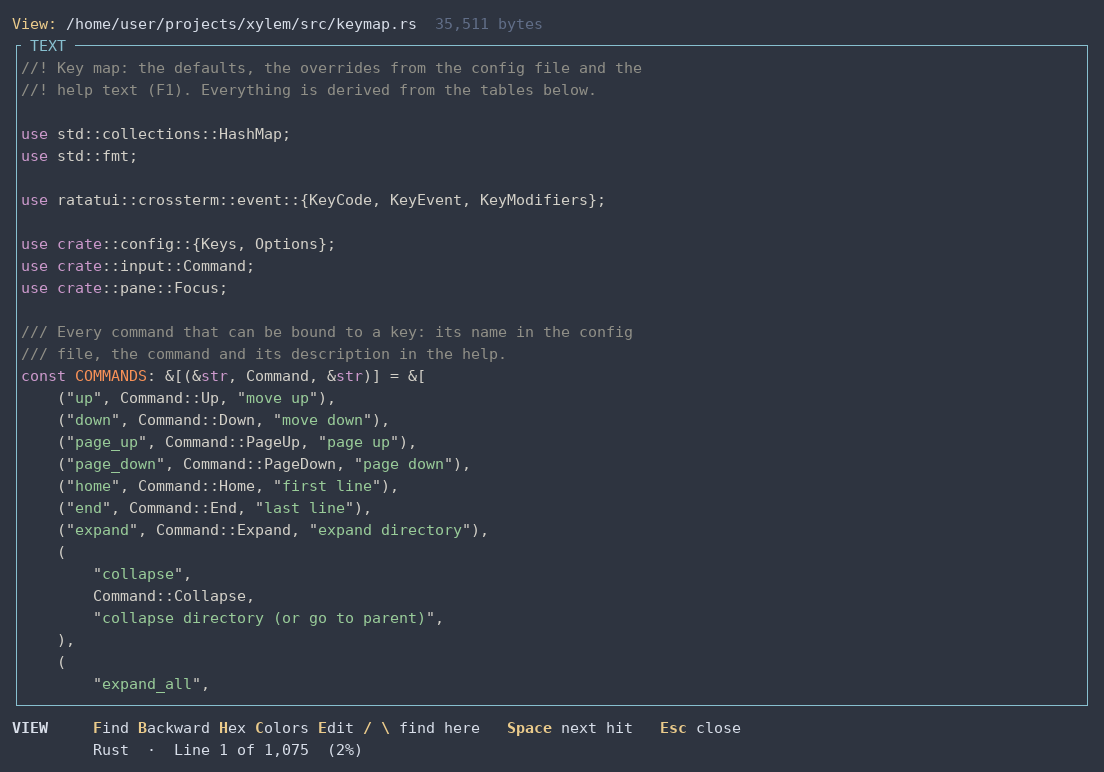
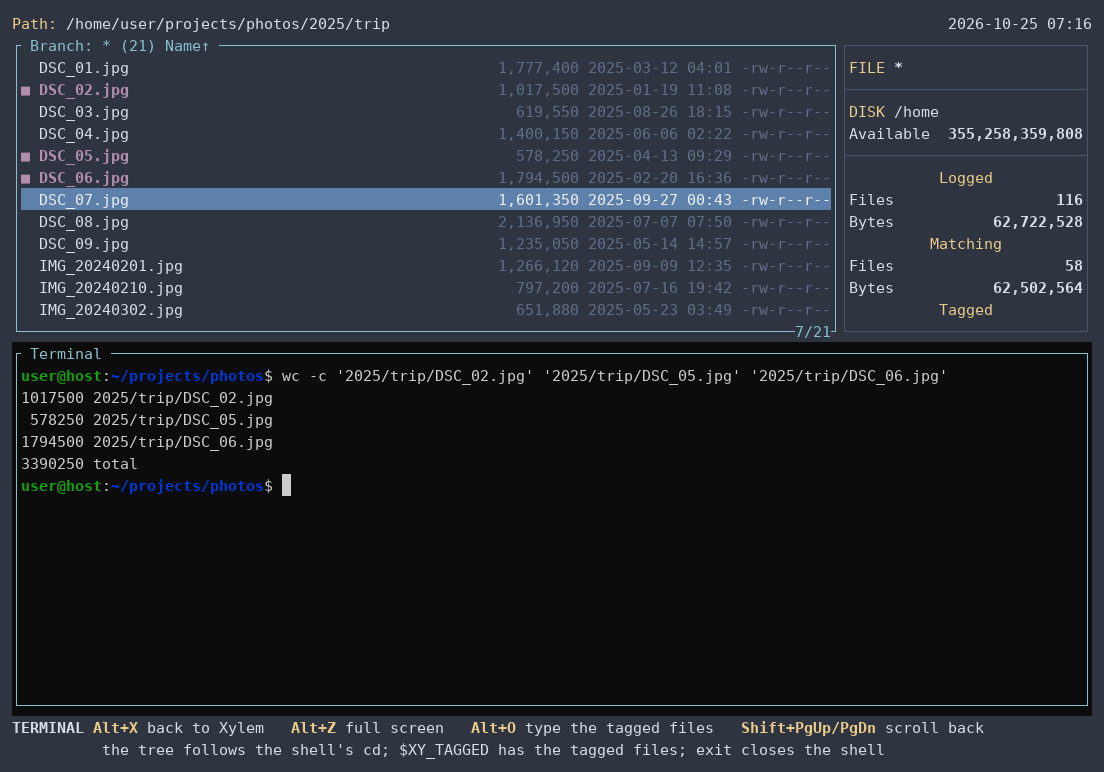
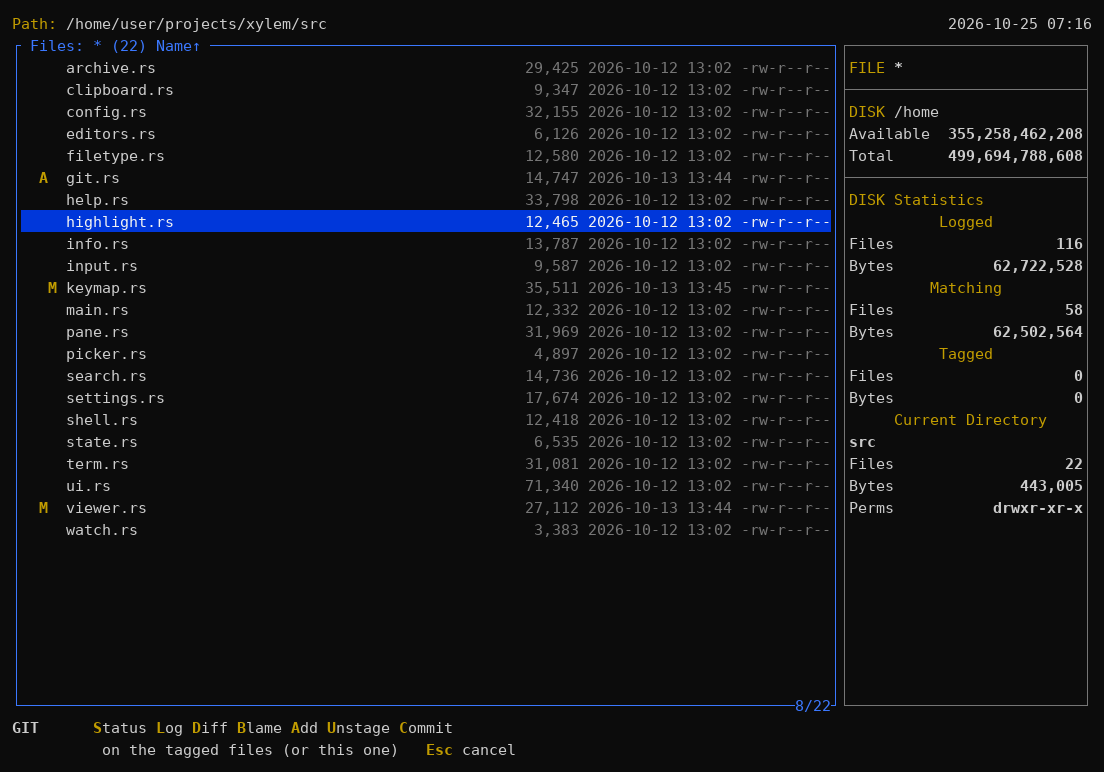
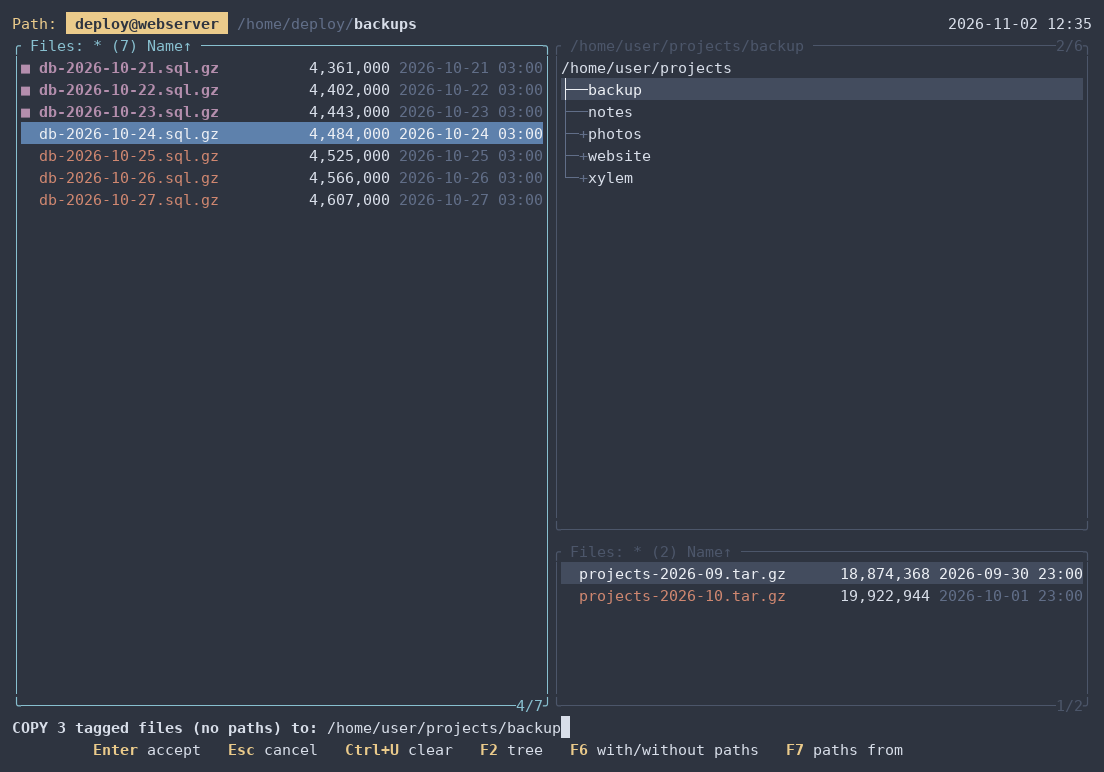
xy user@host:): a server over SSH next to this machine (F8), copying its backups here.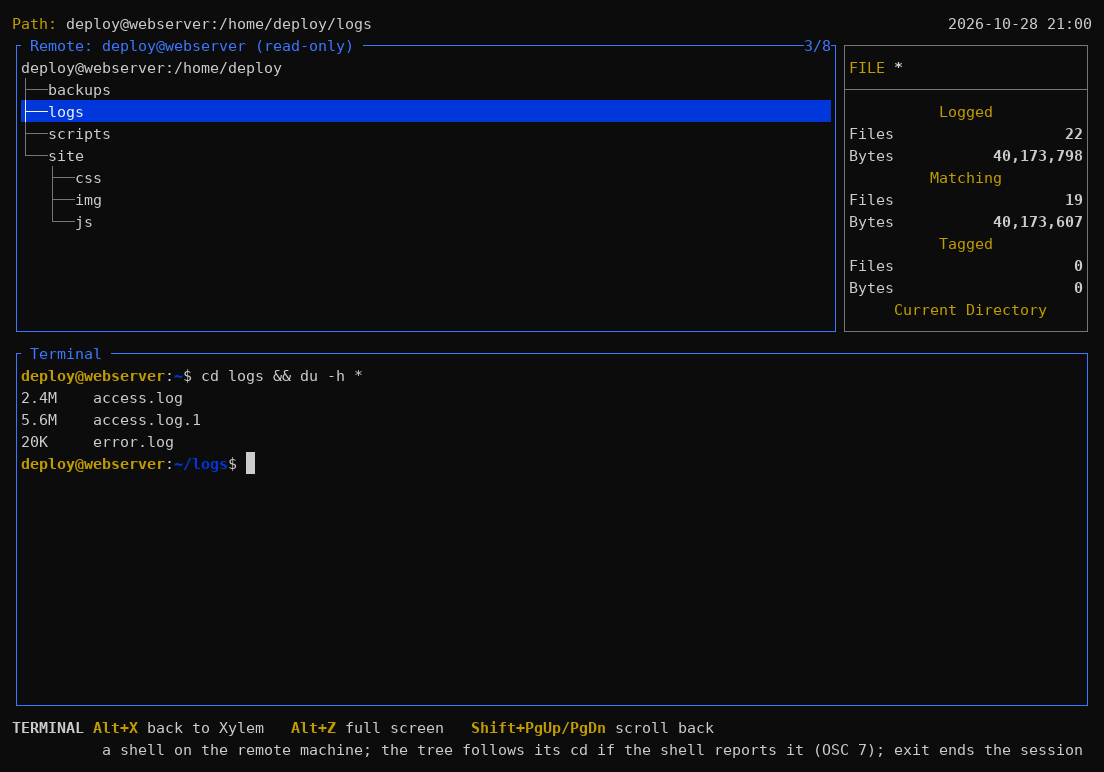
cd.Install
Get it running in a minute
The command is xy. Run xy to open the current
directory, or xy some/directory.
Ready-made binary
Download the archive for your system from the
Releases page:
Linux x86_64 or ARM64 (static, runs on any distribution) or Windows x86_64. Then put
xy on your PATH:
tar xzf xy-*-x86_64-unknown-linux-musl.tar.gz
install -m 755 xy-*-x86_64-unknown-linux-musl/xy ~/.local/bin/
Each archive has a .sha256 next to it, to check with sha256sum -c.
Package (.deb or .rpm)
The releases from 0.5.0 on also have packages for Debian, Ubuntu, Fedora, RHEL, openSUSE and their derivatives, x86_64 or ARM64. They also install the menu entry, the icons and the man page:
sudo apt install ./xylem-fm_*_amd64.deb
sudo dnf install ./xylem-fm-*.x86_64.rpm
They come from the Releases page, not from a repository: to update, install the next one the same way.
There are also a
menu entry and a man page
(xy --man), and a shell function to end up in the directory you were in when you
quit with Alt+Q.
Coming next
What is on the way
Planned, and most of it already designed. Follow the project on GitHub to see each one land.
Next release
Already done
Writing on remote machines: copy there, move, rename, delete, prune, make directories, change permissions and dates, and find duplicates there. Containers without sshd, with docker://. Tag, delete and prune right from the Usage view. Large clouds without a blank screen.
Planned
The rest of remote machines
Edit and open their files through a temporary copy that goes back when saved, run commands and Git over ssh, and refresh on its own.
Planned
A viewer that reads more
A viewer that reads in windows, like less, with no size limit, and logs that follow and color by level.
Planned
More from ZTreeWin
Comparing the contents of two files (JFC), and saving the log to open a disk's tree at once next time.
Ongoing
Hardening
The leftovers of the security pass: fewer ways for a hostile repository or archive to slow Xylem down or run a command. Listed in the backlog.
About
Where it comes from
Xylem's keys and way of working follow XTree and ZTreeWin whenever possible; the differences are in the comparison with ZTreeWin.
More about XTree: The XTree Fan Page, kept by its fans for over twenty years; and ZTreeWin, which carries it on in Windows.
The name: the xylem is the tissue that carries water through a tree.
Author

Software architect · Rio de Janeiro, Brazil
André designs, modernizes and keeps running critical, large-scale systems: Java and Spring Boot, cloud (GCP and AWS), microservices and security governance (OWASP, LGPD). He has led the technical side of complex projects at companies such as Hitss, CI&T, Encora and Atos, bridging business and engineering.
Xylem is his independent, free and open-source project, made in his spare time and on his days off. Bug reports, ideas and pull requests are welcome.
Xylem is an independent project, written from scratch. It is not affiliated with, endorsed by or connected to Zedtek, Inc. (ZTreeWin) or to the owners of XTree. It contains no code from those programs; their names are mentioned only to describe what inspired Xylem and how it compares. XTree, ZTree and ZTreeWin are trademarks of their respective owners.
Xylem manual
Xylem is a text-mode file manager inspired by XTree and ZTreeWin: a directory tree on top, the files of the current directory below, and statistics on the right. It logs (reads) directories into memory, so you can tag files across a whole branch and copy, move, delete, compare or rename them in one go.
Xylem treats untrusted files as hostile: it should never crash, hang, run code, write outside the destination or exhaust memory because of what a file contains or how it is named. Nevertheless, bugs happen. See the security statement in the README for the full list of safeguards and recommendations.
F1 (or Alt+H, for terminals that keep F1 for themselves) opens help about what you are doing: inside a prompt, the help for that prompt; in the tree or the file window, the help for that window. In the help, Tab and Shift+Tab pick a link, Enter follows it, Backspace goes back, I shows this index, K the keys in effect, L switches the language and Esc closes.
Help with the translations: the versions of this manual in Spanish,
French, German and Chinese have not been reviewed by native speakers.
If you read one of these languages and find an error or something that sounds
odd, please suggest an improvement: https://github.com/andrelnfernandes/xylem/issues.
Windows and views
- The tree window: moving around, logging, Branch and Showall
- The file window: display modes, Autoview, opening files
- Split screen: two windows side by side
- The viewer: text and hex, search, syntax colors
- Filtering lines:
&in the viewer, with a regular expression guide - Searching tagged files: Ctrl+S and Ctrl+V
- Information: Info, Avail, statistics and directory sizes
- Disk usage: where the space goes (Alt+W)
- Duplicates: files and folders with the same contents (Alt+Y)
Working with files
- Tags and group operations
- Copy and Move, picking a folder
- Delete, trash and Prune
- Rename and batch rename
- Permissions and dates
- Filespec: the file filter
- Treespec and Log
- Compare and Sort
- Edit, eXecute and Batch
- Archives: ZIP, 7z and TAR
Beyond XTree
- The built-in terminal
- Remote machines (SSH): browse another machine, its terminal
- Cloud storage (rclone): Google Drive, S3 and others
- Git
- Bookmarks
Setting up
- Configuration: the F12 screen, themes, keys
- Quitting and changing the shell’s directory
- Windows
- Comparison with ZTreeWin
- The keys in effect: press K in the help.
The tree window
The tree shows the directories that have been logged (read into memory). The file window below it lists the files of the directory under the cursor.
Moving around
| Key | What it does |
|---|---|
| ↑ ↓ PgUp PgDn Home End | move the cursor |
→ or + | log the directory, if it is not yet, and expand it: its files show, and its subdirectories are listed, not logged |
| ← | collapse it (or go to the parent) |
- | release the branch from memory: what was read in it is dropped, tags included, and the directory is left not logged |
| Backspace | go to the parent directory |
| Space | down one line |
| Shift+letter, 0–9 | next directory starting with it |
\ or / | Treespec: go to a directory by typing its path |
| Enter or Tab | go to the file window (Tab switches windows in split screen) |
In the tree, a + on the connector (├─+) marks a collapsed directory that has
subdirectories, and a ? (├─?) one not logged yet, whose subdirectories are
not known.
Logging
A directory is read only when you ask for it. Moving the cursor to one that is
not logged shows Not logged in the file window, and → or + logs it. At
start, and with L, the root is logged and expanded; its subdirectories are
not. Going to a directory by its path (Treespec) logs it too.
* logs and expands the whole branch under the cursor; during a long log,
progress shows in the footer and Esc cancels. F3 (or F2) rereads the
directory from disk. Xylem also watches the current directory of each window
and rereads it on its own when another program changes it (at most once every
half second, after any operation in progress); other directories still need F3.
L (Log) opens another directory in the window.
Lists of files
B(Branch): the files of the whole branch, logging it first.S(Showall): the files of everything that has been logged.- Ctrl+S: Showall of the tagged files only (ZTreeWin’s Tags-Only mode). Files untagged in it stay listed until the list is reread (F3); with no tags left, all the files show again.
F(Filespec): which files show, by name, date and size.
In Branch and Showall, \ goes to the directory of the selected file.
Commands in the tree
| Key | What it does |
|---|---|
T / U / I | tag / untag / invert the files of the directory (tags) |
M | make a subdirectory |
R | rename the directory |
D or Del | delete the directory, if empty (delete) |
| Alt+P | Prune: delete the directory with everything in it |
O or Ctrl+Z | Oops: restore what went to the trash |
N | change the directory’s date (dates) |
C / Alt+C | Compare with the other window / the whole branch |
A | Avail: mounted file systems (information) |
| Alt+I | Info: details of the directory |
| Alt+K | sizes, file counts or percentages next to each directory |
Y | copy the directory’s path to the clipboard |
X | eXecute a shell command |
| Alt+X | the built-in terminal |
| F8 | split screen |
| F11 / Alt+B | bookmarks; Ctrl+B saves one |
See also: the file window, the keys in effect.
The file window
The file window lists the files of the directory under the tree cursor, or of
a whole branch (B) or of everything logged (S). Enter goes back to the
tree, Esc too (at the directory of the selected file).
Moving around
| Key | What it does |
|---|---|
| ↑ ↓ PgUp PgDn Home End | move the cursor |
| ← → | page up and down (in the column modes: previous and next file) |
| Backspace | show the files of the parent directory |
| Shift+letter, 0–9 | next file starting with it |
| Space | down one line |
Display modes (Alt+F)
Alt+F cycles, in ZTreeWin’s order, between names in several columns, names and sizes in columns, details (one column with size, date and permissions, the default) and long names (one column, full names only).
Before long names come two modes ZTreeWin does not have:
- owner: size,
user:groupand permissions (not shown on Windows or inside archives); - type: what each file is, in the spirit of the
filecommand (“PNG image, 800 x 600”, “ELF 64-bit executable”, “python3 script”, “Rust, UTF-8 text”…), from the first bytes of the visible files.
In the column modes, files run from left to right, ← → move one file and ↑ ↓
one row; names longer than 20 characters are cut off with …. The initial mode
is file_display in the configuration.
Autoview (F7)
Splits the screen between the list and the contents of the selected file,
which follows the cursor. The file window’s keys keep working (T tags, for
example); Shift+↑ ↓ PgUp PgDn Home End scroll the contents; W toggles soft
wrap, # toggles line numbers; F7, Esc or Enter leave. It shows the first
1 MiB of each file (V shows up to 16 MiB).
Opening files
V: the viewer (text or hex, with search).E: the editor (Edit).O: the system’s default program (xdg-open: images in the image viewer, PDFs in the PDF reader…), in the background. Ctrl+O opens all the tagged files. Inside an archive, the entry is first extracted to a temporary folder, deleted when Xylem exits. Another program can be set inopener.- Alt+F5: open an archive as a directory.
Hidden direction characters
Some invisible characters change the direction of the text, so a name can look different from what it really is (Trojan Source, CVE-2021-42574; for example fatura\u{202E}fdp.sh can look like a harmless PDF). Xylem never sends them to the terminal: in a name they appear marked in red, the footer warns “Name has hidden bidirectional characters” when the cursor is on one, and O asks for confirmation before opening it, showing the name with the characters spelled out as \u{XXXX}.
The clipboard
Y or Ctrl+Insert copies the path of the file (in the tree, of the directory)
to the clipboard; Ctrl+Y copies the paths of the tagged files, one per line;
y in the viewer copies the path of the file being viewed. It works over SSH
and tmux (OSC 52) and keeps the clipboard after Xylem exits, on X11 and Wayland.
Other commands
| Key | What it does |
|---|---|
T / U | tag / untag the file and move down (tags) |
C / M | copy / move the file |
D or Del | delete it (Shift+Del: permanently) |
R | rename it; Ctrl+R renames the tagged files with a mask |
A | permissions |
N | change the date |
| Alt+S | sort |
| Ctrl+S / Ctrl+V | search the tagged files / view them |
| Ctrl+B | Batch: a script with one line per tagged file |
| F5 / Ctrl+F5 | create an archive with the file / the tagged files |
| Alt+I | Info: details of the file (information) |
See also: the tree window, the keys in effect.
Split screen
F8 opens a second window, starting in the same directory, and F8 again goes
back to one. Tab switches between them (without the split, Tab does the same
as Enter). Each window has its own tree, cursor, Filespec and
sort order; use L (Log) to open another directory
in it.
With the screen split:
- Copy and Move suggest the other window’s directory as the destination;
- Compare compares with the other window;
- in the folder picker (F2), Tab switches to the other window’s tree;
- both windows are refreshed after any operation.
The viewer
V opens the file in the viewer (Autoview, F7, shows it next to the list).
Binary files open in hex. Files over the size limit show only the beginning.
Spreadsheets, CSV, DBF, SQLite and Parquet open as a table (see Table mode).
| Key | What it does |
|---|---|
| ↑ ↓ PgUp PgDn Home End | scroll |
| ← → | scroll sideways |
H | next mode: text and hex; in a Markdown file, rendered, text and hex |
O | next encoding (UTF-8, CP850, 1252, CP437, UTF-16) |
C | syntax colors on or off |
W | soft wrap on or off |
# or L | line numbers on or off (in text mode) |
g or : | jump to a line (a byte offset in hex, a row in table mode) |
& | show only the lines that match, plain text or regex (filtering lines); in table mode, the SQL filter |
| Ctrl+B | a line of output per record or line shown (Batch in the viewer) |
E | edit the file; back in Xylem, the viewer shows the new contents at the same place (binary files only with an editor in [editors]) |
D | with Git on: what changed since the last commit, and back (Git) |
T | table or text, in a file that opened as a table; rendered or source, in a Markdown file |
U | in the view of the tagged files (Ctrl+V): untag the file |
y or Ctrl+Insert | copy the file’s path to the clipboard |
| Esc | close |
Searching
As in ZTreeWin: F searches from the start, B backwards from the end,
/ (or S) from the current page and \ backwards from it; Space
continues in the same direction, + and - choose the direction. The
match is highlighted. At the search prompt, F2 toggles case sensitivity
(ignoring case, accents count too: AÇÃO finds ação) and F4 switches
between text and hex (byte pairs such as 4d 5a). A * in the middle of the
term matches anything on the same line (error*disk).
Syntax colors
Source code and scripts are colored in about 150 languages (Rust, Python,
shell, C, JavaScript, SQL, YAML, Markdown…), recognized by extension, by name
(Makefile) or by the first line (#!/bin/bash). The default is
syntax_highlight (page 2 of the configuration). Colors
stay readable on the current theme’s background, and only the first 20,000
lines are colored, and no line longer than 10,000 characters, so huge files
never slow the viewer down.
Rendered Markdown
.md and .markdown files open rendered, also in Autoview, inside archives and compressed (x.md.gz), and the frame says RENDERED. T shows the source at the same place, and comes back; H goes through rendered, text and hex.
You see headings, bold, italic, strikethrough, code, code blocks with syntax colors (C turns them off), nested and numbered lists, task lists ([x]), quotes, rules and tables. Nothing is ever fetched, and no link opens anything:
- A link shows its real address beside its text, as in
safe <https://example.com>, so the text cannot pass for another address. - An image is a line of text:
[image] caption <photo.png>. - A Mermaid diagram is a code block labelled
mermaid. - Raw HTML and HTML comments stay visible as text.
- The YAML block at the start of a file is a code block labelled
yaml.
The text always fits the window, so W does nothing here; ← → reach the columns of a table too wide for it. A search looks at the text on the screen, addresses included, and finds a phrase that wraps onto the next row. g and # count the lines of the source. Ctrl+B works on the source’s lines, all of them. & goes to text mode and filters there.
A file over 8 MiB opens as its source, with a note. Rendering also stops at the time limit (3 s, 100 ms in Autoview) or at its memory limit, and the header then says (rendered only the start). A table shows at most 256 columns. Control characters show as ·, including those written as entities like .
Markdown itself hides a few things: link definitions that nothing uses, and table cells beyond the columns of the header. To see everything, T shows the source. Italic and strikethrough depend on the terminal and its font, so they also have a color of their own.
Text direction controls
Some invisible characters change the direction of the text and can make code look different from what it really says (Trojan Source, CVE-2021-42574). The viewer never hides them: each one appears as a red ·, and the header says how many there are.
Text encoding
Xylem finds the encoding by itself, in this order: a decompressed file first, then a BOM (UTF-8, UTF-16 LE or BE), then UTF-16 without a BOM, then UTF-8. A file that is none of these is old text: Xylem guesses CP850 (DOS, Western Europe) or Windows-1252 by counting accented letters. Windows .reg exports are UTF-16 and open as plain text.
O shows the file in the next encoding: UTF-8, CP850, Windows-1252, CP437, UTF-16 LE, UTF-16 BE, and back to UTF-8. The footer says which one, and the header shows its name when it is not UTF-8. If you pick UTF-16 on a file that opened in hex, it switches to text. Your choice stays after you edit the file and come back.
To always use one encoding for old text files instead of the guess, set legacy_charset to cp850, cp1252 or cp437 (K on page 2 of the configuration). The default is auto.
Size limit
The viewer reads only the beginning of a big file, and the header says (showing first N MiB). How much it reads is the viewer_max_size option (L on page 2 of the configuration): auto, 16, 64, 256 or 1024 (MiB). With auto, the default, the limit is 1/32 of the machine’s RAM, never less than 16 MiB and never more than 256 MiB (it is 16 MiB when the RAM cannot be read). The configuration screen shows the value in use, for example auto (256 MiB).
Two cases do not follow it. Autoview always reads 1 MiB. A file on a remote machine (SFTP) is read at most up to 16 MiB, because Esc cannot cancel that read.
A bigger limit costs memory and time: with 1024, an ordinary text file that big takes roughly 2.5 GiB of RAM and about 5 s to open. Very short lines cost more than their bytes, because each line has its own bookkeeping, and so do tabs and hidden direction controls: the viewer keeps lines up to about twice the size limit in memory, and past that the header says (showing first N lines). A log of ordinary lines (about 100 bytes) is never cut by this.
Compressed files
Files ending in .gz, .xz, .zst or .bz2 open decompressed, as text. Xylem looks at the first bytes of the file, not at its name, and opens one level only: a .gz inside a .gz stays compressed. The header says gzip → N bytes (the format and the size after decompression).
Decompression has limits. The viewer reads up to the size limit, takes at most 3 s and uses at most 64 MiB of memory for the xz dictionary or the zstd window. In Autoview the limits are 1 MiB, 100 ms and 16 MiB. When the output or the time limit is hit, the header says (showing first N bytes decompressed). A note tells what happened:
decompression stopped after 3 s(100 ms in Autoview)compressed data truncated or corruptneeds more than 64 MiB of memory to decompress(16 MiB in Autoview, with(V to view)when V’s 64 MiB may be enough)
The note goes away at the first key, but the header keeps the problem: (truncated or corrupt), (incomplete: …) when the memory limit stopped decompression partway, or (not decompressed: …) when nothing could be decompressed (the raw bytes are then shown in hex).
Autoview shows the note in its title. In hex mode (H) you see the decompressed bytes. Colors follow the name without the compression extension: app.rs.gz is colored as Rust.
For a .tar.gz (or .tar.xz…) the note says TAR archive: Alt+F5 opens it as a folder.
To see the raw compressed bytes, turn off viewer_decompress (J on page 2 of the configuration).
Table mode
Some files open as a grid instead of text. Xylem goes by the extension, and only for uncompressed files on this disk: a file on a remote machine or inside an archive shows as ordinary contents, with the note Tables are shown only for files on this disk.
| Format | Extensions | Column names |
|---|---|---|
| CSV, TSV | .csv .tsv .tab | the first row, when at least half of it is not numbers; otherwise A, B, C… |
| JSON Lines | .jsonl .ndjson | the keys of the objects |
| Spreadsheets | .xlsx .xls .xlsb .ods | A, B, C… (the first row is a row like any other) |
| dBase, Clipper, FoxPro | .dbf, with its .dbt memo file | the field names |
| SQLite | .db .sqlite .sqlite3 | the columns of the table |
| Parquet | .parquet | the columns of the file |
The CSV separator (comma, semicolon, tab or vertical bar) is detected from the start of the file.
| Key | What it does |
|---|---|
| ↑ ↓ | previous or next row |
| ← → | previous or next column |
| PgUp PgDn | a page of rows up or down |
| Home End | first or last column |
| Ctrl+Home Ctrl+End | first or last row; under a filter, of the rows it keeps |
[ ] | previous or next sheet of a spreadsheet, or table of a SQLite database, going around; this clears the filter |
Tab | the list of sheets or tables: type part of a name to narrow it, Enter opens one and Esc goes back; opening another one clears the filter. In a database, views come after the tables, marked (view) |
g or : | jump to a row by its number in the file; if the filter hid it, to the next one kept |
\ or & | the SQL filter |
m or Insert | mark or unmark the record under the cursor, and go to the next; Ctrl+B then writes only the marked ones |
M | clear the marks |
i | the structure of the table: what the file says of each column (see below) |
T | to the file’s text and back |
H | from the table to text, then hex, then back to the table |
The frame shows TABLE [2/5: name] when there is more than one sheet or table, and the bottom line where the cursor is: Cell B7 (Row 7 of 120). Under a filter, rows keep the number they have in the file, and this line adds which match it is: Cell A13 (Row 13 of 31, match 2 of 8). The last line of the grid has the whole contents of the cell and the filter in use. Searching (F, B, /) does not look inside the grid and finds nothing there; it works in text mode.
Marks stay under a filter, and a Batch writes what is marked and kept by the filter. They belong to the sheet or table open, and are lost when changing it. If the file changes after marking, the Batch refuses, since other records may be at those places.
The structure
i shows, over the grid, the columns in order with what the file says of each one, like DISPLAY STRUCTURE in dBase and Clipper. The arrows, PgUp, PgDn, Home and End scroll it; Esc, Enter or i close it.
| Format | What it shows |
|---|---|
| dBase, Clipper, FoxPro | name, type (C character, N numeric, D date, L logical, M memo, F float, I integer, B double, Y currency, T date and time), width and decimals; above them, the number of records and the date of the last update written in the header, and the length of a record |
| SQLite | the type declared for each column, Not null, the default and the place in the primary key; above them, whether it is a table or a view, and its indexes with their columns (at most 32). A view shows the columns it gives; a whole query, those of its result, with the type each one has when it comes straight from a table’s column |
| Parquet | the Arrow type of each column and whether it takes nulls; above them, the rows and row groups the file declares and the program that wrote it |
| CSV, JSON Lines, spreadsheets | these declare no types: what the rows read have in each column (integer, decimal, logical, text, empty) and the widest value |
Names, types and defaults come from the file and are made safe like the cells: control and text direction characters show as ·. A .dbf whose header contradicts itself shows ? for the decimals.
The SQL filter
\ or & asks for a condition, like the WHERE of SQL (the word WHERE itself is optional), and shows only the rows that meet it. The prompt starts with the current filter; leave it empty to see all the rows again. A note says Filter matched N rows or SQL error: ...; after an error, the previous filter stays.
age >= 30 AND name LIKE 'Ali%'
WHERE status IN ('open', 'late') OR total > 1000.50
NOT (city = 'Rio' OR city IS NULL)
B ILIKE '%silva%'
| Operator | What it does |
|---|---|
= != <> < <= > >= | compare |
AND OR NOT and parentheses | combine conditions (AND comes before OR) |
LIKE ILIKE | match a pattern, % for any text and _ for one character; ILIKE ignores case |
IN (...) NOT IN (...) | is, or is not, in the list |
IS NULL IS NOT NULL | the cell is, or is not, empty |
Keywords can be in any case.
- Columns: the name of the column, in any case and without quotes, or its letter from
AtoZ. The letter is the way to reach a name with spaces or symbols. A column that does not exist counts as empty, without an error. - Values: text in single or double quotes (
\'for a quote inside it), numbers,TRUE,FALSEandNULL. Anything in quotes is text, never a column. - Cells: the type comes from what the cell looks like. Empty is
NULL,trueandfalseare booleans, numbers are numbers, and the rest is text. So writecode = 7, notcode = '7': text and a number are never equal, and a cell with007is the number 7. Text comparisons distinguish upper and lower case. - Size: a filter has at most 1,024 bytes and 128 terms.
A whole query in a database
In a SQLite database, the same prompt takes a whole query, starting with SELECT or WITH, with all that SQLite can do: JOIN, GROUP BY, ORDER BY, functions.
SELECT c.name, sum(o.price) FROM customers c JOIN orders o ON o.code = c.code GROUP BY c.name
The frame says QUERY:, and the grid shows what it gave. A condition then filters those rows, and Ctrl+B writes all that the query gives. Leaving the prompt empty clears the filter and then goes back to the table; Tab, [ and ] go to a table too. A query only reads, one at a time: anything else is refused, and a mistake leaves the screen as it was. The limits below apply, so a slow query stops at 3 s and shows the rows it got; a Batch has no such limit. Xylem does not change databases: UPDATE, DELETE and the like get a message saying so. To change one, use another program: O in the file window opens it in the one set in opener, and '*.db' = 'sqlite3 %f' under [editors] makes E open it in sqlite3.
Limits
A table holds at most 50,000 rows and 256 columns, and takes at most what the viewer’s other limits allow: 3 s (100 ms in Autoview), and a spreadsheet that unpacks to more than the size limit (1 MiB in Autoview) does not open as a table. What lies beyond them does not show and the filter does not see it; the header says so: (showing first 50,000 rows) or (stopped by the time limit: showing N rows). While a table is being read the screen stays free and the note says so; Esc stops the reading and shows what came so far, (stopped by Esc: showing N rows), and the next Esc closes the viewer. A cell shows at most 2,048 characters and then …. Control and text direction characters show as ·.
Tables in C libraries
SQLite databases (.db, .sqlite, .sqlite3) and Parquet files are read by libraries written in C, which do not have Rust’s memory safety. So they open as tables only with V. Autoview reads whatever the cursor passes over, and shows these files as ordinary contents, with the note Parquet or SQLite: V opens the table. Open a database from an untrusted source only if you accept this risk. .ods and .xls files also open as tables only with V: their reader builds the whole sheet first, and that part cannot be stopped.
See also: searching the tagged files.
Filtering lines
In the viewer’s text mode, & shows only the lines that match. The lines are
hidden, not changed: with line numbers on (#), each line keeps its number in
the file, so the gaps show the filter at work. The header tells the result:
[filter error: 24 of 850 lines].
| Key at the prompt | What it does |
|---|---|
| F1 | this help |
| F2 | match case or ignore it |
| F3 | invert: keep the lines that do not match |
| F4 | plain text or regular expression |
| ↑ ↓ | earlier filters |
| Enter | apply |
| Esc | cancel |
Regular expressions
The term may match anywhere in the line, unless you anchor it. Case is ignored unless you press F2; accents are not ignored here.
| Write | To match |
|---|---|
. | any character |
\d \D | a digit, anything but a digit |
\w \W | a letter, digit or _, anything else |
\s \S | a space, anything else |
[abc] [^abc] | one of these, anything but these |
[a-z0-9] | one in these ranges |
^ $ | the start, the end of the line |
\b | the edge of a word |
a* a+ a? | zero or more, one or more, zero or one |
a{3} a{2,5} | exactly 3, from 2 to 5 |
a+? | one or more, as few as possible |
(abc) | a group, for repeating or alternatives |
(?P<name>abc) | a group with a name |
(?i) (?-i) | ignore case or match it from here on |
The vertical bar separates alternatives: error|fail|fatal, or
disk (full|error) inside a group.
To match one of the special characters . * + ? ( ) [ ] { } ^ $ \ or the bar
itself, put a \ before it: \.log$, \(1\).
Examples
^\d{4}-\d{2}-\d{2}: lines that start with a date\b(error|fatal)\b: these whole words, in any case^\s*$with F3: hides the blank lines^\s*#with F3: hides comments in a shell script50\d: HTTP errors 500 to 509 in an access log\b\d{1,3}(\.\d{1,3}){3}\b: lines with an IPv4 address(?-i)TODO: only in capitals, even with case ignored
Backreferences (\1) and lookaround ((?=...)) do not exist here, on purpose:
without them the time grows only with the size of the text, so no file or
expression can hang the viewer with a pattern such as (a+)+$.
Plain text
The same rules as the search: ignoring case, accents count too (AÇÃO finds
ação), and a * in the middle matches anything on the same line
(error*disk).
While a filter is on
Press & again to change the filter. Enter on an empty prompt turns it off,
and the line at the top of the screen stays there. A filter that matches nothing
or is invalid changes nothing, and the footer says why.
While a filter is on, scrolling and searching go through the kept
lines only. g takes a line number of the file; if that line is hidden, it goes
to the next one kept. The filter stays after editing the file (E) or changing
the encoding (O), and ends when the viewer closes.
Only what the viewer read is filtered: if the header says (showing first N MiB), the rest of the file is not looked at. The filter sees the lines as they
are shown, so a tab is spaces (use \s, not \t) and a control character is
·. In table mode, & opens the SQL filter.
See also: the viewer.
Searching the tagged files
Ctrl+S
Searches for text in all the tagged files of the list and untags those that
do not contain it, with progress and Esc to stop. At the prompt, F2
toggles case sensitivity (ignoring case, accents count too: AÇÃO finds
ação) and F4 switches between text and hex (byte pairs such as 4d 5a).
A * in the middle of the term matches anything on the same line
(error*disk); a term never crosses a line break. It also works inside
archives.
Ctrl+V
Opens the tagged files in the viewer, one after another: Next and Prev switch files (Alt+Home and Alt+End: first and last) and U untags the current one. The term is shared with Ctrl+S: after a Ctrl+S, Space in Ctrl+V goes straight to the next match, moving on to the next tagged file when the file ends.
A common round: tag files (T, or Ctrl+T in a Branch), Ctrl+S a term, Ctrl+V,
and Space to walk the matches across the files.
Information
- Info (Alt+I): type, size, permissions, owner and group, dates (modification, access and change), inode, links and device of the file or directory; for a link, where it points; for a directory, also what is logged in it and in its branch.
- Avail (
Ain the tree): the mounted file systems with total, used, free and % used, likedf. - Statistics (
?): what the window has logged, the list, the tagged files and the disk (mount point, free and used); below it, the machine (system and kernel, CPU, uptime, load, memory and swap, shell, terminal), the network (addresses of each interface, gateway and DNS) and Xylem itself (version, PID, memory, executable and configuration file).
Directory sizes (Alt+K)
Shows to the right of each directory in the tree the Size (total in K),
the Count of files or the Percent; None turns it off. Before
choosing, All or Tagged count all files or only the tagged ones, and
Branch or Directory add up the whole branch or just the directory.
Directories not yet logged show ?. Each window has its own setting.
Percent shows how much of the directory above each branch takes, and a
bar: the largest directory among its siblings fills it, and the others are
drawn in proportion, so the one taking the space stands out. Its color says
how much of the directory above it is: up to 10% (green, in most themes), up
to 40% (amber) or more (red). It always adds
up whole branches. The files of the directory above count in its total, so
the shares of its subdirectories may add up to less than 100%. To find what
fills a disk, log the branch with * first: a directory not yet logged
counts as empty. With Google Drive or S3 mounted through rclone, this is how to
find what fills them: see Cloud storage. For a whole disk, the
Usage view (Alt+W) does more: files and folders together, the
space on the disk, hard links counted once.
Disk usage (Alt+W)
Where the space goes. Alt+W logs the whole branch of the current directory and lists its folders and files by the space they take, largest first, with a bar and their share of the directory. Enter goes into a folder; folder by folder, you get down to what fills the disk.
       32.9 GiB ████████████████   45%   wsl-ubuntu-backup.tar
       18.9 GiB █████████▏         26%  /projetos
 .      5.5 GiB ██▋               7.6%  /.local
 >    154.6 MiB                      -  /boot
- The bar is drawn against the largest item of the directory, so the
differences between the items show, on a track as wide as the largest;
the percentage is the item’s share of the directory. The color says how
much that share is: up to 10% (green, in most themes), up to 40% (amber),
more (red). Each theme has its own (
bar_low,bar_midandbar_highin[colors]). - Folders and files are mixed, by size: a single large file (an old
backup, an ISO image) shows among the folders. Folders start with
/. - The line at the bottom has the totals of the directory: on the disk, apparent, the number of files, and how much they are of the disk’s used space and of the whole disk. At the top of a disk, it says how much of the used space was found: what is missing is in folders that could not be read, in the file system’s own data, or in deleted files still open.
- The panel on the right shows the item under the cursor: the space on the disk and apparent, files, date, and its share of the used space and of the disk.
On the disk or apparent
By default, sizes are the space on the disk, as du counts it: a file
takes whole blocks (4 KiB, usually), so a small file takes more than its
size, and a sparse file (a virtual machine’s disk) or a compressed one less.
A switches to the apparent size, the files’ own sizes. The line at
the bottom always shows both.
What the analysis counts
- One disk at a time. Another file system mounted inside the branch
(another disk,
/boot, a USB drive, a folder mounted by rclone,/proc) is not logged or counted: it shows with>and the space that file system uses, and Enter starts an analysis of it. - Hard links count once. Two names for the same file take its space
once: the first found counts, the others show with
Hand no size. - Hidden files count, even when the tree does not show them, so that the totals add up.
- Links (
@) count for the link itself; they are not followed.
Marks
| Mark | Meaning |
|---|---|
> | another disk, not counted |
! | the folder could not be read (usually permission) |
. | something inside could not be read: it may take more |
H | another hard link of a file already counted |
@ | a symbolic link or special file |
e | an empty folder |
Acting on what you find
The questions are the same as in the file window, and the totals follow right after, with the view still open.
- Del on a folder deletes it with all it holds, to the trash if that is your setting; Alt+P does it permanently, with the typed confirmation of Prune.
- Tagging a folder tags all its files, hidden ones too.
■marks a file or a whole folder tagged,□a folder partly tagged, and the line at the bottom says how many are tagged in the folder listed, and how much they take. Ctrl+D deletes those. The tags stay when you close the view, for Copy or Move. - Another disk is never touched. A
>line cannot be tagged or deleted, and tagging or deleting a branch stops where another disk is mounted. Del refuses a folder with a disk mounted inside it; Alt+P deletes all but that. - In an archive or on a remote machine, only tagging and viewing work.
Keys
| Key | What it does |
|---|---|
| ↑ ↓ PgUp PgDn Home End | move |
| Enter or → | go into the folder (on >: analyze that disk); on a file, view it |
| Backspace or ← | back to the folder above |
\ | close the view, with the tree on the folder listed |
A | space on the disk or apparent |
C | show or hide the number of files |
S | sort by size, name, number of files or date |
T / U | tag or untag the file, or all the files of the folder |
| Ctrl+T / Ctrl+U | tag or untag everything in the folder listed |
| Del, Shift+Del | delete the file or the folder (Shift: permanently) |
| Ctrl+D, Ctrl+Shift+Del | delete the files tagged in the folder listed (Shift: permanently) |
| Alt+P | Prune the folder |
V | view the file |
D | look for duplicates in the folder listed |
| F3 | read the folder listed again |
| Esc or Alt+W | close |
Tab, F8, Alt+X (the terminal) and F12 work as usual with the view open.
Analyzing a large disk logs every folder into memory: it takes a while (the
footer shows the progress, and Esc cancels) and some memory, about a few
hundred megabytes for millions of files. As an ordinary user, some folders
of the system cannot be read (!), so the totals of / are short: the
line at the bottom says how many.
Duplicates (Alt+Y)
Files with the same contents, whatever their names and folders, and the space the copies waste. Alt+Y looks in the branch of the current directory; D in the Usage view looks in the folder listed there.
── 3 × 1.2 GiB (2.4 GiB to free) ──────────────────────
     1.2 GiB  2023-08-14  Backups/phone-2023.zip
 T   1.2 GiB  2023-08-14  Downloads/phone-2023.zip
 T   1.2 GiB  2023-08-14  Old/phone-2023 (1).zip
── 2 × 850.0 MiB (850.0 MiB to free) ──────────────────
     850.0 MiB  2021-12-25  Videos/christmas.mp4
 T   850.0 MiB  2022-01-03  WhatsApp/VID-20211225.mp4
What frees the most comes first. Nothing is tagged until you say so, and one copy of each group always stays: Xylem does not let you tag the last one.
Choosing what goes
| Key | What it does |
|---|---|
| ↑ ↓ PgUp PgDn Home End | move |
T or Space | tag or untag the copy |
K | keep this copy: tags the others of the group |
A | in every group, tag all but one; A again changes which stays: the oldest, the newest, the shortest path |
F | in every group with a copy in this copy’s folder, keep that one |
U | untag all |
D, Del or Ctrl+D | delete the tagged ones, as the Delete command does (to the trash if delete_to_trash is on) |
M or Ctrl+M | move the tagged files |
G | files or whole folders |
V or Enter | view the file |
E | write the list to a file (never over one that exists): size, date, tag and path, a blank line between groups |
\ | close the view, with the tree on that folder |
| F3 | read the folders again and compare again |
| Esc or Alt+Y | close |
Before deleting or moving, each group is looked at again: if a copy changed since the analysis, or the one that was to stay is gone, nothing of that group is touched, and the footer says so.
Whole folders
Backups repeated whole take the most space, and a long list of files hides that. G shows the folders with exactly the same contents: the same names, the same contents of each file, large or small, and the same links pointing to the same place. Only the topmost ones are listed, not the folders inside them.
A folder is never called a copy when something in it was not compared: a folder
that could not be read, another disk mounted inside, a special file, or a
folder that is ignored (below). Two clones of a repository have the same files,
but their .git may hold different work.
How files are compared
Sizes come from memory. Only files of a size shared with another are read: first both ends, then the middle, part by part, and a group is split as soon as its files differ, so different files are not read to the end. The comparison is by SHA-256. It takes place in the background: the footer shows the progress and Esc cancels.
Left out of the list:
- files smaller than
duplicates_min_size(1 KiB, by default) and empty ones; - links and special files, which are not followed;
- other hard links of the same file: they already share the space, and deleting one frees nothing;
- other disks mounted inside the branch;
- folders named in
duplicates_ignore(.gitandnode_modules, by default).
A file that changed since the tree was read, or that cannot be read, is not compared; the line at the bottom says how many. F3 reads everything again.
On a network folder (NFS, SMB, sshfs…), the total to read is asked first. On a
remote machine too: the files are read there, through SSH, and
looked at again before anything is deleted, as here. Two things differ there:
SFTP gives no inode, so two hard links to one file show as a pair (deleting
one frees nothing, and loses nothing); and other disks mounted inside are left
out by their filesystem, which needs OpenSSH’s statvfs extension. Inside an
archive, Duplicates is not available.
In the cloud (rclone)
In a folder mounted by rclone mount, reading a file means downloading it. So
Xylem asks rclone for the hashes the service already keeps (rclone lsjson --hash), and nothing is downloaded: a whole Drive takes minutes. It uses the
strongest hash the service gives (SHA-256, SHA-1, MD5…), together with the
size, and rclone must be in the PATH. If it is not, or the remote gives no
hashes (an encrypted one, say), Xylem says why and asks before reading the files
through the mount, with the total it would download.
Whole folders are compared on local disks only.
On Google Drive:
- A file in two folders at once, or a shortcut, is one file: it is never offered against itself.
- Google Docs, Sheets and Slides have no hash: the line at the bottom says how many were left out.
- What others shared with you shows with
s, and tagging all but one leaves it alone: deleting it frees nothing of your storage. - Two files with one name in a folder cannot be told apart through the mount;
the line at the bottom suggests
rclone dedupe. - Deleting sends to the Drive’s trash, which still counts until it is emptied.
Xylem does not empty it, because that takes everything in it; it shows the
command:
rclone cleanup gdrive:.
A hash from the service is taken on trust. MD5 can be forged on purpose: for files others could have put there, compare before deleting.
Tags and group operations
Tagged files (marked with ■) are what the group operations act on: the
tagged files of the current list (the directory, or the open Branch or
Showall).
Tagging
| Key | Tree | File window |
|---|---|---|
T / U | tag / untag the files of the directory | tag / untag the file and move down |
| Ctrl+T / Ctrl+U | tag / untag everything logged (that matches the Filespec) | tag / untag the whole list |
| Ctrl+S | Showall of the tagged files only | |
I | invert the directory’s tags | invert the list’s tags |
| Ctrl+F7 / F8 / F9 | tag / untag / invert the logged files of the branch |
Operations on the tagged files
| Key | What it does |
|---|---|
| Ctrl+C / Ctrl+M | copy / move them into the destination |
| Alt+C / Alt+M | copy / move them, recreating their paths |
| Ctrl+D | delete them |
| Ctrl+A | change their permissions |
| Ctrl+N | change their date |
| Ctrl+R | rename them with a mask |
| Ctrl+B | Batch: a script or list with one line per file |
| Ctrl+F5 | put them in an archive |
| Ctrl+S / Ctrl+V | search them for text / view them |
| Ctrl+O | open them in the default program |
| Ctrl+Y | copy their paths to the clipboard |
| Alt+O | type them into the built-in terminal |
In eXecute, %t stands for the tagged files (eXecute).
Ctrl and Alt menus (F9)
As in ZTree, the footer shows only the one-key commands. F9 switches to the
Ctrl menu, then the Alt menu, and back. With one of these menus open, the next
letter counts as Ctrl+letter or Alt+letter (F9 M = Ctrl+M); Esc cancels.
In terminals with the kitty keyboard protocol, just holding Ctrl or Alt
shows the corresponding menu, and letting go brings the usual one back, as
in ZTree.
The terminal has to report Ctrl and Alt pressed and released on their own,
which only the kitty keyboard protocol does: kitty, Ghostty, WezTerm, foot
(Wayland) and recent Alacritty support it, and on Ubuntu or Debian most of
them are a package away (sudo apt install kitty, or ghostty,
alacritty, foot). Terminals built on VTE (GNOME Terminal, Ptyxis,
Terminator, Tilix) do not support it yet, so there the menus stay on F9.
Ctrl+M: in most terminals, Ctrl+M arrives the same as Enter. Xylem enables the kitty keyboard protocol when the terminal supports it (kitty, WezTerm, foot, Ghostty, recent Alacritty, iTerm2), and then Ctrl+M moves the tagged files as in ZTree. In VTE-based terminals (GNOME Terminal, Ptyxis, Terminator, Tilix) use F9 M (or Alt+M and F6 at the prompt).
Copy and Move
C copies and M moves the file under the cursor; Ctrl+C and Ctrl+M the
tagged files; Alt+C and Alt+M the tagged files recreating their paths. The
prompt asks for the destination.
The destination
A directory (relative to the directory under the tree cursor, absolute, or with
~) or, for a single file, a new name. With the screen
split, the other window’s directory is suggested. F2 opens a
tree to pick the folder; ↑ brings up earlier destinations.
A destination folder that does not exist yet is created after you confirm.
With or without paths
Ctrl+C / Ctrl+M put all the tagged files straight into the destination. Alt+C /
Alt+M recreate each file’s path there; where that path starts depends on the
mode. For /home/me/proj/src/ops/mod.rs, listed from src/ops (the list’s
root: the current directory, the Branch root, or the root of the tree in
Showall), copied to dest:
| Mode | Result | |
|---|---|---|
| Full | dest/home/me/proj/src/ops/mod.rs | from the root of the disk, as in ZTreeWin (default) |
| Tree | dest/src/ops/mod.rs | from the root of Xylem’s tree (here proj) |
| Current | dest/ops/mod.rs | from the list’s root, its name included |
| Relative | dest/mod.rs | only what is below the list’s root |
At the prompt, F6 switches between with and without paths and F7 cycles
the modes; both show in the prompt itself. The starting mode is copy_paths
(page 4 of the configuration). Inside an archive, paths
start at most at the archive’s root.
When the file already exists
Xylem asks Yes / No / All / Skip all, showing the size and date
of the new file and of the existing one, and whether the existing one is newer
or older, larger or smaller. Esc cancels the whole operation.
Safety
The copy is made to a temporary file that only replaces the destination at the end: cancelling or an error never leaves a half-written file. Permissions and modification time are preserved, and symbolic links are copied as links. Moving across disks copies and then deletes.
See also: tags, archives (Copy extracts from them).
Picking a folder (F2)
In any prompt that asks for a folder (Copy and Move, Log, and the folder of Batch and of archive creation), F2 opens a tree to choose it, as in ZTreeWin.
It starts at the folder typed so far; the tree keys move around (directories are read as they are opened), Tab switches to the other window’s tree with the screen split, Enter puts the folder in the prompt (Batch and archive creation keep the file name) and Esc goes back without changing it. Nothing runs until you confirm the prompt.
Delete, trash and Prune
Delete
D or Del deletes the file under the cursor (in the tree, the directory, only
if empty); Ctrl+D the tagged files. Xylem always asks first.
With delete_to_trash = true in the configuration, files
and empty directories go to the system trash (FreeDesktop Trash on Linux, the
Recycle Bin on Windows) instead of being removed. At the question, T sends
them to the trash and P deletes permanently, whatever the setting.
Shift+Del always deletes permanently.
Oops
Oops (O in the tree, or Ctrl+Z in both windows) restores what was last
sent to the trash to where it was. With nothing trashed in this session, it
offers the most recent item in the system trash.
Prune (Alt+P in the tree)
Deletes the directory with everything in it. Xylem logs the whole branch,
shows how many files, directories and bytes will go, and asks you to type
PRUNE (or the directory’s name, or Y, depending on prune_confirmation). It
deletes the files and then the directories, from the deepest up, with progress
and Esc to cancel. Symbolic links are removed without following them, and
other mount points inside the branch are skipped (a USB drive mounted in
there is not deleted). The tree’s root cannot be pruned. Prune always deletes
permanently.
Rename and batch rename
R renames the file (in the tree, the directory) under the cursor: type the
new name. A name that already exists is refused.
Batch rename (Ctrl+R or Alt+R)
Renames all the tagged files with a mask, numbered in the order of the list:
- Wildcards:
*.jpg(changes the extension),new_*.*,*_old.*,???.*(keeps that many characters).*.*keeps names as they are;*.removes the extension. - Search and replace:
s/foo/bar/replaces everyfoowithbar;s/foo/bar/iignores case. - Counters:
%d,%02d,%03d,%04d,<#>,<01>,<001>,<0001>number the files (1, 01, 001…):photo_<001>.*givesphoto_001.jpg,photo_002.jpg… - Case:
<lower>,<upper>,<title>(also as the name or extension part:*.<lower>), or F2 at the prompt to cycle lowercase, UPPERCASE and Title Case over the result.
If the mask would give two files the same name, nothing is renamed. When a new name belongs to a file that is still to be renamed, Xylem asks before overwriting it, as in Copy and Move.
See also: tags.
Permissions and dates
Permissions (A)
A changes the permissions of the file under the cursor (Ctrl+A: of the
tagged files), in octal: 644, 755. Alt+A works like Ctrl+A.
On Windows, A edits the attributes R, H, S and A, as in ZTreeWin: RA sets
exactly those, +H -A turns some on or off. The file list shows them as
r-sa. See Windows.
New date (N)
N changes the modification date of the file or directory (Ctrl+N: of the
tagged files). The prompt comes filled with the current date in your format;
it also accepts now and today. With only the date (no HH:MM), each file
keeps its own time of day. Symbolic links are skipped (the date would change
that of the file they point to).
The date format is set on page 1 of the configuration.
Filespec: the file filter
F sets which files show in the file window (each window has its own). The
current filespec appears in the window’s title. Specifications are separated
by spaces, ; or ,, of three kinds, as in ZTreeWin:
- name: a glob (
*.rs,a?c*,[abc]*), case-insensitive; in quotes, a name can contain spaces ("my file*"); - date:
<,=,>,<=,>=or<>and a date in the order of the configured format, with/,.or-and a 2- or 4-digit year (>01/05/2026;2026-05-01always works), orTODAYandTODAY-n(>TODAY-7: the last 7 days); - size: the same with an
safter the operator (>=s200000);K,MandGalso work (>s100M).
A leading - negates (-*.bak; -<s1K is the same as >=s1K). Within each
kind, positive specifications are ORed together, except >a immediately
followed by <b, which is the range between the two
(>=01/05/2026,<=31/05/2026: May); <> excludes. Between kinds, AND applies:
*.txt,=TODAY,<s1000 are the .txt files from today smaller than 1000 bytes.
* (or an empty prompt) shows everything. ↑ brings up earlier filespecs.
See also: the file window, tags (Ctrl+T in the tree tags what matches the filespec).
Treespec and Log
Treespec (\ or /)
Opens a prompt with the current path. As you type, the tree cursor goes to the first directory starting with what you have typed (case-insensitive):
/or\complete the name and go down one level;- Tab and Shift+Tab complete and move to the next or previous directory at the same level;
- Backspace goes back up levels;
- Enter confirms and Esc returns to where you were;
- ↑ brings up earlier paths (saved between runs).
A path outside the tree becomes a Log when confirmed. In Branch and Showall,
\ goes straight to the directory of the selected file, with it highlighted.
Log (L)
Opens another directory in the window, replacing the tree (a directory inside
the current tree just moves the cursor there). An address like user@host:
opens a remote machine. The path can be absolute,
relative to the current directory or start with ~; F2
picks it from a tree and ↑ brings up earlier ones. New windows
keep the current sort order and display mode.
See also: the tree window, bookmarks.
Compare
C in the tree, with the screen split, compares the files of the
current directory with those of the other window’s directory and tags, as you
choose:
- Unique: not present on the other side;
- Newer and Older;
- Identical: same size and date;
- Different;
- All new: unique + newer, what is missing to bring the other side up to date.
B (or Alt+C in the tree, as in ZTreeWin) switches the scope to the whole
branch: Xylem logs the branch, compares following the relative paths
(src/a.rs ↔ <other>/src/a.rs) and opens the Branch with the tagged files.
Dates up to 2 seconds apart count as equal (FAT and exFAT keep times in steps
of 2 seconds); compare_ignore_1h also ignores differences of exactly one hour
(daylight saving time). Both are on page 4 of the
configuration.
To synchronize: C B A and then Alt+C (copy with paths),
which already suggests the other window as the destination.
Sort
Alt+S sorts the files by Name, Ext, Date or Size. Order toggles ascending and descending, and Path first groups the files by directory in Branch and Showall (both keep the menu open, so you can choose the key next).
The current order appears in the file window’s title (Size↓) and the cursor
stays on the same file. Each window has its own order; the initial one comes
from sort and sort_descending in the configuration, and
new windows (F8, Log) inherit the current one.
Edit, eXecute and Batch
Edit (E)
Opens the file in the editor: the one set on page 1 of the
configuration, or else $VISUAL, $EDITOR, Debian and
Ubuntu’s editor, or vi.
By default, the editor opens inside Xylem’s frame (editor_in_frame = true
on page 1 of F12) and uses Xylem’s color theme (editor_theme = true),
including syntax and UI colors matching the active theme when the editor is
vi, vim or nvim. Set editor_in_frame = false to hand the whole terminal
over to the editor instead, or editor_theme = false to keep the editor’s own
color scheme.
Binary files and editors by file type
A text editor only mangles an image or a program, so E never opens binary
files (those with a null byte near the start, which the viewer shows in hex)
in the text editor.
Instead, when Edit binary files with E is enabled (edit_binary = true, key
I on page 1 of F12), E opens binary files in a hex/binary editor:
- A matching pattern in
[editors](if any), or - The Binary editor set on page 1 of F12 (
binary_editor, key J) orbinaryin[editors], or - If left empty, the first terminal hex editor found on
PATH:- Linux:
hexedit,heh,bvi,dhex - Windows:
heh(winget install ndd7xv.heh),hexedit,bvi
- Linux:
Terminal hex editors run the same way as the text editor: inside Xylem’s
frame by default (editor_in_frame = true) and with Xylem’s color theme
(editor_theme = true). For a graphical hex editor (ImHex, GHex, Okteta
on Linux; ImHex, HxD on Windows) that you want to leave running in its own
window, add & at the end of the command (for example, imhex %f & or
ghex %f &): Xylem launches it directly without opening the terminal frame.
The frame says it is an external program and how to leave the usual ones. It has all the keys, and Esc may not close it: in hexedit, Ctrl+X saves and quits, and Ctrl+C quits without saving. After Esc, hexedit waits for another key and may say Unknown command: press Space and repeat.
If you prefer E not to open binary files at all (and only suggest O to open
them in the system’s program), set Edit binary files with E to no
(edit_binary = false on page 1 of F12).
To give specific file types an editor of their own, list them in the [editors]
table of config.toml:
[editors]
"*.png *.jpg *.jpeg *.gif" = "gimp %f &"
"*.md" = "typora %f &"
"*.svg" = ""            # empty: the usual editor, even though it matched
binary = "hexedit"      # fallback for any other binary file
Each key is a list of name patterns, as in Filespec (case does
not matter); each value a command line, with %f for the file (or else the
file goes at the end). The first key that matches wins, in the file’s order.
binary is for the binary files that no pattern took when binary_editor is
empty; the other files open in the usual text editor.
Xylem has no built-in hex editor of its own, and that is a deliberate design choice: writing and maintaining one would be a lot of work for little use, and editing raw bytes by hand is an easy way to corrupt a file. Instead, Xylem integrates dedicated hex editors right inside its frame and color theme — and lets you turn binary editing off with a single option in F12 if you do not want it.
eXecute (X)
Asks for a command line and runs it with sh in the current directory. In it:
%f | the file under the cursor |
%t | the tagged files |
%d | the current directory |
%% | a literal % |
All of them come out already quoted: tar czf backup.tgz %t. At the end,
Xylem waits for Enter so you can read the output, and the open directories are
reread. A command starting with @ is not kept in the history (with
history_skip_at).
For long sessions, the built-in terminal (Alt+X) is often handier.
Batch (Ctrl+B)
Asks for the name of the file to create (F2 picks the folder) and then a line mask, and writes one line per tagged file. Parameters:
%f | path |
%d | directory |
%n | name |
%b | name without extension |
%e | extension |
%s | size |
In lowercase they come out quoted, safe for the shell (convert %f %b.png); in
uppercase, as plain text, for lists (%N;%S). A .sh file gets #!/bin/sh
and execute permission (run it with X). An existing file is not overwritten.
Batch in the viewer
With a table or text open in the viewer, Ctrl+B writes one line per record, from the whole file: past the 50,000 rows of the screen, with values whole and exactly as in the file. It respects the filter in use (the SQL filter on a table, the line filter on text). A table is read again when it runs; text comes as the viewer read it, up to the size limit, and the preview warns when that is not all of the file. It asks for the file, then the mask, and shows the first lines before writing: Enter writes, Esc gives up. While writing, Esc cancels and removes the incomplete file. An existing file is not overwritten.
While you type the mask, a box above it shows a mask that works on this file, its fields and the templates you have, each with the first sentence of its opening comment (%%#). ↑↓ choose a template, F3 shows it whole before you use it and PgUp/PgDn go through the history. The description was written by whoever wrote the template: read a template from someone else with F3 before using it. A mistake in the mask keeps the prompt open with what you typed and says what is wrong.
| Field | Value |
|---|---|
%{name} %{A} %{2} | a column of a table, by name, letter or position |
%{line} | the whole line of text, with its tabs |
%{ip} %{1} %{0} | a group of the line filter’s regular expression, by name or number; 0 is all it matched |
%{#} | the record’s number among those written: 1, 2, 3… |
%{#line} | the line’s number in the file (text only) |
%{#path} %{#dir} %{#name} %{#base} %{#ext} %{#size} | the open file, with an escape like any field; %N and the others above have none, so prefer these in a page or a script |
%{$NAME} | a variable of the environment, such as %{$PATH}, as it is now; the preview lists those read, and one that does not exist is an error |
%{#date} %{#time} %{#datetime} %{#utc} | now, local (#datetime with its time zone) or UTC: the same in all records |
%{#year} %{#month} %{#day} %{#weekday} %{#weekday_name} %{#epoch} | parts of it: weekday 1 is Monday, the name is in English, epoch in seconds since 1970 |
%{#user} %{#host} %{#template} %{#output} | who generates it, on which machine, with which template, and the file written |
%f %d %n %b %e %s | the open file, as in Batch above |
%% | a % |
A field that does not exist is an error in the preview, never an empty value. Since a preview looks at 1,000 records at most, a JSON Lines key that only appears after them counts as not existing.
The values come from a file that may be hostile and may go into something you run, so each field has an escape. Name it after the field: curl "https://api/x?id=%{id:url}".
| Escape | For | Default for |
|---|---|---|
:sh | one quoted argument of a shell command | .sh .bash .zsh |
:url | a part of a URL, percent-encoded | |
:json | a JSON value: numbers bare, text with its quotes | .json .jsonl .ndjson |
:xml or :html | text or an attribute | .xml .html .htm .xhtml .svg |
:sql | a literal with its quotes, NULL, X'00ff' | .sql |
:mysql | the same for MySQL and MariaDB, where a backslash also escapes | |
:csv | a field, quoted when needed | .csv .tsv |
:csvsafe | the same, with a ' before what a spreadsheet would take for a formula | |
:line | the value, with control characters as spaces, so it never starts a new line | any other |
:raw | the value as it is: do not use it in a script |
- A blob comes out in hexadecimal, except in
:rawand in:sql, which has its own form. - For MySQL and MariaDB, name
:mysql, in a file read asutf8mb4: there, a backslash in a:sqlliteral can close it, and the preview warns about those values. WithNO_BACKSLASH_ESCAPESon the server,:sqlis the right one. - In SQL,
%f %d %n %b %e %sinside a string are refused:LIKE '%foo%'would hold the open file’s path. Write%%for a%, as inLIKE '%%foo%%', or a field such as%{#name}for the value. - A filter on a table applies to all the file, with the rules of the screen:
code = 7also finds a cell with007, which comes out as007. So the file can have rows the screen, limited to 50,000, does not show. - A
.shstarts with#!/bin/shbut is not made executable: read it before running it..batand.cmdare refused, becausecmdexpands%VAR%even inside quotes. - The preview and the final message warn about values with control or text direction characters, and in a CSV about values that start like a formula. The preview counts only what it looked at.
Whole records
In a .json, .jsonl, .ndjson, .csv, .tsv, .xml, .html or .htm file, leave the mask empty to write whole records, with the rules of the format: a JSON array of objects, an object per line, a table with a header row, a <record> per record, or a page with a table. To write only some fields, start the mask with @: @id, name, #. Text gives line_number, line and the groups of the filter. Fields are found in the first 1,000 records: a JSON Lines key that appears only later is left out, and the final message says so.
A .db, .sqlite or .sqlite3 file takes whole records too, in a table records, and refuses masks and templates. Each value keeps its type: columns have none, so a 007 from a CSV stays 007. Values from a CSV are therefore text, so compare them as numbers with CAST(balance AS REAL).
Templates
Files to try all of this are in demo/ in the repository: the same customers in every format, and ready templates.
For text around the records, save a template as ~/.config/xylem/batch/name.tpl and type :name as the mask; the prompt lists the ones it finds (the first four).
%%# a comment
%%header
<h1>%{#name}</h1>
<ul>
%%record
<li><a href="https://x/?id=%{id:url}">%{name}</a></li>
%%footer
</ul>
%%header and %%footer are optional and take only the template’s text and the open file’s fields. %%record is written once per record and may have several lines; with no sections, the whole file is the record. Escapes follow the output file, as in a mask, so a template for a page should be written to a .html. A section that does not exist, a repeated one, or a field of a record in the header or footer is an error in the preview. The preview shows the last 3 lines of the header. With no records, nothing is written.
In the record, %%if condition, %%else and %%end choose what to write, and %%stop if condition ends the file there, keeping the footer. A condition is written as in the SQL filter and sees the record’s fields, plus # and #line:
%%record
%%stop if # > 100
%%if balance < 0
%{name} owes %{balance}
%%else
%{name} is fine
%%end
%{#} is the record’s place in what was read, and %{count} and the final message count the records that wrote something. The preview says which branches no record looked at took, since it reads only the first 1,000. A line starting with %%if or %%stop if is always one of these.
In the footer, %{sum:column}, %{min:column}, %{max:column} and %{avg:column} total the records written, in exact decimal. A number is read as 1234.56; for other files say how they write it, %{sum:value:br} for 1.234,56 or %{sum:value:us} for 1,234.56, and the total comes out the same way. An empty value is no value, and one that is not a number is left out and counted in the final message.
Inside a footer, %{count} is how many records were written. A header cannot have it, since it is written before they are read.
In a .sh, %{$HOME} writes the value of now, while $HOME is read when the script runs. A template from someone else is their script: it could write %{$SECRET:url} into a command, so look at what the preview says it reads.
History
At every prompt, ↑ and ↓ bring up earlier entries. Each kind of prompt
(Filespec, destination, Log, eXecute…) has its own history, saved in
~/.local/state/xylem/history.toml, readable only by you, since it may contain
typed commands.
Archives
Opening an archive (Alt+F5)
Alt+F5 in the file window opens, as a tree and read-only:
.zip, also.jar,.warand.apk;.7z(encrypted 7z archives are not supported);.tar, plain or compressed with gzip (.tar.gz,.tgz), xz (.tar.xz,.txz), bzip2 (.tar.bz2,.tbz2) or zstd (.tar.zst).
Navigation, Filespec, Branch, Showall, tags,
View, Ctrl+S and Compare work inside
it, and Copy (Ctrl+C and Alt+C with paths too) extracts the
files. Esc in the tree closes the archive and returns to where you were.
For safety, entries with .. or an absolute path are ignored, and symbolic
links inside archives are never extracted.
A compressed TAR has no index, so opening one decompresses all of it. That
happens in the background: the footer shows how far it got, Esc cancels, and
the rest of Xylem keeps answering; the window changes when it is done. An
archive with more than 1,000,000 entries is refused.
Creating an archive (F5 / Ctrl+F5)
Creates a .zip, .tar, .tar.gz or .tgz (according to the name you type)
with the current file or the tagged files; F2 picks the folder.
The paths inside are relative to the list’s root, as with Alt+C: in a Branch,
subfolders are kept. It shows progress and Esc cancels; the file is written
to a temporary file and only gets its name at the end. Symbolic links are
stored as links. An existing file is not overwritten.
The built-in terminal (Alt+X)
Not in XTree or ZTreeWin: your shell ($SHELL) running inside Xylem’s screen,
in the bottom part, with the tree and the files still visible above it.
- Alt+X opens the terminal and goes back to Xylem. The shell keeps running
while hidden, with its history and whatever it had on screen;
exitcloses it. - Alt+Z opens it in full screen; inside, it switches between full screen and the panel. Alt+X then reopens it the way it was.
- The tree follows the shell: a
cdin the terminal moves the tree’s cursor to the same directory (Linux). - The shell follows the tree: when you enter the terminal from another directory, it goes there. This only happens when the shell is waiting at the prompt; with a program running (vim, less…), nothing is typed.
$XY_TAGGEDhas the tagged files, set when you enter the terminal. It is an array: in bash,"${XY_TAGGED[@]}"(cp "${XY_TAGGED[@]}" ~/backup); in zsh and fish,$XY_TAGGED. With other shells (sh, dash) there is only thecd.- Alt+O types the tagged files at the cursor, quoted and relative to the
shell’s directory (
wc -l 'a.txt' 'b c.txt'). From the tree or the file window, it opens the terminal and types them. - Shift+PgUp/PgDn scroll back through what went off the screen.
- On leaving the terminal, the open directories are reread.
- Quitting Xylem ends the shell and whatever runs in it. If a program is
running there (say,
vim), Q and Alt+Q ask first, even withconfirm_quitoff (Linux and macOS). - Programs that take the whole screen (vim, htop, less) work inside it; all keys go to them, except Alt+X, Alt+Z and Alt+O. That is why F1 and Alt+H do not open this help inside the terminal.
Its own history
The commands typed in it go to a shell history of their own, apart from your
other terminals’: ~/.local/state/xylem/bash_history (zsh_history…),
through HISTFILE; in fish, the xylem session. If your rc file sets
HISTFILE unconditionally, it wins. Turn it off with F12 (page 3) or
terminal_history = false.
Keys and colors
The keys can be changed in [keys.any] (terminal, terminal_full,
terminal_tagged): Alt+T, for instance, is the “Terminal” menu in some
terminals. The colors are chosen with F12 (page 2) or terminal_theme:
native (those of the terminal Xylem runs in), xylem (the background and
text of Xylem’s theme), solarized, gruvbox, nord, dracula or
one_dark.
To enter the terminal and the directory, Xylem writes a small script in a
folder of its own (in ~/.cache/xylem/, readable only by you) and types
. script at the prompt; the leading space keeps the line out of the history
in bash (ignorespace) and zsh (HIST_IGNORE_SPACE). Inside the terminal,
XY_TERMINAL=1, for prompts and scripts that want to know; the terminal on a
remote machine sets it too (useful, for instance, to keep a
~/.bashrc from starting tmux there).
Remote machines (SSH)
Xylem can show the files of another machine, reached with SSH, as a tree: alone, or with this machine next to it in split screen.
Opening one
Type the address in L (Log), or give it to xy on the
command line:
user@host:— the home directory;user@host:/srv/www— that directory;ssh://[user@]host[:port][/path]— with a port, or without a user (as in your~/.ssh/config).
Xylem runs your own ssh, so what you use in a terminal works the same:
~/.ssh/config (host aliases, ports, ProxyJump), keys, the agent and
known_hosts. Nothing needs installing on the other machine: Xylem talks
SFTP, which every SSH server has (Linux, BSD, macOS, Windows).
Passwords and questions
When ssh asks for something, the question shows in the footer:
- a password or a key’s passphrase: typed hidden; Enter sends it, Esc gives up the connection. Xylem passes it to ssh and keeps nothing.
- an unknown host: the host and its key’s fingerprint, to check before
answering
yes(ssh then remembers it inknown_hosts, as usual).
Esc while connecting cancels. With a key and the agent, nothing is asked.
What works
The tree, the file window, Filespec, Branch, Showall, tags,
the viewer, Ctrl+S and Ctrl+V, Autoview, Info
(Alt+I), the display modes (owner shows user and group ids, which is what SFTP
sends), Compare and Open (O downloads a copy and opens it
here).
Copy brings files here, with their permissions and dates (to the second, as SFTP keeps them); with the screen split, it suggests this machine’s window as the destination. Alt+C (with paths) works too, with paths starting at the remote window’s root.
Rename (a file, a directory, or the tagged files with a mask) and Makedir work on the remote machine as they do here. A rename never replaces a file without asking; when you say yes, the server replaces it in one step if it can (OpenSSH can), and otherwise Xylem says so and leaves both.
Copy to the remote machine works too: from this machine’s window, with
the screen split the remote window is the suggested destination; or type a
path of the remote window, or its address (user@host:/srv/www, inside the
folder the window was opened on). Each file is written to a temporary file
next to the destination, checked for size, given its permissions (without
setuid and setgid) and date, and only then put in place; Esc removes the
temporary file. Copying within the remote machine works the same way.
Symbolic links are not recreated there, and are reported.
Move works in every direction: from here to the remote machine and back
(the original is removed only once the copy is in place and checked), and
within the remote machine (a rename there). Delete, Prune and the
same actions in Usage work too. There is no trash on a remote machine:
the question says so, and Oops has nothing to restore. Nothing is removed
through a symbolic link: a link is removed as itself. Prune leaves out other
disks mounted inside the branch, told apart with the statvfs extension of
OpenSSH; on a server without it, Prune is refused.
Attributes take octal permissions (644), as a Unix machine does, even
from Windows; New date sets the date, to the second. Neither goes through
a symbolic link. Duplicates works there too.
Edit and eXecute are not there yet. F3 rereads a directory; there is no automatic refresh.
F8 in a remote window opens a window on this machine (the folder Xylem started in), so you have both side by side.
The terminal on the remote machine
Alt+X in a remote window opens a shell on that machine (ssh -t),
starting in the window’s directory; in a local window, the local shell, as
before (each one keeps running while the other is on screen). On Linux and
macOS the remote shell reuses the connection already made, so the password is
not asked again; on Windows, ssh asks for it in the terminal.
The tree follows the remote shell’s cd when the shell reports its directory
with the OSC 7 sequence. Many systems do it already; for bash, add this to
~/.bashrc on the remote machine:
PROMPT_COMMAND='printf "\033]7;file://%s%s\007" "$HOSTNAME" "$PWD"'
Xylem never types into a remote shell (it cannot see whether a program is
running there), and Alt+O and $XY_TAGGED are for local terminals only.
Quitting with a remote terminal open asks first.
tmux or screen started on login
Some people start tmux (or screen) automatically when they log in over SSH,
from ~/.bashrc on the remote machine, so that a dropped connection (a
flaky Wi-Fi, a VPN that reconnects) does not kill what was running: logging
in again resumes the same session. For example:
if [ -n "$SSH_CONNECTION" ] && [ -z "$TMUX" ]; then
    tmux attach-session -t remote 2>/dev/null || tmux new-session -s remote
fi
Then Xylem’s remote terminal also opens inside tmux. Everything works, except
that the tree does not follow the shell’s cd: tmux sits between the
shell and Xylem, keeps the OSC 7 sequence for itself and does not pass it on.
Xylem’s remote shell starts with XY_TERMINAL=1 set, as the local one does,
so the login can tell the two apart. Adding that test to the condition keeps
tmux for your usual ssh and leaves it out when Xylem connects:
if [ -n "$SSH_CONNECTION" ] && [ -z "$TMUX" ] && [ -z "$XY_TERMINAL" ]; then
    tmux attach-session -t remote 2>/dev/null || tmux new-session -s remote
fi
Inside Xylem the shell does not need tmux to survive: it keeps running while Xylem is open, and if the connection drops, the remote window goes with it anyway.
Containers (Docker, Podman)
A container on this machine opens the same way, with no sshd in it:
docker://container— its working directory;docker://container/app— that directory;docker://user@container/app— as that user (docker exec -u).
Xylem runs docker exec and, inside the container, its own sftp-server,
the same program an SSH server uses. Most images do not have it: install it
in the container (apk add openssh-sftp-server on Alpine, apt install openssh-sftp-server on Debian and Ubuntu, dnf install openssh-server on
Fedora), or Xylem says it is missing. The image needs sh, so distroless
images are left out.
Everything above works there as on a remote machine, and Alt+X opens a
shell in the container, in the window’s folder. With Podman, start Xylem
with XY_DOCKER=podman. DOCKER_HOST and docker contexts apply as usual.
Xylem only ever runs docker exec: it does not start, change or download any
container. What you write goes into the container, except in folders mounted
from this machine (-v): those are this machine’s files.
For Google Drive, S3 and other cloud storage, see Cloud storage.
Cloud storage (rclone)
Xylem has no Google Drive or S3 client of its own, but it does not need one: rclone mounts them (and some 70 other services: OneDrive, Dropbox, Backblaze B2, Cloudflare R2, MinIO…) as a folder, and Xylem works on that folder like on any other. Everything works there: logging, Branch, tags, the viewer, Copy and Move in both directions, Rename, Makedir, Delete.
Why rclone
We chose to work with rclone rather than talk to Google Drive and Amazon S3 directly. Code of our own for each service would be one more place for mistakes, and Google Drive would also bring Google’s policies along: an app that reads all of someone’s files needs Google’s verification and a yearly security assessment, or else shows an “unverified app” warning and is limited to a few users. For S3, the official library is very large and would add a lot of complexity, which Xylem, by design, avoids whenever it can. rclone already does all this well, for many services at once.
Setting up (once)
Install rclone (apt install rclone, dnf install rclone, brew install rclone, or from rclone.org) and create a
remote with rclone config. You give it a name, which is what goes before
the colon below.
- Google Drive: storage type
drive; the defaults are fine. rclone opens the browser for you to sign in with Google and allow it. On a machine without a browser (over SSH), answer no to the browser question: rclone shows a command to run withrclone authorizeon a machine that has one. - Amazon S3: storage type
s3, providerAWS, then either the access key and secret, or env_auth to use what the AWS tools already use (~/.aws/credentials, environment variables, the instance’s role). Other S3 services (R2, MinIO, Wasabi…) are other providers in the same list.
rclone lsd gdrive: (or rclone lsd s3:) lists the top folders (the
buckets, in S3): if it works, the remote is ready.
Mounting and opening
Linux, with a remote called gdrive:
mkdir -p ~/gdrive
rclone mount gdrive: ~/gdrive --vfs-cache-mode writes --daemon
xy ~/gdrive
For S3, the same with s3: (every bucket) or s3:my-bucket (one of them).
fusermount -u ~/gdrive unmounts.
--vfs-cache-mode writeskeeps a local copy of files being written, which editors (E) and some programs need.--dir-cache-time 1hkeeps directory listings longer than the default 5 minutes: logging again (F3) is faster, but changes made elsewhere take longer to show.
On macOS, rclone mount needs macFUSE;
rclone nfsmount gdrive: ~/gdrive needs nothing extra. On Windows, it
needs WinFsp and mounts on a drive letter:
rclone mount gdrive: X:, then xy X:\.
To have the folder at hand, save it as a bookmark (Alt+B).
On Linux, Xylem notices the folders mounted by rclone: the DISK panel shows
the service (Google Drive, Amazon S3, OneDrive…) and, below it, the remote
(rclone gdrive:). Info (Alt+I) and Avail (A) show them too. The service
comes from rclone’s configuration file (~/.config/rclone/rclone.conf, or
$RCLONE_CONFIG); when it is encrypted, the panel just says rclone.
What is different there
Expect it to be slow at times. Everything goes through rclone and the service’s
network, so it can be much slower than a local disk, by the very nature of this
integration. Viewing a file, opening an archive or logging a large folder may take a
while, and the screen may not respond until the service answers: that is usually waiting,
not a crash. On Google Drive, it is worth making your own client_id: see the section on
error 403 below.
- Everything goes over the network. Each directory read is a request, and
a service like Google Drive refuses them when they are too many. So, on a
mounted folder,
*, Branch (B), the Usage view and Compare on a branch ask rclone for the whole branch in a single listing, which is far quicker, unless it is all read already; Esc leaves the tree as it was. If rclone fails or shows other folders than the mount, they read folder by folder. Only*expands the tree. - The screen does not wait. The tree shows at once and fills in as folders
arrive, also when you open one (→ or
+); the file window saysreading...meanwhile. F3 and going to a typed path still wait for their one read. - Changes made elsewhere (in the browser, on the phone) show up only after
F3, and after the directory cache expires (
--dir-cache-time). - Delete: answer
P(permanently) rather thanT: on Linux, the trash of a mounted folder is a.Trash-folder (with your user number) at its top, so the file would stay in the remote, taking space. Google Drive keeps what rclone deletes in the Drive’s own trash anyway; on S3 a deleted file is gone, unless the bucket has versioning. - Permissions and owners are not kept: the mount shows the same ones for every file, and Attributes cannot change them. Dates are kept.
- Git: the file list shows no status letters on a mounted folder, because
git statusreads the whole repository through the network. Ctrl+G still works there. - Google Docs, Sheets and Slides are not files: rclone shows them exported
(
.docx,.xlsx,.pptx), with size 0.--drive-skip-gdocshides them. - S3 has no real directories, only names with
/in them: an empty directory may vanish once unmounted, and renaming or moving a directory copies and deletes each file in it.
When the service refuses: error 403
Google Drive limits how many requests it takes per minute. On a Drive crowded
with small files and folders (backups of projects, node_modules, editor
extensions), 403 errors are common: Quota exceeded, rateLimitExceeded.
rclone waits and tries again, so everything slows down, and in the end it may
give up. Any file manager that reads folder by folder through the mount meets
the same limit.
What Xylem does: * shows how many requests were refused and, after 100, asks
whether to keep trying or stop; stopping leaves the tree as it was. If rclone
gives up, Xylem says so and does not read folder by folder on its own, because
that would only be refused more.
What helps, starting with the first:
- Log by folders. Instead of
*at the root, use*on smaller folders, or open them with → or+. It is often the better way on a crowded Drive. - Your own
client_id. Unless you made one, rclone uses a client shared with its other users, and so is the quota. Making your own is free: rclone’s guide explains it. Afterwards, authorize again withrclone config. The limits of your account remain, but other people’s use no longer counts against you. - Keep listings longer:
--dir-cache-time 1honrclone mount. - Remove what can be recreated. Fewer folders mean fewer requests, for any program.
Finding what fills your Google Drive
When the Drive keeps asking for a bigger storage plan, Xylem can show where
the space goes before you pay for more. Mount the Drive, go to its root, log
it all with * (on a large Drive it takes a while) and choose Alt+K →
Percent (Directory sizes): each folder shows how much of the
one above it takes, with a bar against the largest of its siblings. Follow
the biggest bars down to the old backups, videos and duplicates.
The Usage view (Alt+W, at the Drive’s root) goes further: the
files and folders together, largest first, so a single huge file shows as
well as a full folder. And Branch (B) lists the files of a whole folder:
sorted by size, largest first (Alt+S, then O for descending and
S for Size), the biggest come on top.
A few things count toward the storage plan without showing in the mount:
- The Drive’s trash takes space until it is emptied (or 30 days pass).
rclone about gdrive:shows the total, used and trashed; mounting with--drive-trashed-onlyshows only what is in the trash. - Gmail and Google Photos share the same storage, and only the Drive’s
files are in the mount. If
rclone aboutshows much more used than the mount adds up to, the rest is probably there. - Google Docs, Sheets and Slides show with size 0, but newer ones count toward the storage.
- Files shared with you do not count: they are in their owner’s storage.
Git
Git is not in XTree or ZTreeWin, so it starts off: turn it on with F12 (page 1,
“Git commands”) or git = true under [options] in the
configuration. It needs the git program.
The Git menu (Ctrl+G)
Ctrl+G opens the Git menu in the footer; the next letter chooses:
- Status, Log, Diff (against HEAD: staged and unstaged together, with colors) and Blame open in the viewer, with search;
- Graph:
git log --graph --decorate --oneline --all, the last 1000 commits of every branch, in Git’s own colors (one per branch line), also in the viewer; - Add and Unstage;
- Commit opens Git’s own editor, as
git commitdoes.
The commands act on the tagged files of the list, otherwise on the current
file; in the tree, on the current directory. Status and Graph always cover the
whole repository. For push, pull and other commands that use the network, use
eXecute (X), e.g. git push.
Status in the file list
The file list shows each file’s status before its name, with the two letters
of git status --short: M staged, M changed but not staged, A
added, ?? untracked, R renamed. Unchanged files show blanks. The status is
read again after Xylem’s own operations, after F3, and every 10 seconds (to
catch commits made in another terminal).
Diff in the viewer
In the viewer, D shows what changed in the file since the last commit (its
git diff HEAD, with colors) and D again goes back to the file, at the
same place. “Diff” appears in the footer only for files with changes; E
still edits the file, and the diff is updated on return.
Repositories you did not create
A repository’s .git can name commands for Git to run, and a downloaded or extracted folder comes with its .git (a git clone does not bring it). So the file markers and Status, Log, Graph, Diff and Blame run none of them: no hooks, core.fsmonitor, external diffs, text conversions or signature checks. What this costs:
- A repository that defines its own filters, as
git-cryptdoes, gets no markers, Status, Diff or Blame here, with a message saying why. Log and Graph work. Filters in your global configuration, such as Git LFS, are trusted. - A submodule with changed files but no new commit does not show as changed.
Add, Unstage and Commit are things you ask for, and follow the repository’s configuration: they can run what it names.
Trusted folders
Nothing is trusted by default: every repository is treated as hostile. To let the repositories of a folder work with all of their configuration, such as git-crypt or a diff tool of your own, add the folder under Trusted Git folders (K on page 1 of F12), with ; between folders:
~/projects; /work/code
In the file, it is a list: git_trusted = ["~/projects", "/work/code"]. A folder is a full path or one under ~, and it covers everything below it. A link pointing out of it does not carry the trust along.
Danger: inside a trusted folder, just walking into a repository lets Git run what it names, with your permissions. Never extract or download anything from others into one, and do not trust ~ or /, which hold what you download.
Bookmarks
Bookmarks take you back to directories you use often, with one key each
(0–9, a–z). They are saved between runs, with the prompt history.
- Ctrl+F11 (or Ctrl+B in the tree) saves the current directory: press the key to give it.
'jumps: press the bookmark’s key. At the same prompt,'or Enter opens the list and+saves the current directory.- F11 (or Alt+B) opens the bookmarks manager: ↑ ↓ choose, Enter (or the
bookmark’s key) jumps, Del removes, Insert or
+saves the current directory, Esc closes.
A directory outside the tree opens as a new tree, as with Log. In the file window, Ctrl+B is Batch; there, use Ctrl+F11.
Configuration
The configuration screen (F12)
F12 (or Alt+F10, as in ZTreeWin; on GNOME, Alt+F10 usually maximizes the window and never reaches Xylem) opens four pages:
| Page | Options |
|---|---|
| 1. Programs and formats | editor, open editor inside Xylem’s frame, Xylem theme in the editor, edit binary files with E, binary editor, help language, opener, date format, number format, Git commands, trusted Git folders |
| 2. Display and sorting | hidden files, initial sort order and direction, what Enter does in the file window, initial display mode, syntax colors, soft wrap, line numbers, compressed files, the charset of old text files, the size limit of what the viewer reads, icons and glyphs (Nerd Fonts), file names colored by type, window borders, colors of the built-in terminal |
| 3. Confirmations and history | confirm on quit, delete to trash, Prune confirmation, entries with @ not saved, the built-in terminal’s own history |
| 4. Copy, compare and refresh | ignore 2 s, ignore 1 h, automatic refresh, where Alt+C/Alt+M paths start |
The viewer’s size limit (L on page 2) costs memory and time: with 1024 MiB, opening an ordinary text file that big takes roughly 2.5 GiB of RAM and about 5 s, and files of very short lines cost more per byte (see the viewer).
Icons and glyphs (M on page 2) require a font patched with Nerd Fonts. You do not need a specific font: any monospaced font will work (such as Fira Code, JetBrains Mono, Hack, Meslo or Cascadia Code), as long as you choose its “Nerd Font” edition. Nerd Fonts injects thousands of standard icon glyphs into the Unicode Private Use Area. An unpatched font (even original Fira Code) does not contain these icons and will show missing boxes (□). To use icons:
- Download any Nerd Font of your choice from nerdfonts.com, or install a Nerd Fonts package from your distribution’s package manager.
- Select that font in your terminal emulator’s font settings.
If the columns drift out of line with icons on, the terminal is probably drawing “ambiguous width” characters as wide (a setting common with Chinese, Japanese and Korean fonts), while Xylem counts each icon as one cell. Set that option to narrow, or turn icons off.
File names colored by type (N on page 2) give archives, images, audio and video, documents, code and data each a color of the theme, by the name only (nothing is read). Off, the list has the classic look. Window borders (O) are rounded in the nord, gruvbox, slate, graphite, daylight and vivid themes and straight in the others; plain or rounded keeps them one way in every theme. The start screen (P) shows the name in block letters for two seconds when Xylem opens; any key closes it (that key does nothing else), and the start folder is read meanwhile. It is not shown when connecting to a remote machine or container from the command line, nor in a terminal smaller than 58 by 13.
The option’s letter (or Enter) changes the value, PgUp/PgDn or 1–4 switch pages, F4 picks the theme from a list (with an instant preview), F3 saves and applies, Esc cancels (it asks if there are changes).
The configuration file
Everything is stored in ~/.config/xylem/config.toml (or
$XDG_CONFIG_HOME/xylem/; %APPDATA%\xylem\ on Windows), which can also be
edited by hand: the screen keeps your comments. To start from a commented file
with all the defaults:
mkdir -p ~/.config/xylem && xy --default-config > ~/.config/xylem/config.toml
theme:classic(XTree blue),dark,light,mono(the terminal’s own colors),norton,solarized,gruvbox,nord,slate(in the style of Windows Terminal),graphite(macOS in dark mode),daylight(macOS in light mode) orvivid(strong colors, for presentations and screenshots). F4 shows them all, with a preview.[options]: the options of the configuration screen.[colors]: individual colors on top of the theme, as names ("yellow"),"#rrggbb"or indexes from 0 to 255.[keys.any],[keys.tree],[keys.files]: rebind keys in both windows or in just one (which takes precedence). E.g."f3" = "view","ctrl+r" = "relog";"none"disables a key. The help’s key list (K) shows the keys in effect, with your changes.[editors]: the editor for each kind of file ("*.png *.jpg" = "gimp %f",binary = "hexedit"); see Edit.
An error in the file does not stop Xylem from starting: it uses the defaults and shows the error in the footer, and the configuration screen will not save until the file is fixed, so it does not erase what you wrote.
Xylem was called xt until version 0.1. On its first run it moves xt’s configuration, history and bookmarks to its own folders.
Quitting and changing the shell’s directory
Q or F10 quits (asking first, unless confirm_quit is off). If a program
is running in the built-in terminal, Xylem always asks.
Alt+Q
A program cannot change the directory of the shell that launched it. So, as in
other file managers, Alt+Q writes the current directory to a file
(--cwd-file) and a small shell function does the cd. Put this in your
~/.bashrc (or ~/.zshrc):
xy() {
    local tmp dir
    tmp=$(mktemp) || return
    command xy --cwd-file "$tmp" "$@"
    dir=$(cat -- "$tmp")
    rm -f -- "$tmp"
    [ -n "$dir" ] && [ -d "$dir" ] && cd -- "$dir"
}
With it, xy works as before; only when you quit with Alt+Q does the shell
end up in the directory you were in. Q and F10 quit without changing anything.
In PowerShell, put this in your $PROFILE:
function xy {
    $tmp = New-TemporaryFile
    xy.exe --cwd-file $tmp @args
    $dir = Get-Content -Raw -Encoding UTF8 $tmp
    Remove-Item $tmp
    if ($dir -and (Test-Path -LiteralPath $dir -PathType Container)) {
        Set-Location -LiteralPath $dir
    }
}
Windows
Xylem also builds for Windows (Windows Terminal or the classic console). It passes the automated tests there, but has not been used day to day yet, so expect rough edges. What changes:
- Attributes (
A) edits R, H, S and A, as in ZTreeWin:RAsets exactly those,+H -Aturns some on or off. The file list shows them asr-sa. - Hidden files and directories are the ones with the H attribute (a name starting with a dot is an ordinary name).
- eXecute and Edit go through
cmd, with names in double quotes. A%NAME%inside a file name is still expanded bycmd. - The default editor is
notepad,Ousesstart, and Ctrl+B suggestsxy-batch.bat(starting with@echo off). - Deleting a read-only file deletes it, as
rmdoes on Linux. - Copying symbolic links needs Developer Mode or administrator rights.
- The owner display mode (Alt+F) shows
-. - Configuration in
%APPDATA%\xylem\config.toml, history in%LOCALAPPDATA%\xylem\. - The built-in terminal (Alt+X) runs
cmd(%COMSPEC%). Entering it still takes the shell to the tree’s directory, but the tree does not follow the shell’scds, and there is no$XY_TAGGED.
For Alt+Q in PowerShell, see quitting.
Comparison with ZTreeWin
First, a thank-you
I have used some flavor of XTree since the 1990s, and I have had a paid ZTreeWin license since 2013. To me, ZTreeWin is still the best text-mode file manager there is: fast, predictable, entirely driven by the keyboard, and built around a way of working (log the tree, tag across whole branches, act on the tags) that no other file manager has matched. Kim Henkel has kept the XTree way alive on Windows for decades, and Xylem would not exist without that work.
Xylem is not meant to replace ZTreeWin. It exists because I wanted the same way of working on Linux, where ZTreeWin does not run natively. Xylem also builds for Windows, because Rust makes that easy, but that is not a goal of mine: on Windows, ZTreeWin is well worth its license: ztree.com, and its users’ forum.
This page compares the two command by command, based on the official ZTreeWin v2.2 manual (ztwhlp.pdf, from 2011, in particular the “Quick Command Table” and section 3.7 on configuration). Newer versions of ZTreeWin may have changed details; if something here is out of date, please open an issue.
The same way of working
Tree with on-demand log (+, *), file window, Filespec, Branch, Showall (also
of the tagged files only, Ctrl+S), tags (T, U, I, Ctrl+T/U),
Copy/Move/Delete/Rename with the Ctrl (tagged) and Alt (tagged with paths)
versions, Make dir, Delete dir, Prune, Attributes, View, Edit, eXecute, Compare
(directory and branch), Sort, Log, split window (F8 and Tab), relog (F3), Open
(O), automatic refresh, browsing and extraction of archives, history in
prompts, bookmarks, help (F1) and a configuration screen. The keys are
ZTreeWin’s whenever possible; the exceptions are under “Different keys”, at the
end.
What Xylem does not have yet
- Tree: Global (G), Graft (Alt+G), Mirror (Alt+M), Release/unload from memory (Alt+R,
Ctrl+Backspace), Hide (Alt+H), Wash (Alt+W), Volume
(Ctrl+V), F5/F6 (hide subdirectory levels),
tag by attribute (Alt+T/U),
Treespec in edit mode (F5, wildcards) and special folders (F6), type-ahead
search with prompt (
|) and active mode, drive switching (<and>). - Files: Open in a new terminal window (Alt+O), Batch of the current file (Alt+B), JFC (J, compare the contents of two files), sHortcut (H), Print (P), owner/group (chown), Megaview (Ctrl+F7 in the file window), merge tagged files between windows (Ctrl+F6), Partial Untag (Ctrl+F8), Tags-Only outside Showall (Ctrl+Enter and Ctrl+F4, Ctrl+B in the tree).
- General: macros (F12), applications menu (F9), Quit and shell (Ctrl+Q), saving and loading the log (Zlist, Ctrl/Alt+Z), colors by name and attribute (ZCOLORS.INI), mouse, ZTreeWin command-line options, video commands (Alt+F6–F9).
Some of these have a stand-in in another program; see “What Xylem leaves to other programs”, below.
Where Xylem is simpler
| Feature | In ZTreeWin | In Xylem |
|---|---|---|
| Filespec | name with its own name and extension rules, date, size, attribute, inverted filespec (Ctrl+I), labels | glob for names, date and size as in ZTreeWin (with K/M/G); no attributes, inversion or labels |
| Viewer | Alpha, Dump, Hex, Junk and Wrap modes; character sets; hex editing; bookmarks; auto-scroll | text, hex, tables with a SQL filter and rendered Markdown, with ZTreeWin’s search (F, B, /, \, Space, + and -), soft wrap (W), line numbers (#), goto line (g / :), line filter with regex (&); up to the size limit (viewer_max_size, 16 MiB to 1 GiB); no hex editing, by choice (see “What Xylem leaves to other programs”) |
| Ctrl+S | text, hex or Unicode; searches only the ZIP index | text or hex |
| Attributes | Windows attributes (R, A, S, H) | Unix permissions in octal (644); no owner/group. On Windows, R, H, S and A, as in ZTreeWin |
| Sort | Name, Ext, Date, Time, Length, Alpha, nuMber, Size, Value, Unsorted; Charset; same/diff in split screen | Name, Ext, Date, Size, ascending/descending, Path first; each window has its own order |
| Compare | options Identical, Unique, Newer, Older, Size, Binary, Case; display filter | tags unique, newer, older, identical, different or unique+newer; no binary comparison |
| Prune | deletes only the subdirectories or the current one too; only empty directories; recycle bin | always deletes the whole directory, permanently; configurable confirmation |
| Log | several logged drives, Global, drive switching | one root per window; L opens another directory |
| eXecute | batch parameters %1–%8, new window (NTW) | sh with %f, %t and %d; always in Xylem’s terminal |
| History | history window with bookmarks | ↑/↓ at the prompt, one history per type, saved between runs |
| Configuration | 7 pages, per-element color editor (F4), Alt-Export | 4 pages with the options that make sense on Linux; F4 chooses among 12 ready-made themes; individual colors in config.toml |
| Split screen | optional statistics panels per side | no statistics panel |
| Menus | Ctrl/Alt menu when holding the key | same in terminals with the kitty protocol; F9 in any terminal |
ZTreeWin configuration options that were not brought over because they are Windows-specific: RSH attributes, junctions, OEM/ANSI, EBCDIC, window size, shortcuts (.lnk).
Where Xylem goes further
Things the ZTreeWin v2.2 manual has no counterpart for:
- A built-in terminal (Alt+X): the shell keeps running while you use the
tree; a
cdin the shell takes the tree along, and the shell follows the tree when you come back to it. Alt+O types the tagged files at the prompt. See the built-in terminal. - Remote machines over SSH (
xy user@host:): the tree, Branch, the viewer and Copy work on another machine, which has its own terminal too. See remote machines. - Git (optional): status letters in the file list, a Git menu (Ctrl+G) and diffs in the viewer. See Git.
- Disk usage (Alt+W): a branch’s folders and files together, largest first, down to what fills the disk; Alt+K shows each folder’s share in the tree. See disk usage.
- Duplicates (Alt+Y): files and whole folders with the same contents, compared by SHA-256, or by the service’s own hashes in a folder mounted by rclone, with nothing downloaded. One copy of each group always stays. See duplicates.
- A viewer that reads more: syntax colors, the text encoding found by
itself (UTF-8, UTF-16, CP850, Windows-1252, CP437),
.gz,.xz,.zstand.bz2files shown decompressed, and hidden text direction characters (Trojan Source) shown instead of obeyed. See the viewer. - Tables and Markdown: spreadsheets, CSV, JSON Lines, DBF, SQLite and Parquet open in a grid with a SQL filter, and Markdown files open rendered. See the viewer.
- Archives without an external archiver: ZIP, 7z and TAR (plain, gzip, xz, bzip2, zstd) open as folders, and ZIP and TAR are created, all by Xylem itself. See archives.
- Batch rename with search and replace (
s/foo/bar/), counters and case changes. See rename. - Batch over records: Ctrl+B in the viewer turns the records of a table or the lines of a text into a script, JSON, CSV, XML, HTML, SQL or a SQLite database, with template files if you want. See Batch.
- Oops: O (or Ctrl+Z) puts back where it was what was last sent to the system trash. See delete.
- The clipboard everywhere: Y copies the path even over SSH or inside tmux (OSC 52).
- What a file is: a display mode (Alt+F) that tells, in the spirit of the
filecommand, what each file contains, and another with owners and permissions. - Looks: 12 ready-made themes and optional Nerd Fonts icons. Every key can
be rebound under
[keys]inconfig.toml. See configuration. - Hostile files: archives, names and contents are treated as potentially hostile, with limits on everything read and decompressed (see the security statement in the README).
- Help in six languages (F1, then L), the same text as this manual and the man page.
What Xylem leaves to other programs
Some things Xylem does not do on its own on purpose: a dedicated program does them better, and Xylem brings it in.
- Hex editing: ZTreeWin edits bytes in its viewer. Xylem has no hex editor
of its own: writing and maintaining one would be a lot of work for little
use, and editing raw bytes by hand is an easy way to corrupt a file. Instead,
E on a binary file opens
hexedit,heh,bviordhex(whichever is installed, or the one you choose) inside Xylem’s frame and colors, or a graphical one such as ImHex or GHex. See Edit. - Editing text: your editor (
$VISUAL,$EDITOR, or the one set in F12), and a different editor per file type if you want ([editors]). - SSH: the system’s
ssh, so your keys, agent,~/.ssh/configand jump hosts work as they do everywhere else. - Cloud storage: Google Drive, S3 and others through
rclone mount; Xylem recognizes the mount and adapts. See cloud storage. - Git: the
gitprogram itself. - Opening files (O): the desktop’s program for each type (
xdg-open). - Comparing two files’ contents (JFC in ZTreeWin): until it is built in,
tag the two files and run
diff %twith eXecute (X), or use the terminal. - Printing (P in ZTreeWin):
lp %twith eXecute. - Other archive formats (ZTreeWin’s ZAAP): your archiver, with eXecute or in the terminal.
Different keys
The keys follow ZTreeWin’s. The exceptions:
| Function | ZTreeWin | Xylem |
|---|---|---|
| Help | F1 | F1 or Alt+H (on GNOME Terminal, F1 opens terminal help) |
| Configuration | Alt+F10 | F12 or Alt+F10 (on GNOME, Alt+F10 maximizes the window and never reaches Xylem) |
| Bookmarks | F11 | F11, Alt+B, or single quote ' (on GNOME Terminal, F11 toggles fullscreen) |
| Move tagged | Ctrl+M | Ctrl+M in terminals with the kitty protocol; in others, F9 M (or Alt+M and F6) |
| F2 | (nothing) | rereads the directory, same as F3 |
| F9 | applications menu (not implemented) | Ctrl/Alt menus |
| F12 | macros (not implemented) | configuration |
| Alt+B | Batch of the current file (not implemented) | bookmarks |
| Alt+H | Hide (not implemented) | help |
| Alt+O | Open in a new terminal window (not implemented) | types the tagged files in the built-in terminal |
| Alt+R | Release (not implemented; - releases the branch) | renames the tagged files |
| Alt+T, Alt+U | tag and untag by attribute (not implemented) | tag and untag all |
| Alt+W | Wash (not implemented) | disk usage |
| Alt+Z | Zlist (not implemented) | the built-in terminal in full screen |
/ | same as ? (statistics) | Treespec, like \ (? still shows the statistics) |
| Ctrl+C, Ctrl+M in the tree | (nothing) | Copy/Move of the current directory’s tagged files |
| Copy path to clipboard | Ctrl+Insert | Y or Ctrl+Insert (Ctrl+Y for tagged; works via OSC 52 and system clipboard) |
All keys can be rebound under [keys] in config.toml.
Keys in effect
Inside Xylem, this topic lists the keys in effect, generated from the key map,
so it includes the changes made in the configuration
([keys.any], [keys.tree], [keys.files]). Press K in the help to see
it, or run xy --help for the command line options.
For what each key does, see the tree window, the file window and tags and group operations.